Start tracking before departure
Open Time tracking from the Add flight area or from the dashboard shortcut when your plan includes the feature. Before you start, confirm that the correct logbook is selected, because the tracking session belongs to that logbook only.
Enter the departure date and local start time, then choose the departure airport. You can use your current location to find nearby airports within 5 NM, or search manually by ICAO code or airport name.
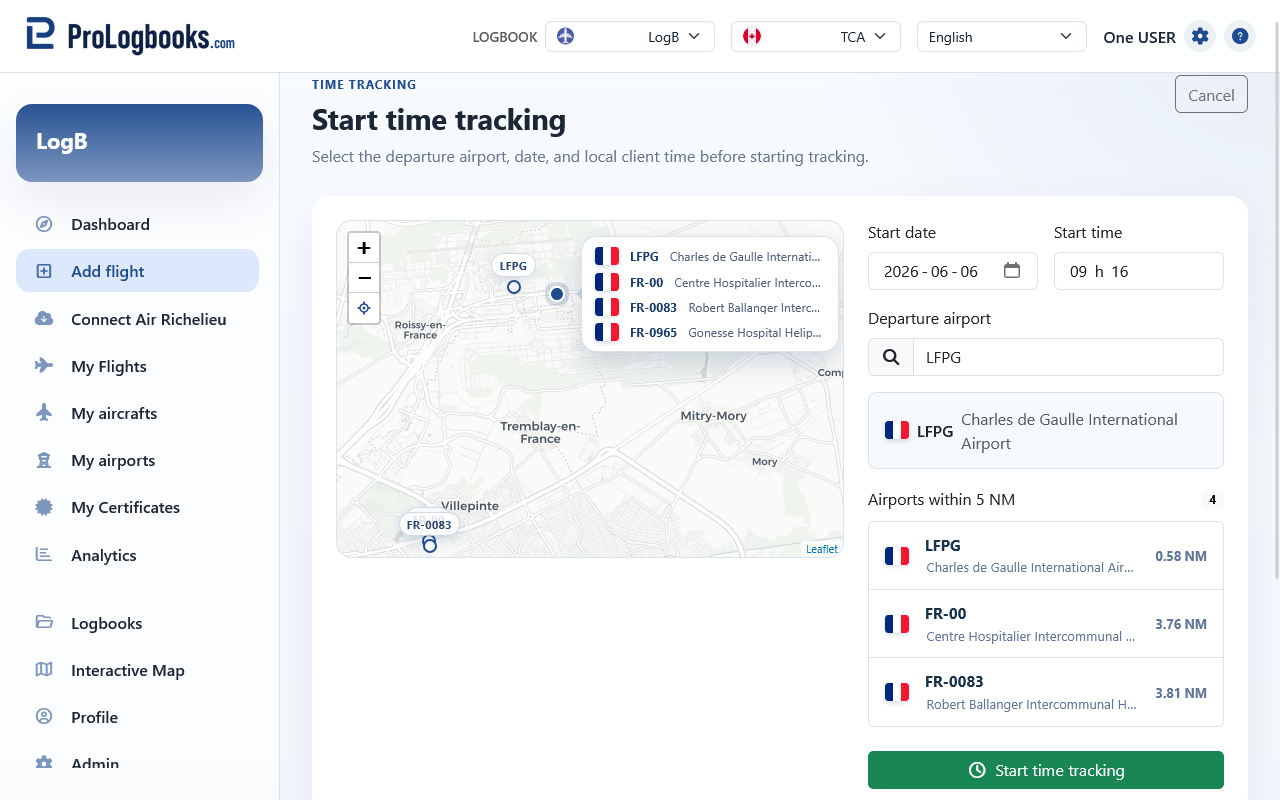
- Confirm the active logbook.
- Open Start time tracking.
- Enter the start date and start time.
- Select the departure airport from the nearby list or search results.
- Press Start time tracking only after the selected airport is shown on the page.
Follow an active session from the dashboard
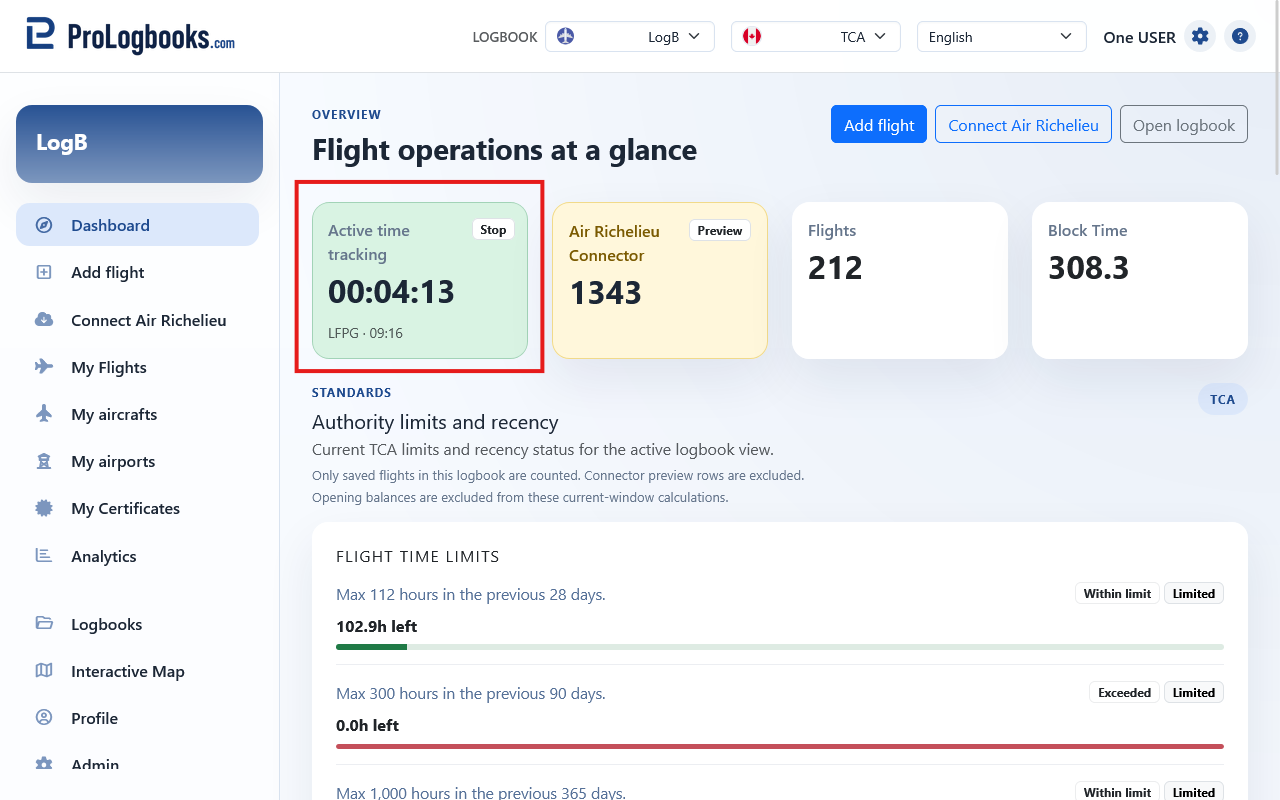
After tracking starts, the dashboard shows that a session is active and displays the elapsed time. Use this as a quick reminder that the flight has not been stopped yet.
Only one active time tracking session can exist for the same user and logbook. If a session is already active, stop that session before starting another one.
Stop tracking at arrival
When the flight is complete, open Stop time tracking. The page shows the departure airport and elapsed time from the active session, then asks for the arrival date, arrival time, and arrival airport.
Choose the arrival airport the same way you chose the departure airport. The stop button stays unavailable until the page has a valid date, time, and airport selection.
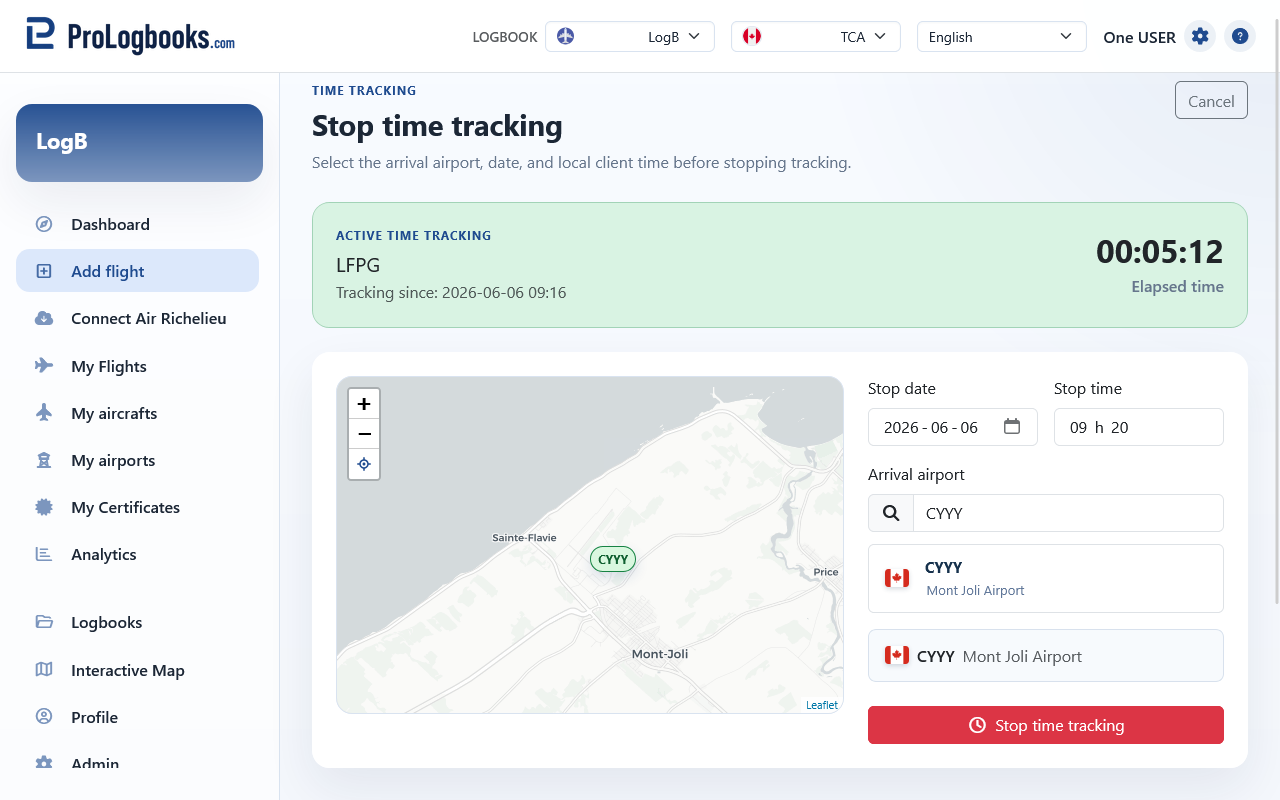
- Open Stop time tracking from the dashboard or active tracking link.
- Enter the stop date and stop time.
- Select the arrival airport.
- Press Stop time tracking.
Review the generated flight before saving
Stopping tracking does not save a completed flight by itself. It opens Add flight with the date, departure airport, departure time, arrival airport, arrival time, route coordinates, and block time prefilled from the tracking session.
Review the generated form exactly like any other flight entry. Add the aircraft, crew role, flight rules, landings, instrument time, remarks, attachments, and any regulatory fields that the tracker cannot know.
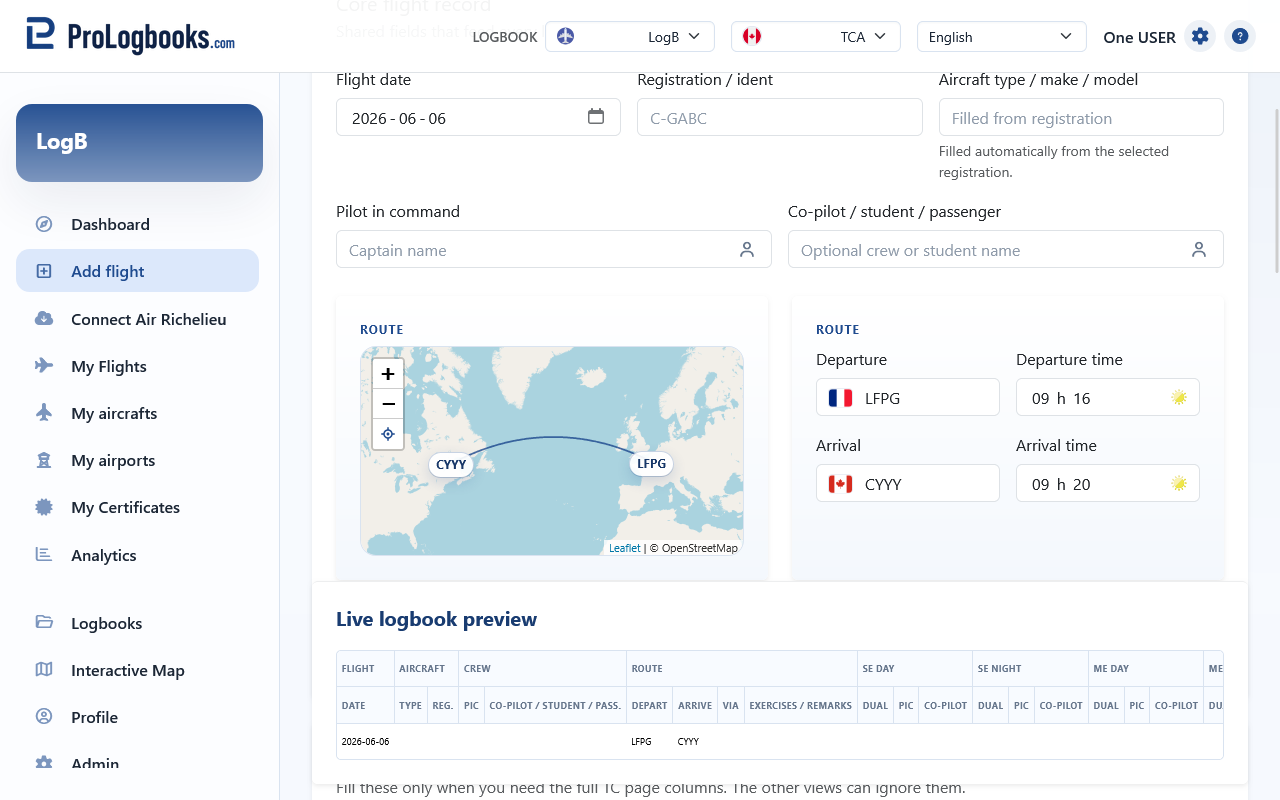
- If the arrival time is earlier than the departure time, the system treats the arrival as the next day when calculating block time.
- The tracker records basic route timing only. It does not decide PIC, SIC, night, IFR, cross-country, approach, or landing allocations for you.
- The flight becomes part of My Flights only after you save the Add flight form.
If something goes wrong
- If the Start or Stop button stays disabled, confirm that a date, a valid 24-hour time, and a selected airport are all present.
- If nearby airports do not load, allow browser location access or search manually by airport code or name.
- If the browser says location is unavailable, use manual search. Location access can fail on insecure connections, denied permissions, weak GPS signal, or unsupported devices.
- If the page says a session is already active, return to the dashboard and stop the active session before starting another one.
- If Add flight opens with prefilled values that do not match your record, correct them before saving the flight.