Create a custom airport from the first card
The first card on the page creates a custom airport. Enter the airport name and set its location on the map. The latitude and longitude are stored with the airport so route maps and other location-based features can work later.
When the map point changes, the page also tries to fill the airport timezone automatically from that location. If the automatic result is not the one you need, choose a timezone manually from the list before saving.
This is the normal place to create a missing airport before or after flight entry. The airport belongs to the current logbook, not to every logbook in the account.
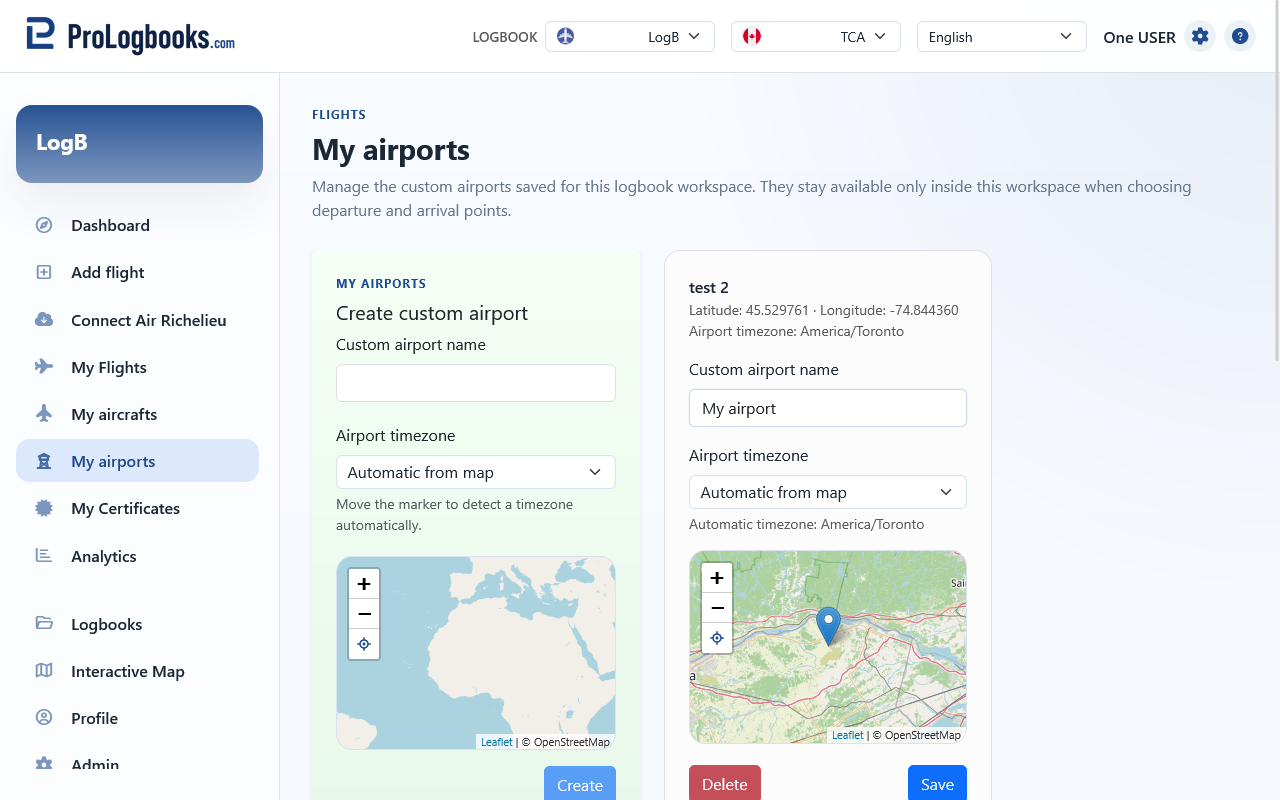
- Open My airports while the correct logbook is selected.
- Enter the airport name exactly as you want it to appear in your logbook.
- Place the airport on the map or confirm the point shown by the page.
- Check that latitude and longitude are filled correctly, then review the timezone shown by the page.
- Leave the timezone in automatic mode when the detected value is correct, or choose a timezone manually when you need to force it.
- Save the airport and confirm that it now appears in the list of existing airport cards.
Use the map carefully when updating saved airports
Saved custom airports appear as editable cards. Review the name and map position carefully before saving, because route rendering and other downstream pages depend on accurate coordinates.
If you move the marker for an existing airport, the page recalculates the timezone automatically when the airport stays in automatic mode. If you already forced a manual timezone, that manual selection stays in place until you change it back.
Connector preview can also create a custom airport from inside the import workflow. When that happens, the created airport still appears later on the My airports page for review and maintenance.
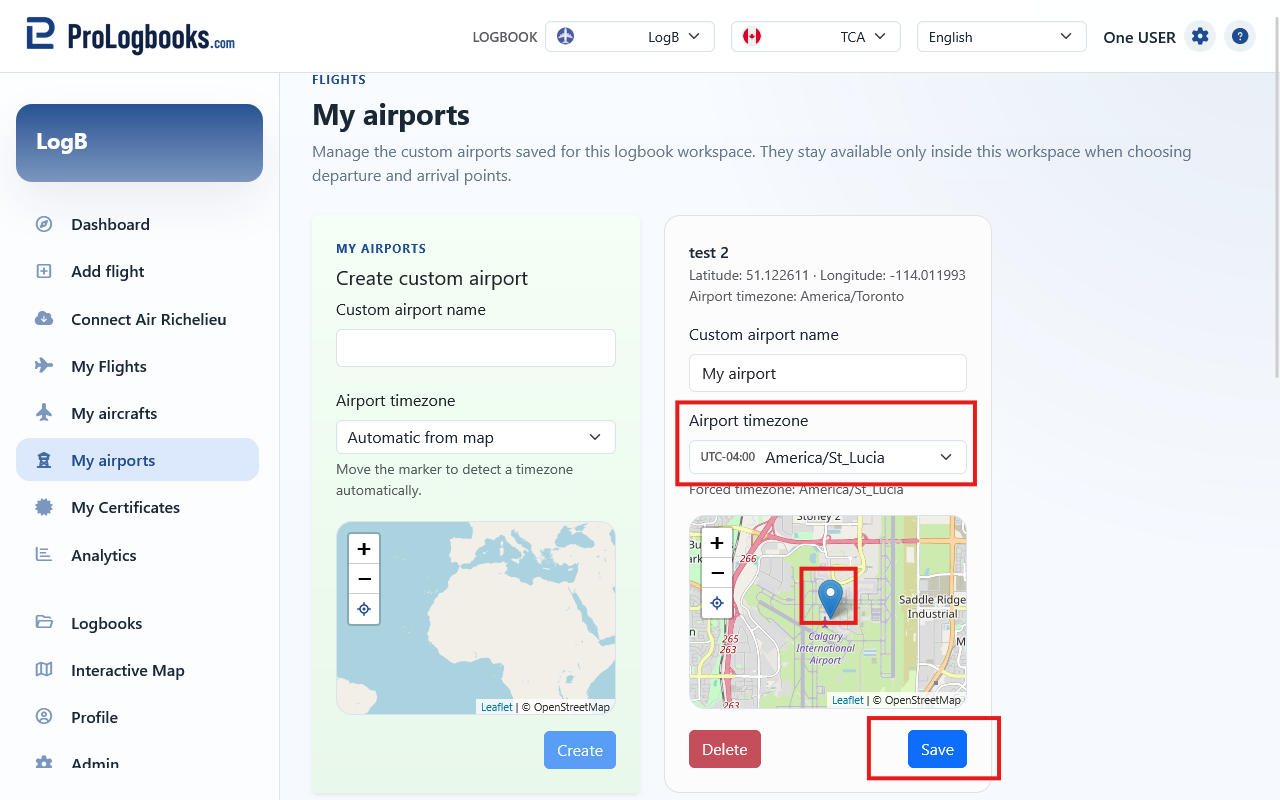
- Open the airport card you want to review.
- Adjust the name if needed.
- Move or confirm the map point if the coordinates are wrong.
- Review the timezone after the marker moves and force another timezone only when necessary.
- Save the card and then recheck any affected route map on the flight detail page if necessary.
- Airports created from Connect flights are also managed here afterwards.
- Accurate coordinates matter because route maps and automatic timezone detection depend on them.
If something goes wrong
- If the save button stays disabled, the page may still be waiting for a valid map position.
- If an airport cannot be deleted, it may already be used by saved flights.
- If a route map is missing elsewhere in the system, confirm that the relevant airports here have valid coordinates.