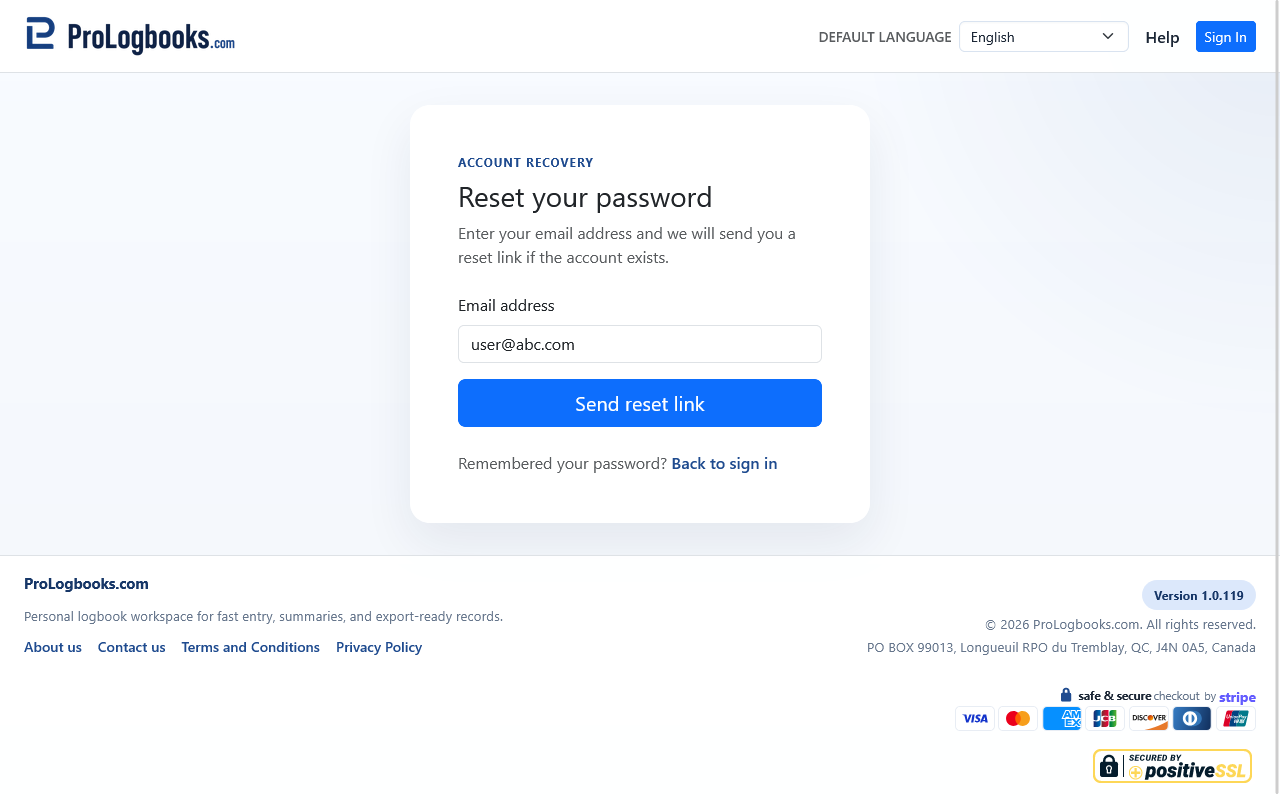
Request the reset message from the same account email
Enter the email address of the account you want to recover and submit the form. If the address is valid for an account, the system sends a password reset email with a time-limited link.
Open the newest reset email only. If you request several reset emails, older links can become useless after a newer request is created.
Set the new password from the reset form
When you open the reset link, choose a new password and confirm it. Use a password that is different from old or reused passwords so the account is easier to protect in the future.
After the reset succeeds, return to Sign In and log in with the new password. The old password should no longer be used after the reset is completed.
If something goes wrong
- If the reset email does not arrive, check spam or junk first and then make sure the request used the correct account email.
- If the reset link says it is invalid or expired, request a fresh reset and use only the newest email.
- If the new password is rejected, read the password rules on the page carefully and choose a longer, less predictable password.