Complete the registration form with real account details
Enter the email address that you want to keep as the main address for this account. This address matters because verification, password recovery, and other security messages are sent there.
Choose a password that is strong and easy for you to remember without writing it in an unsafe place. The form also asks you to confirm the password a second time so the system can catch typing mistakes before you continue to plan selection.
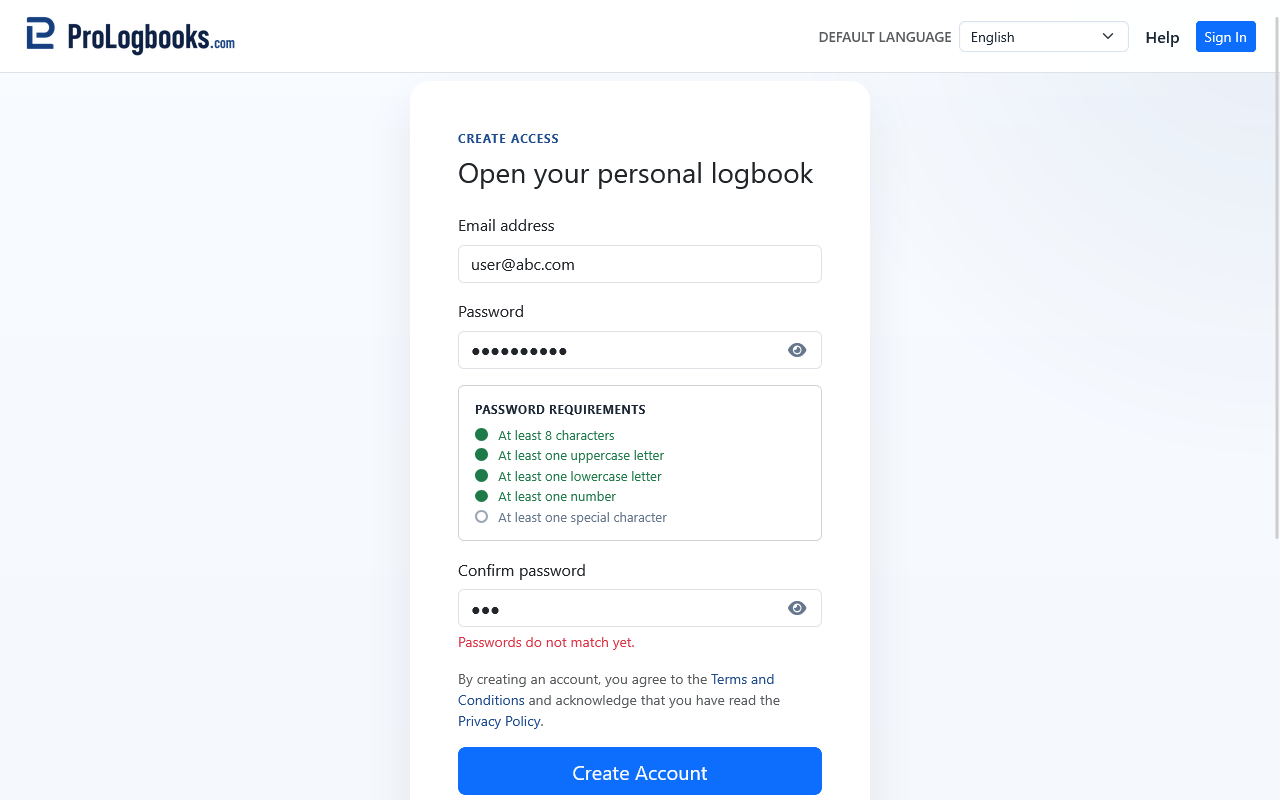
- Open Create account.
- Enter the email address you want to use for sign-in and account messages.
- Enter a strong password.
- Retype the same password in Confirm password.
- Review the terms and privacy acknowledgement, then continue.
Choose the plan for the new account
After the registration form is accepted, the system sends you to Choose a plan. Select the access level you want for the new account. You can start with the free plan when you only need the included logbook features, or choose another plan when you know you need higher limits or advanced tools.
For a new account, choosing a paid plan records the plan choice first. Payment is completed later after the account exists and you are signed in, from Account settings or Billing. This keeps checkout tied to an authenticated account.
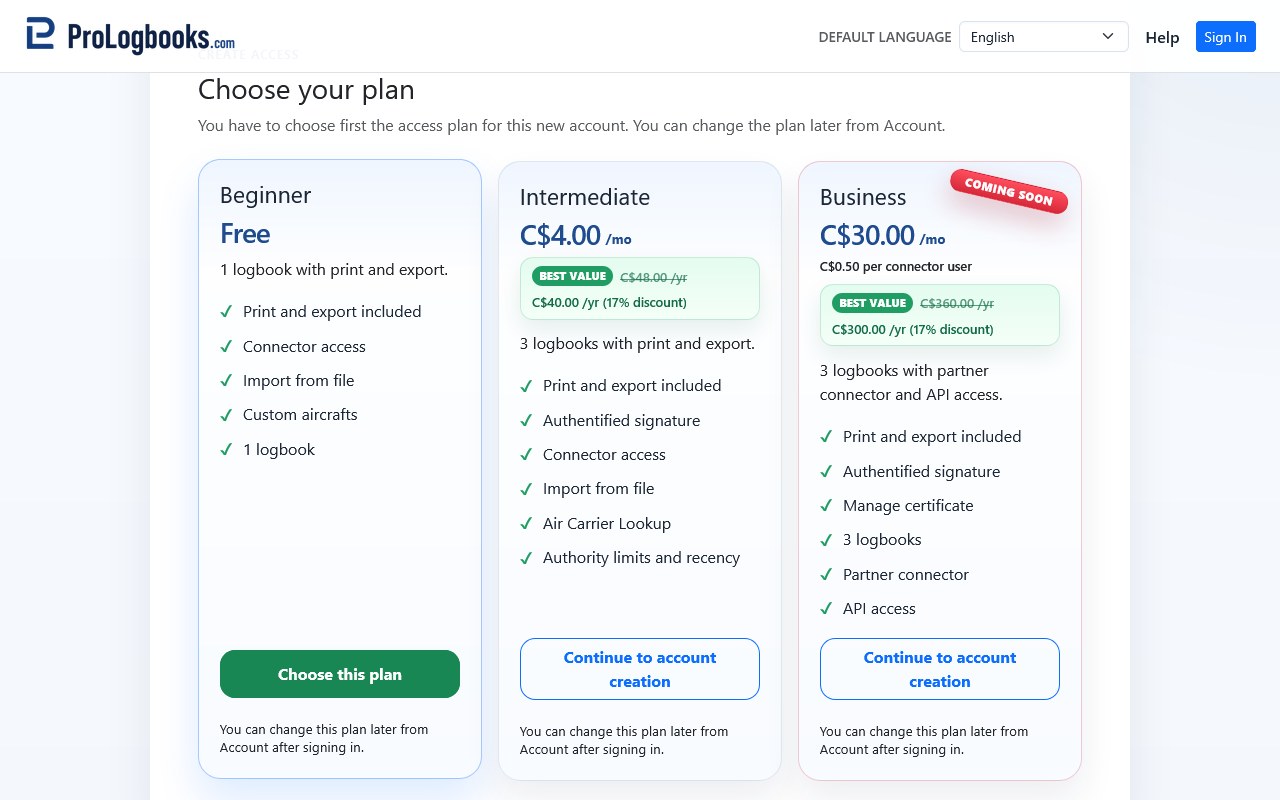
- Compare the plan cards and the features included in each plan.
- Choose the free plan if you want to create the account without payment.
- Choose the paid plan you want if you plan to subscribe after the account is active.
- Select Create account with this plan to finish creating the account.
Confirm the account by email
After you create the account with the selected plan, the confirmation page shows the email address and the plan name. If a verification email was sent, open the newest message and follow the verification link.
The verification link confirms that you control the email address. After verification succeeds, return to Sign In and log in with the email and password you just created.
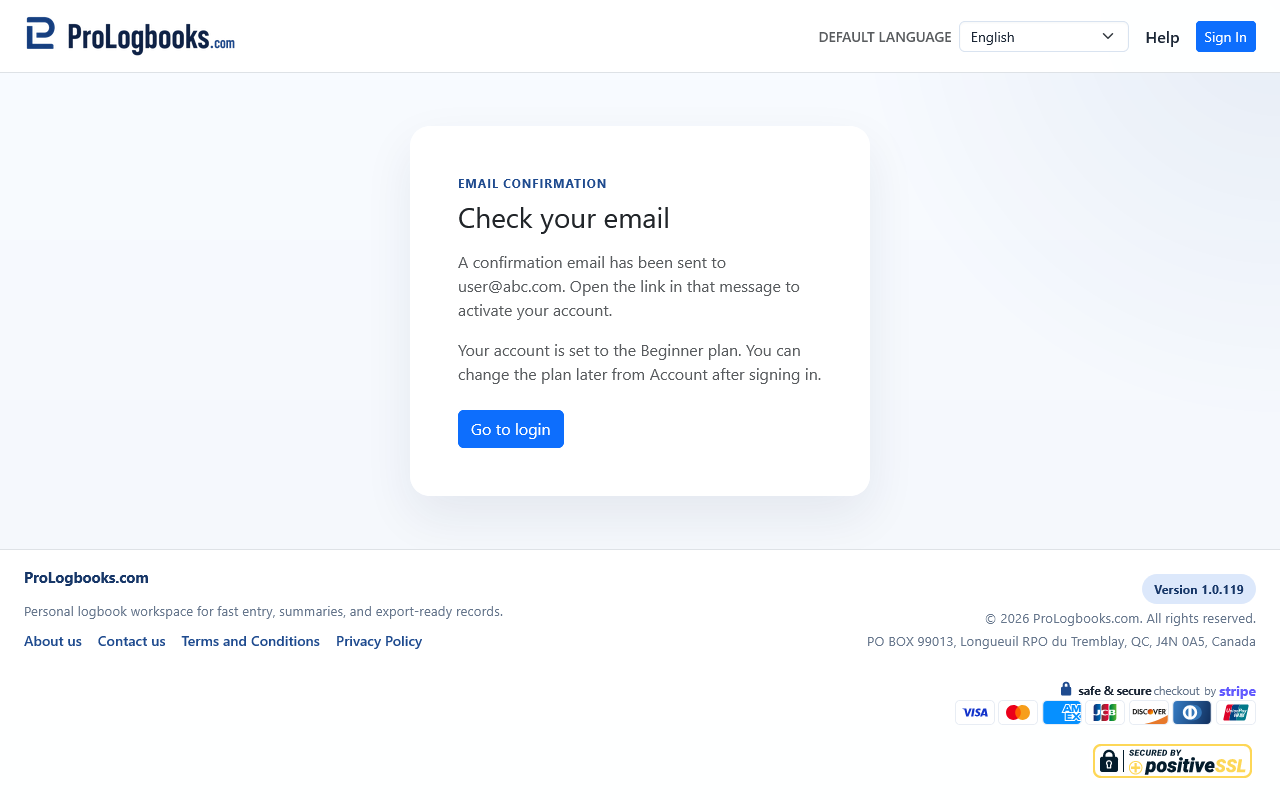
- Read the registration confirmation page.
- Open the verification email if one was sent.
- Use the newest verification link.
- Return to Sign In after the verification page confirms the account.
Recognize the verification email
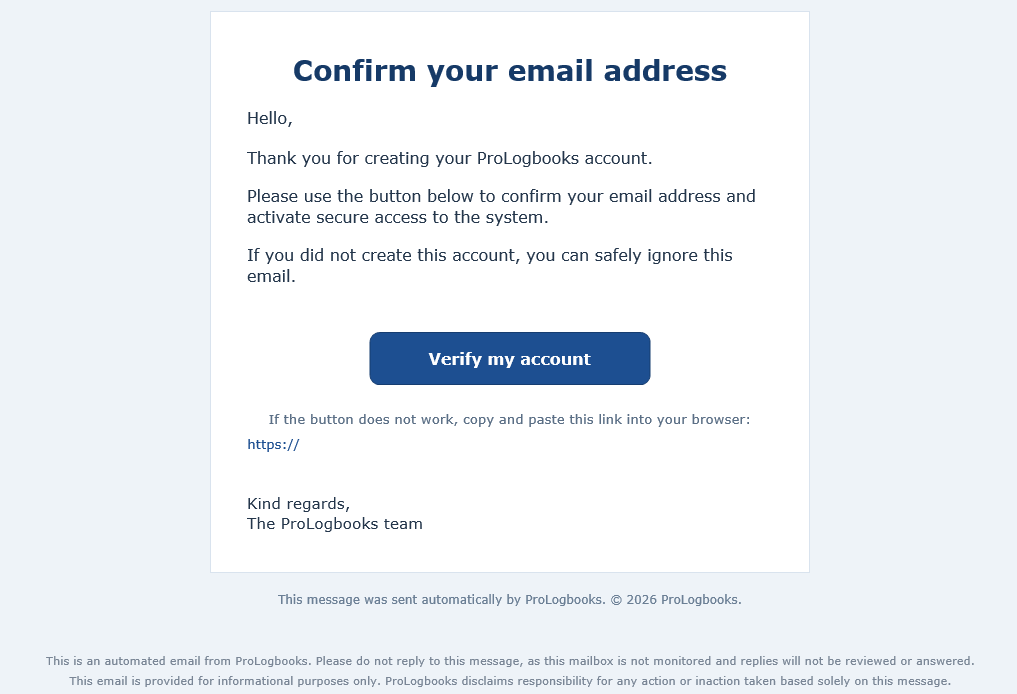
The verification email should identify the service and include a link or button for confirming the account email address. Use that link only if you just created the account or requested a new verification message.
If you receive more than one verification email, use the newest one. Older links may stop working after a newer verification message is generated.
Complete payment only if the selected plan requires it
If you selected a paid plan during signup, sign in after email verification and open Account or Billing to complete the subscription. The payment step uses the secure payment provider checkout page, not the registration form.
Review the plan, billing interval, price, and order summary on the secure checkout page before confirming payment. After payment succeeds, return to the workspace and check Account or Billing to confirm that the subscription is active.
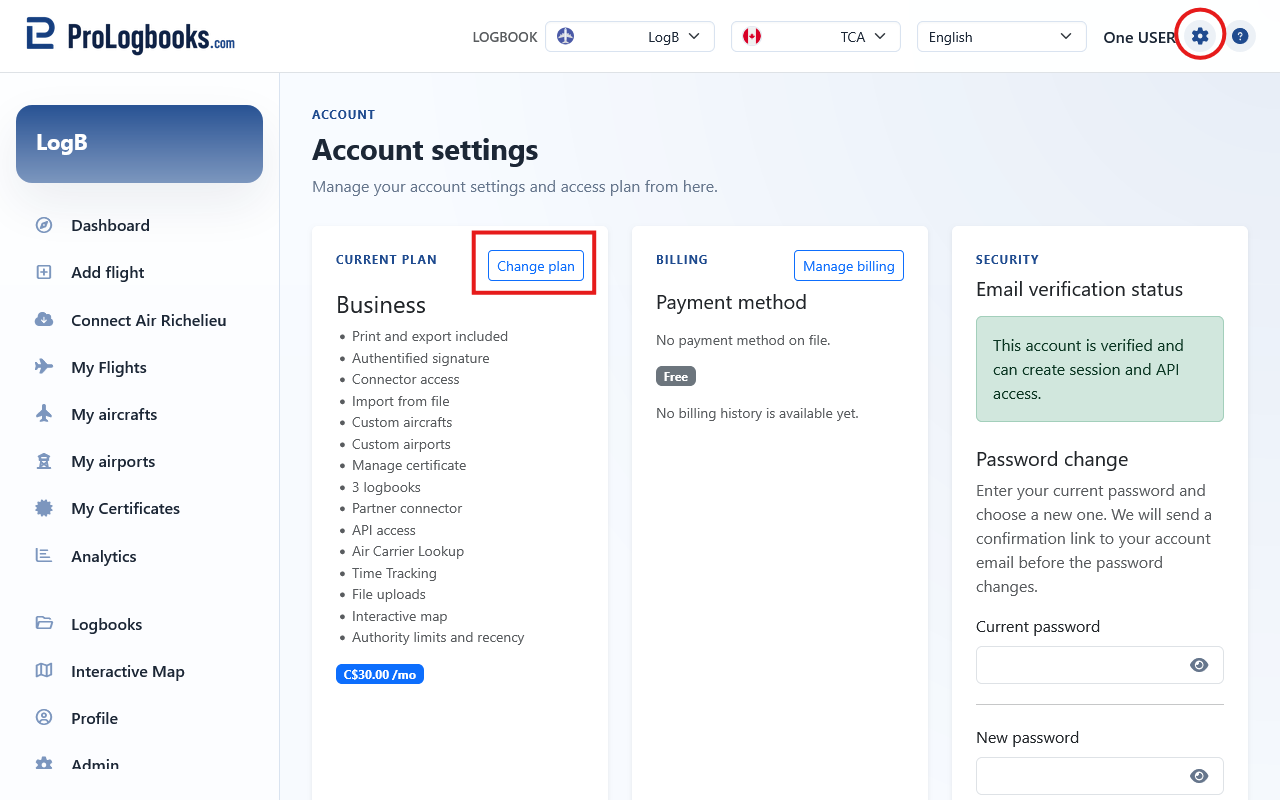
- Sign in with the verified account.
- Open Account or Billing.
- Choose the paid plan and monthly or yearly billing option if payment is still required.
- Complete checkout on the secure payment page.
- Return to the workspace and confirm the plan status.
If something goes wrong
- If the page says the email already exists, use Sign In or Lost password instead of trying to register again with the same address.
- If the password confirmation fails, retype both password fields from the beginning so you are not comparing one hidden typo against another hidden typo.
- If no verification email arrives, first check the spam or junk folder and then confirm that the email address was entered correctly.
- If a paid plan does not continue to checkout before the account exists, finish creating and verifying the account first, then complete payment from Account or Billing after signing in.
- If you chose the wrong plan during signup, sign in after verification and change the plan from Account.