Use the page header for the next action
At the top of the detail page, the route title confirms which flight you opened. The main actions let you edit the flight, return to the list, or open the PDF export menu when your plan allows it.
This is useful when you need to confirm one record without changing the rest of the list view or losing your place in the full logbook table.
When you choose Edit, the saved flight opens in the same form used for manual entry. That edit page is also where you manage the Flight files card for existing attachments when your plan includes uploads.
The edit page uses the same Flight time role selector and Flight rules selector as Add flight, so the meaning of PIC, SIC, STUD, INST, VFR, MVFR, LIFR, and IFR stays the same when you correct an existing record.
The edit page keeps the same interactive route map as Add flight. On desktop, right-click the map to list nearby airports. On a phone or tablet, tap the map instead, then choose an airport to fill the route fields.
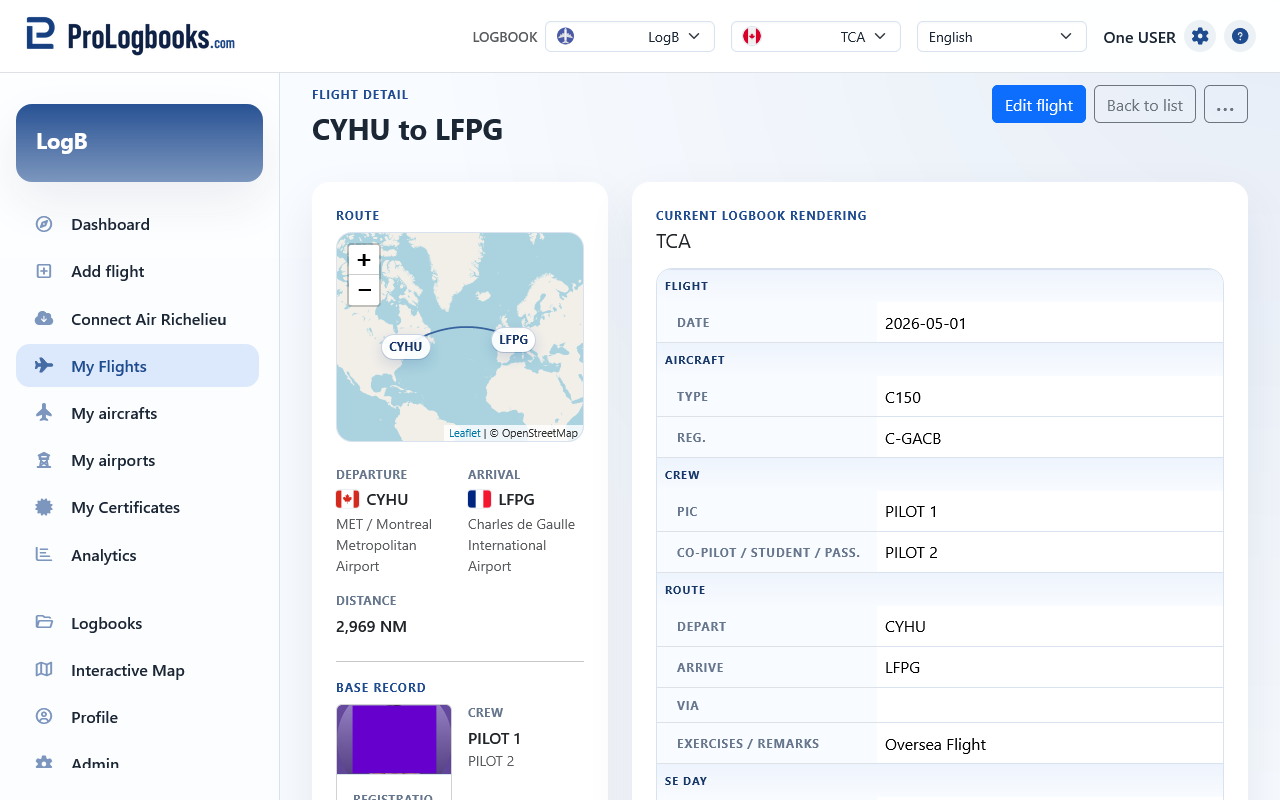
- Confirm that the route title matches the flight you intended to open.
- Use the back action if you only needed a quick check and want to return to My Flights.
- Use Edit when the saved values are truly wrong and need correction.
- Use the export or print action only after you finish your checks.
Read the route and base record cards
The left side of the page focuses on the route, route map, distance, times, aircraft, crew, total flight time, and remarks. This is the practical summary card for the individual flight.
If the airports have coordinates, the route map appears automatically. If custom or incomplete airport data is missing coordinates, the map can be absent even though the flight itself is still valid.
- Check the departure and arrival airports.
- Review the aircraft registration and crew values.
- Compare the recorded times and totals with your original source.
- Read the remarks area if you expect special notes on this flight.
Check the current logbook rendering on the right
The right side of the page shows how this flight is rendered in the current regulatory view. This helps you confirm that the saved values are landing in the expected labels and columns for that standard.
When something seems wrong in the rendering, compare the current view table with the base record values on the left before editing the flight. Often the data is correct, but the active view is different from the one you expected.
- Read the rendered columns on the right side of the page.
- Compare them against the source values shown on the left.
- If the labels differ from what you expected, confirm the active regulatory view first.
- Edit the flight only when the stored values are actually wrong, not simply because the current view uses another presentation.
If something goes wrong
- If a flight cannot be found, it may belong to another logbook or may have been deleted from the current one.
- If the route map is missing, confirm that both departure and arrival airports have valid coordinates.
- If the print option is unavailable, your plan may not include PDF export for flight details.