Create a custom registration from the first card
The first card on the page creates a custom registration. Enter the registration value, add an optional description, link it to an aircraft type, and optionally upload a photo so the rest of the system can identify the aircraft correctly.
This is the main place where custom registrations are created for normal day-to-day use. Once saved, the registration becomes available in flight entry and in other flows that search registrations.
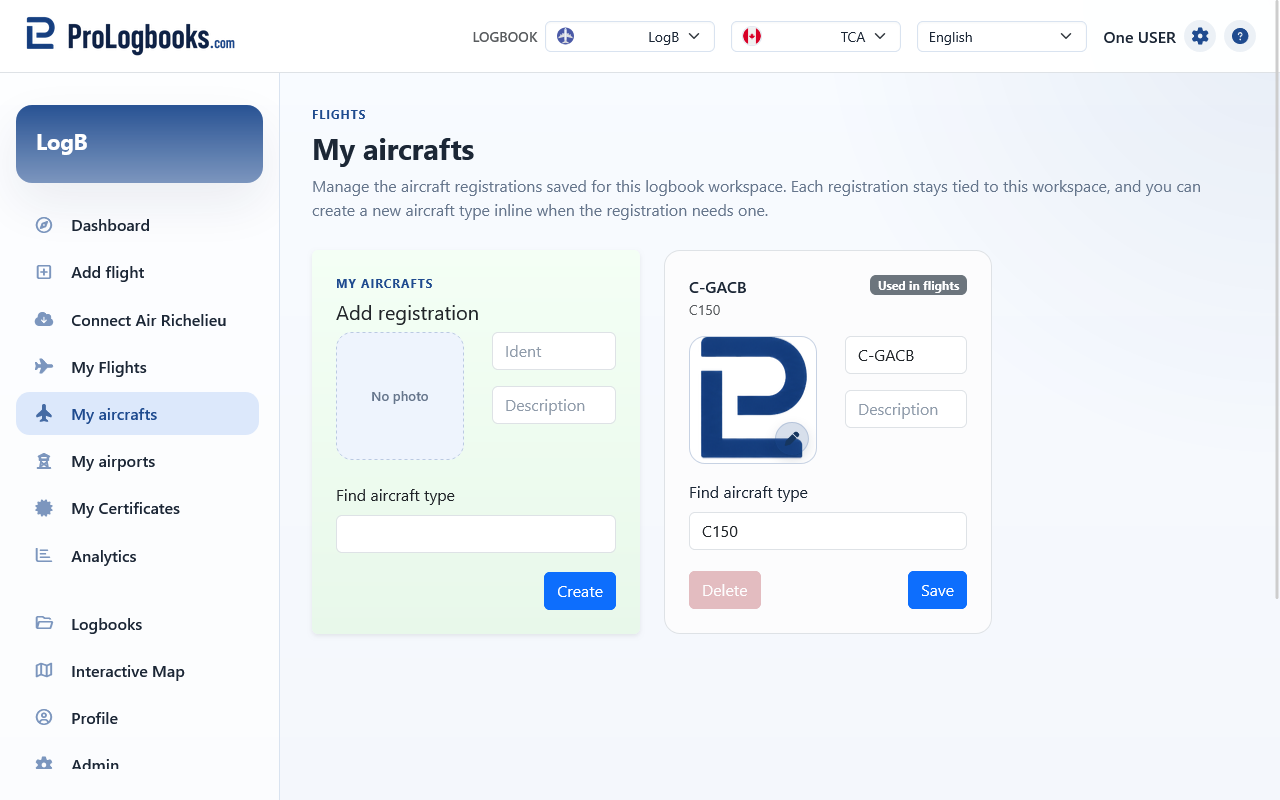
- Open My aircrafts while the correct logbook is selected.
- Enter the registration exactly as you want to use it in flight entry.
- Add a description if it helps you recognize the aircraft later.
- Search for and select the linked aircraft type.
- Add an optional photo only if your current plan offers picture uploads and you want a visual reference.
- Save the registration and confirm that it now appears in the list of existing cards.
Add a new aircraft type when search cannot find it
The aircraft type search normally links a registration to an existing aircraft type. If the correct type is missing, use the create-new aircraft type option from that search instead of saving the registration with an unrelated type.
The create-type panel asks for the aircraft designator or name, optional manufacturer, engine type, aircraft category, number of engines, and weight class. These values are reused later when Add flight resolves aircraft details, analytics groups flights by aircraft characteristics, and connector imports try to match aircraft information.
Use the most reliable source you have, such as the aircraft documents, operator records, or the type value normally used in your logbook. If you are unsure, create the best matching type now and return later to correct it from the registration card if needed.
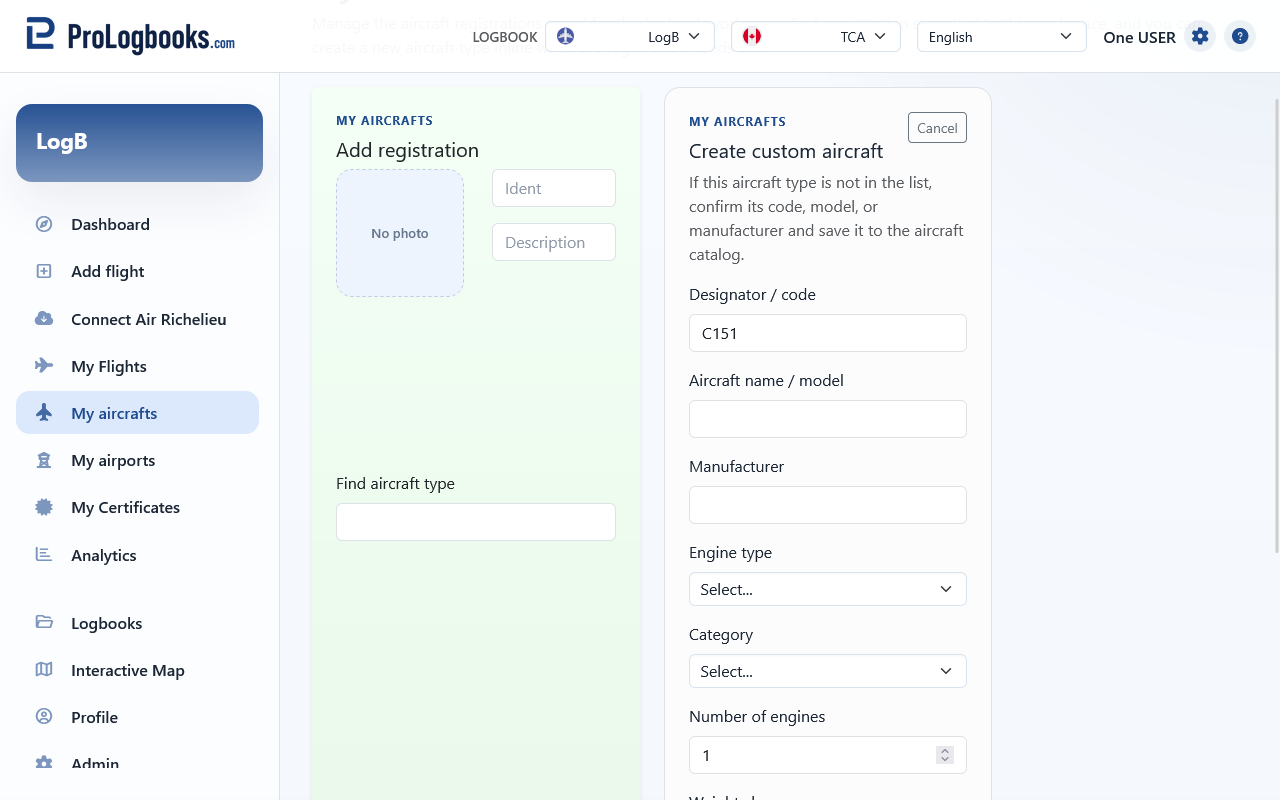
- Start from the registration card and click in the aircraft type search field.
- Search for the type or designator you need.
- Choose the create-new aircraft type option when no correct result appears.
- Enter at least the designator or aircraft name.
- Complete the engine type, aircraft category, engine count, and weight class.
- Save the new aircraft type, then finish saving the registration that uses it.
Review aircraft type information
When a registration card has a linked aircraft type, the information icon inside the aircraft type field opens the aircraft type details dialog. Use it to review the stored type information without leaving My aircrafts.
Shared catalog aircraft types are shown read-only. If the aircraft type is your own custom type, the same dialog lets you update its designator, name, manufacturer, engine type, aircraft category, engine count, and weight class.
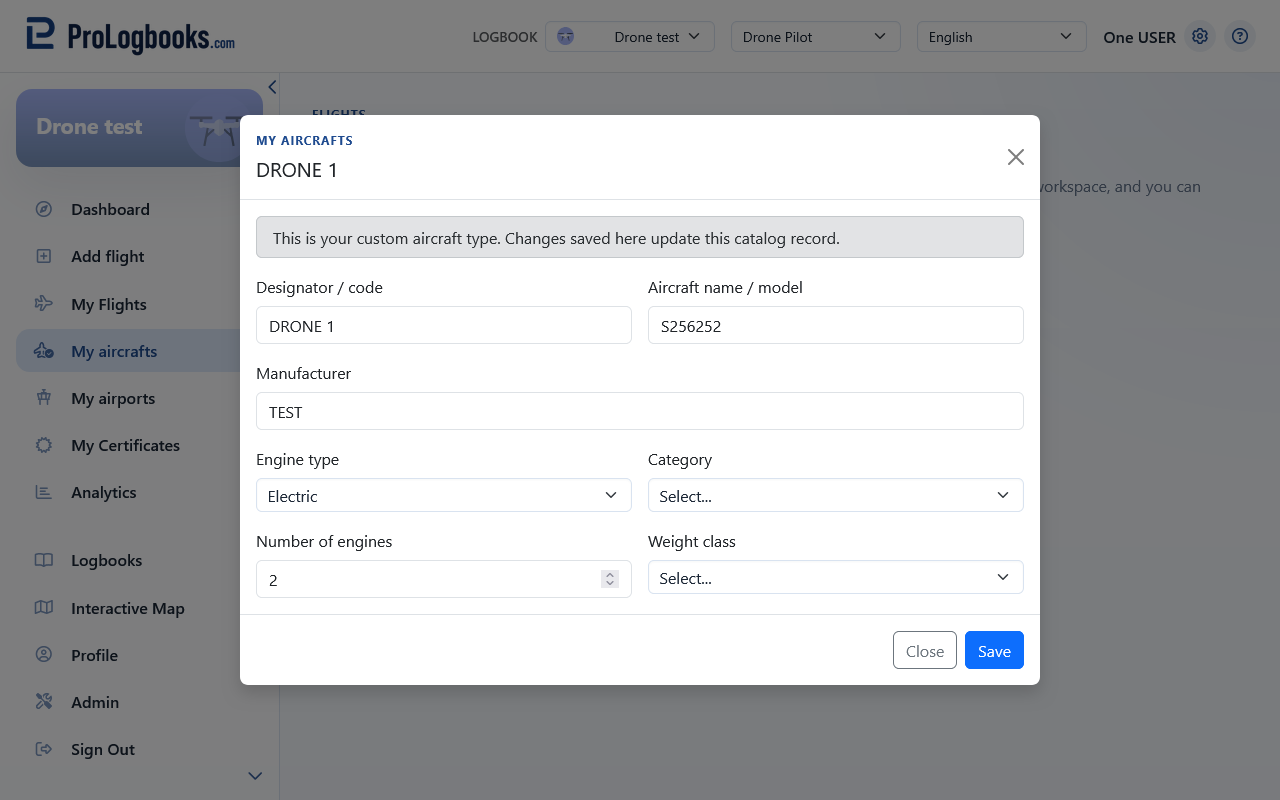
- Open My aircrafts and find the registration card you want to review.
- Confirm that the aircraft type field has a selected value.
- Click the information icon on the right side of the aircraft type field.
- Review the aircraft type details shown in the dialog.
- Edit and save the dialog only when it is your own custom aircraft type.
Maintain existing registrations carefully
Saved registrations appear as cards that can be edited later. If a registration is already used by flights, the page shows that state so you understand why some deletions may be blocked.
If a saved card has a photo, click the image to open the full version in a new window. Use the small overlay icon at the bottom-right of the image when you need to replace that saved photo.
Connector preview can also create a missing custom registration from inside the import workflow. When that happens, the created registration still belongs here and can be reviewed later on the My aircrafts page.
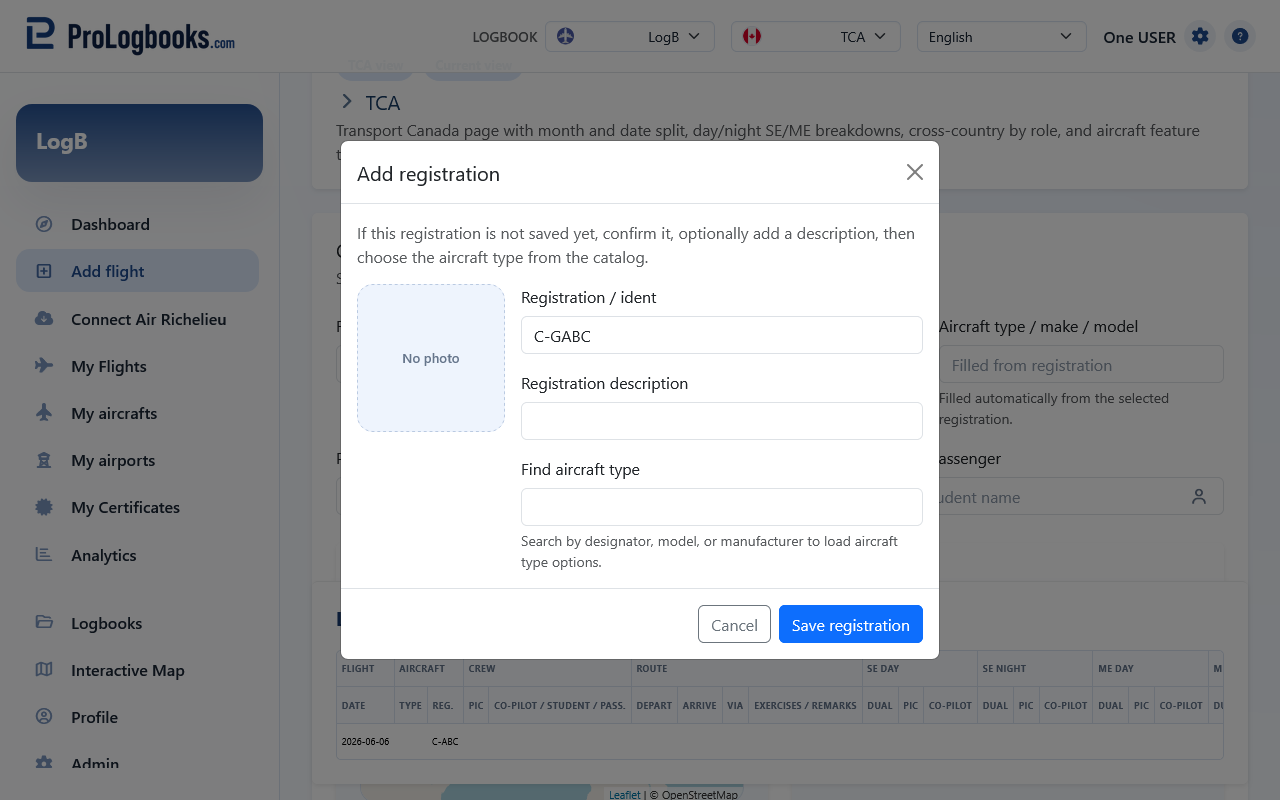
- Open the card of the registration you want to review.
- Change the description or linked aircraft type if the saved data needs correction.
- Save the card and confirm the updated value.
- Delete the registration only when you are sure it is unused or no longer needed.
- A registration created from Connect flights still appears here afterwards.
- If the same registration is used by saved flights, deleting it may be blocked to protect those records.
If something goes wrong
- If a registration cannot be deleted, it may already be used by one or more saved flights.
- If the aircraft type search does not find the result you expect, confirm the spelling, then create a new aircraft type only when the expected type is really missing.
- If the new aircraft type form refuses to save, check that the designator or name is filled and that engine type, aircraft category, engine count, and weight class are all selected.
- If a registration is missing during flight entry, first confirm that you are in the same current logbook where it was created.
- If an aircraft photo is rejected, use a JPG, PNG, GIF, or WebP image and keep the file within the upload size limit.
- If the aircraft photo area is locked or missing, your current plan may not include picture uploads.