Create a certificate from the top card
The first card is always the create form. Enter the certificate name and the expiry date, and optionally upload a certificate picture, then save it. The suggestions list helps you reuse the common certificate names for the current regulatory view.
The saved certificate belongs to the active logbook only. If you switch logbooks, the certificate list and the dashboard alerts will also change.
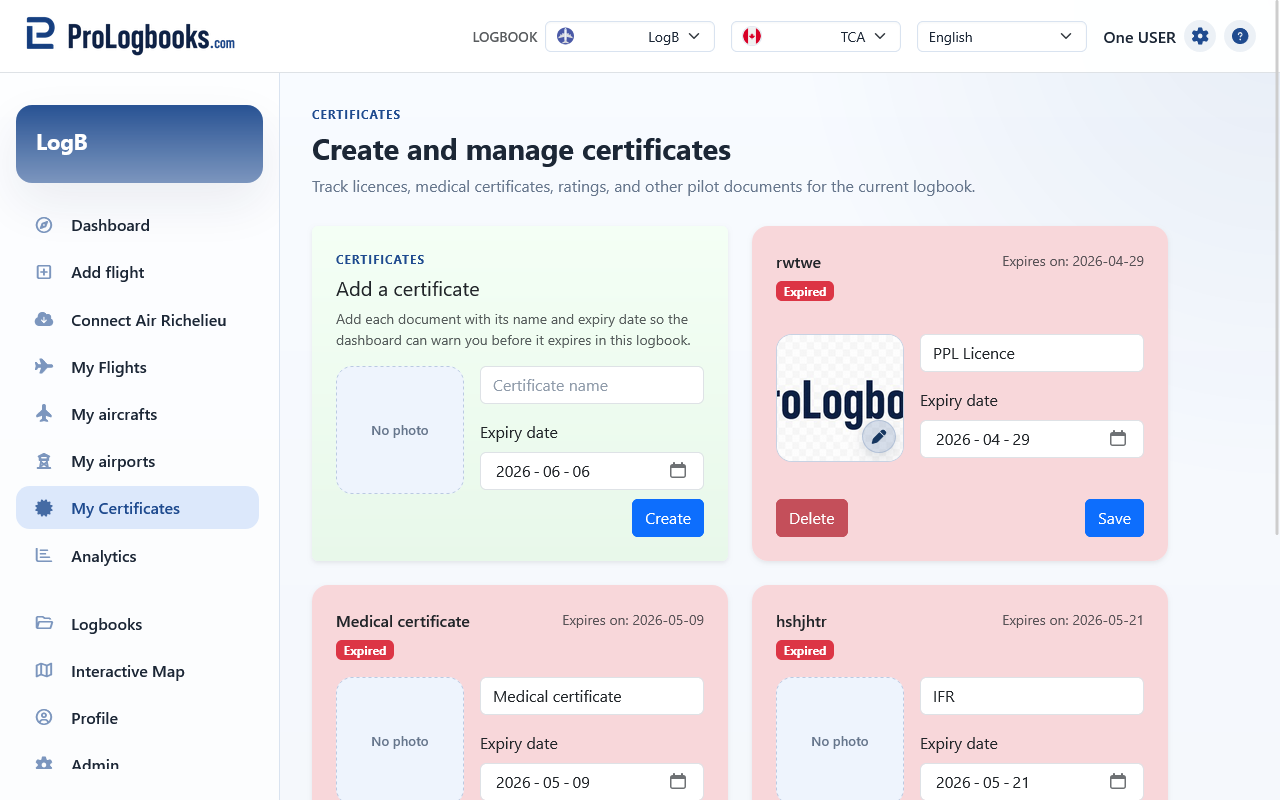
- Confirm that the correct logbook is selected.
- Enter the certificate name.
- Choose the expiry date.
- Add a picture if you want a visual copy of the document on the card.
- Save the certificate and confirm that it appears in the saved card list.
Read the status and edit the saved cards
Saved certificates appear as separate cards. Valid items keep a normal style, expiring items are highlighted, and expired items are marked more strongly so they are easy to spot.
If a saved certificate has a picture, click the image to open the full version in a new window. Use the small overlay icon at the bottom-right of the image when you need to replace that saved picture.
To correct a certificate, edit the name or date directly on the card and save it. To remove a certificate, use the delete button and confirm the action in the confirmation dialog.
- Review the saved cards one by one.
- Look for items marked as expiring soon or expired.
- Open the card values and update the date if the document has been renewed.
- Delete the card only when the certificate should no longer be tracked in this logbook.
- An expiring status means the date is inside the current alert window.
- An expired status means the expiry date is already in the past.
If something goes wrong
- If the autocomplete list does not show the name you expect, you can still type the certificate name manually.
- If the date is rejected, use the date picker and make sure the value is a real calendar date.
- If a dashboard certificate alert does not match this page, confirm that both pages are using the same current logbook.
- If a certificate picture is rejected, use a JPG, PNG, GIF, or WebP image and keep the file within the upload size limit.