Read the current plan card first
The current plan card summarises the active plan name, price label, and the main included items. This card is the quickest way to confirm what your account can do before you try a restricted action elsewhere in the app.
If you need more features, use the upgrade button to open the plan comparison area. The comparison cards show the items included in each available plan so you can choose the one that fits the work you need to do.
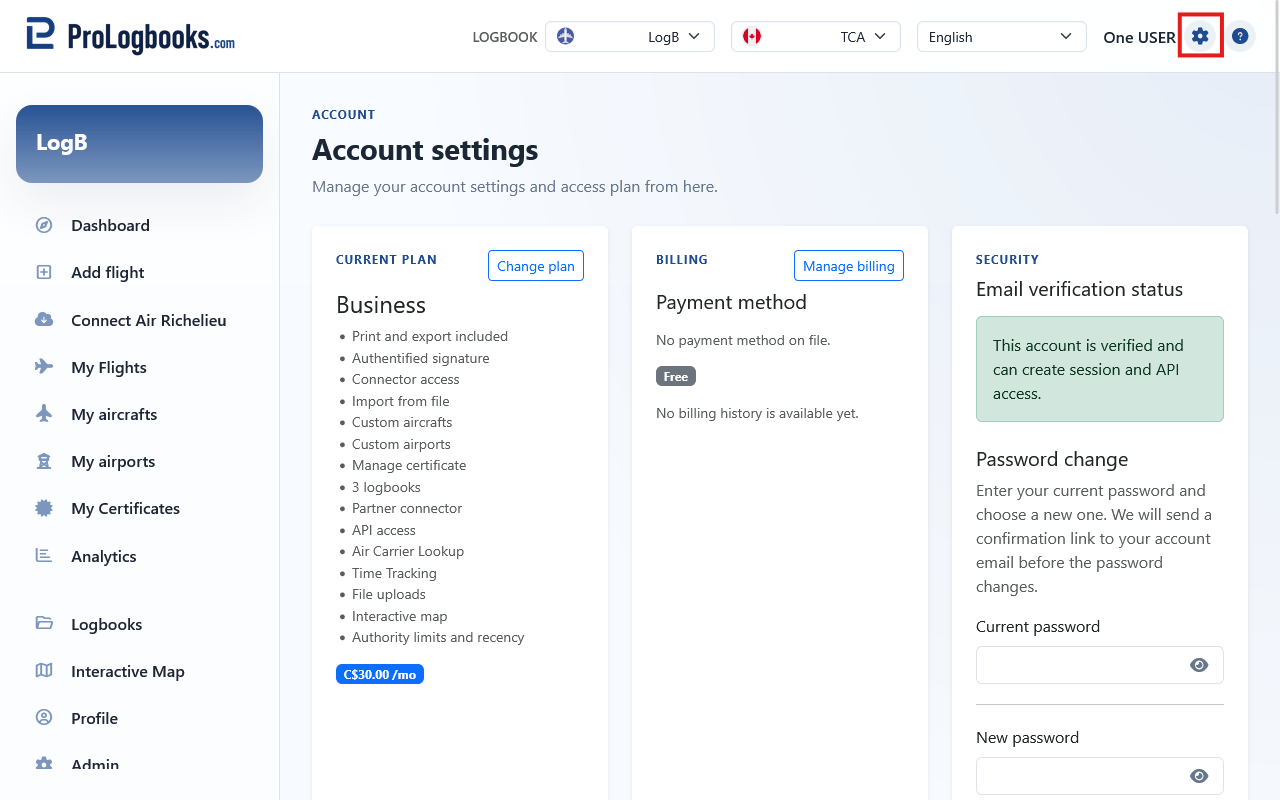
- Read the current plan name and included items first.
- Compare them with the feature you are trying to use elsewhere in the app.
- Open the plan comparison area only if you really need more capacity or more features.
- Choose an upgrade only after confirming that it solves the exact limitation you reached.
Use the security card for verification and password changes
The security card shows whether your email address has been verified. It also contains the password change form, which sends a confirmation link to your account email before the new password is applied.
This extra confirmation step protects the account. It means the password does not change instantly when you press the button on the form. You must still confirm the change from the message sent to your email address.
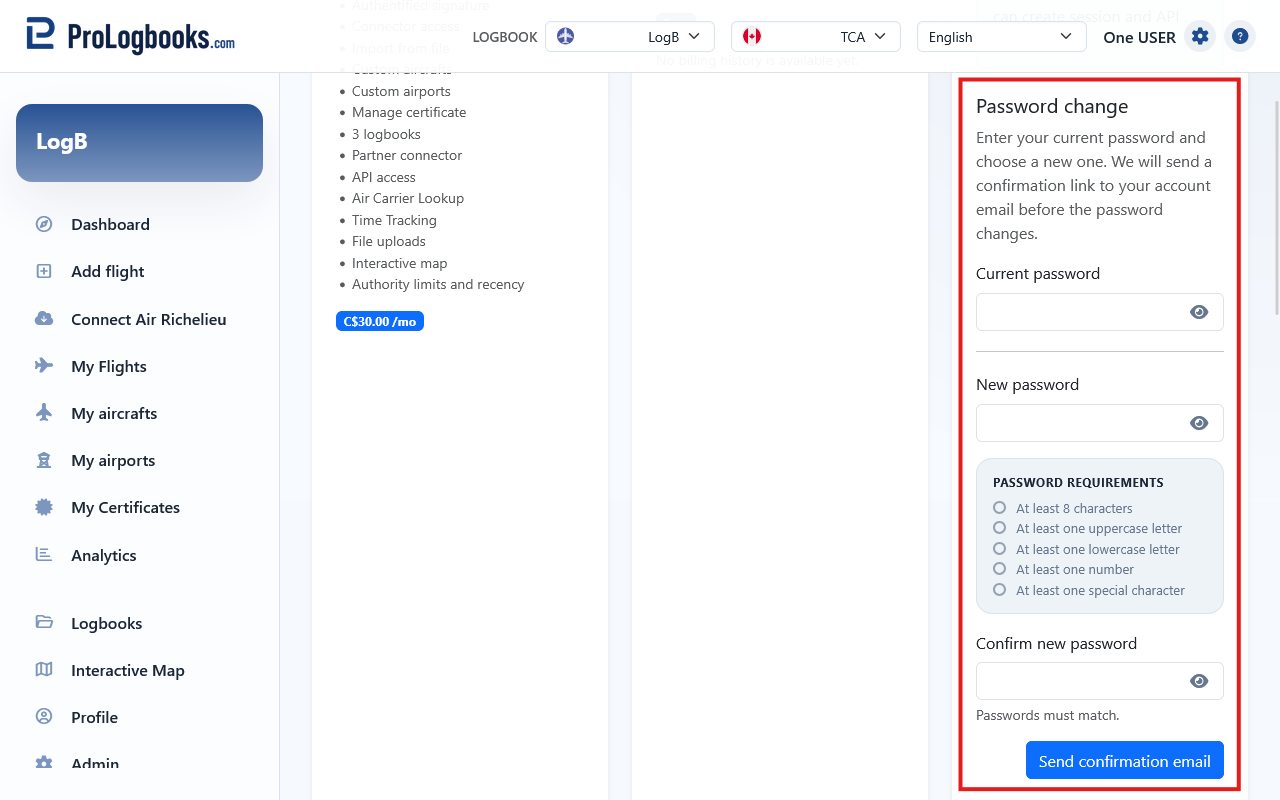
- Check whether the account email is already verified.
- If it is not verified, complete email verification first.
- When you want to change the password, submit the request from the security card.
- Open the newest confirmation email and finish the password change from that message.
If something goes wrong
- If the page warns that a feature is locked, compare your current plan against the higher plans before retrying the action.
- If a password change stays pending, use only the newest confirmation email because older links are replaced.
- If the account is not verified yet, complete email verification before assuming that all access is available.