Identify the voyage and vessel
Begin with the voyage date, vessel, role onboard, voyage type, and propulsion type. Search your vessel catalog or use quick add when the vessel has not been saved yet.
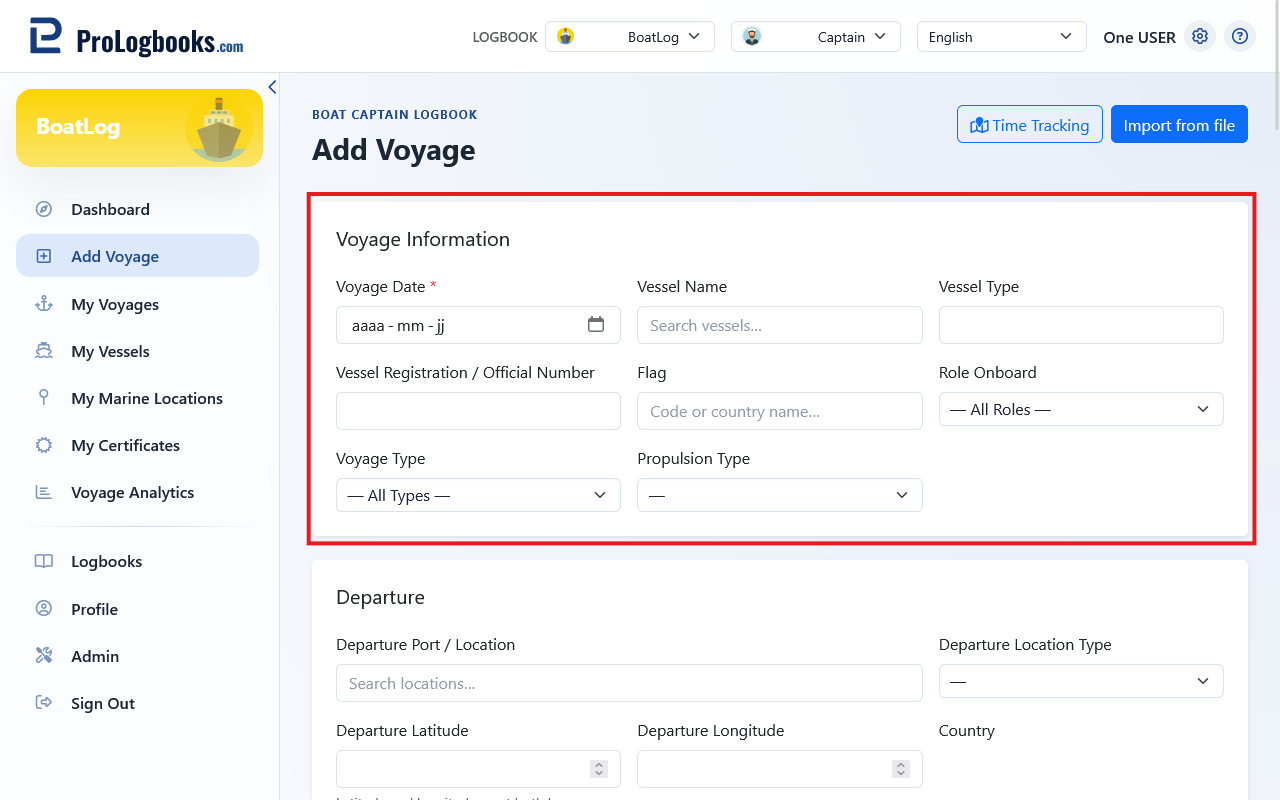
- Confirm the correct Boat Captain Logbook is selected.
- Open Add voyage and enter the voyage date.
- Select or quickly add the vessel.
- Choose your role onboard, voyage type, and propulsion type.
Record locations, time, and route
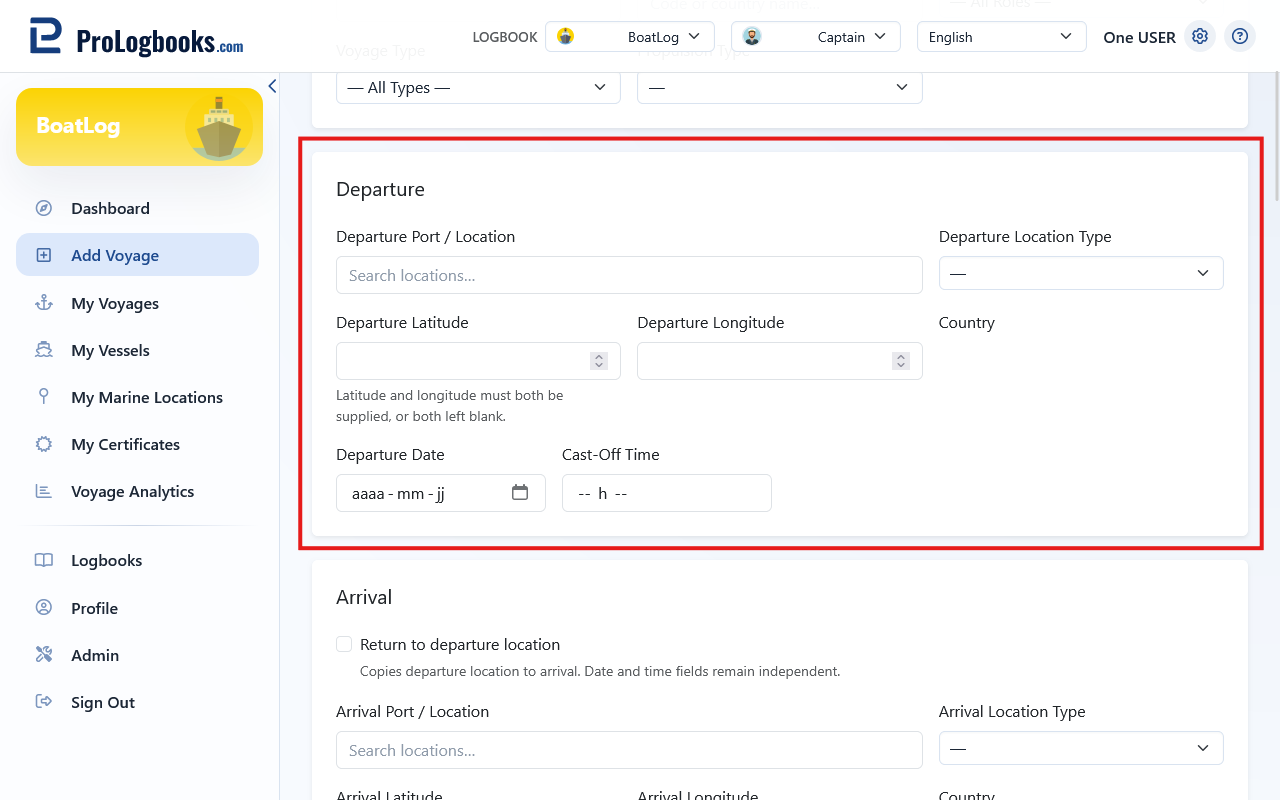
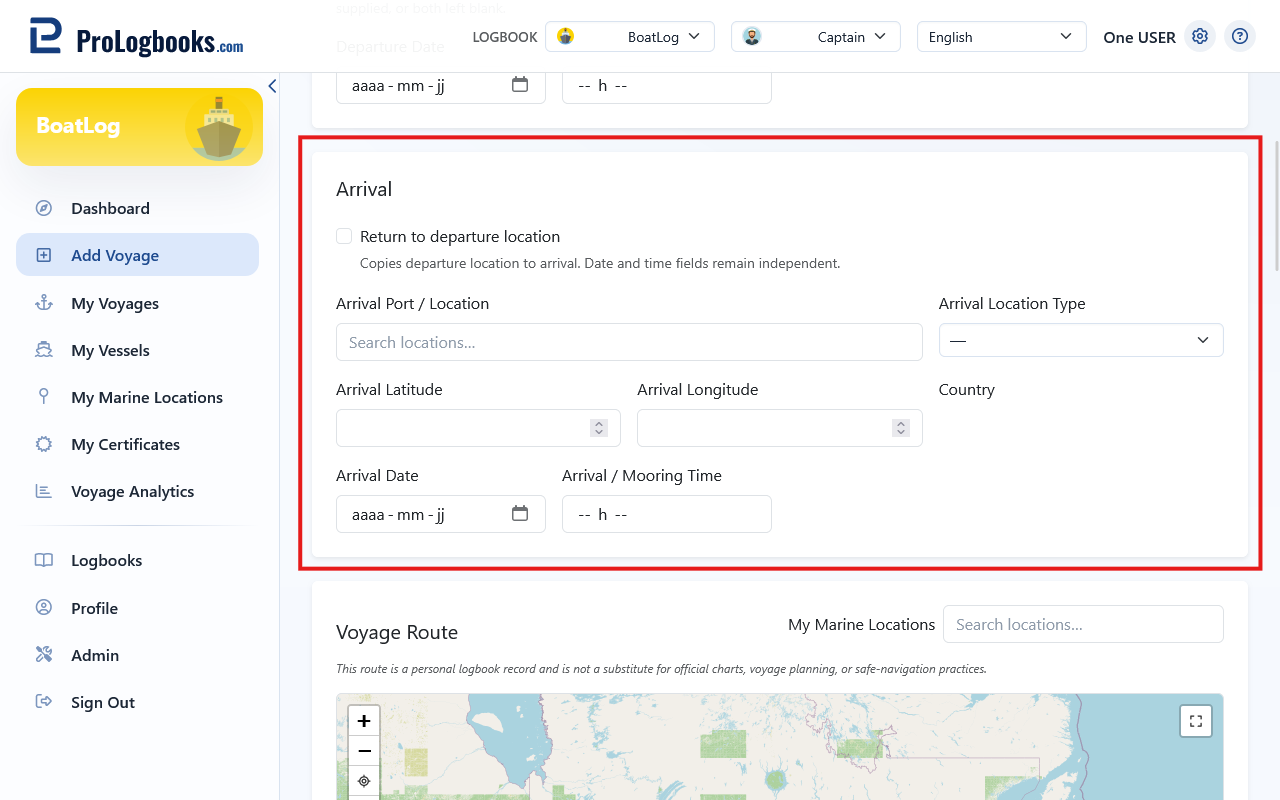
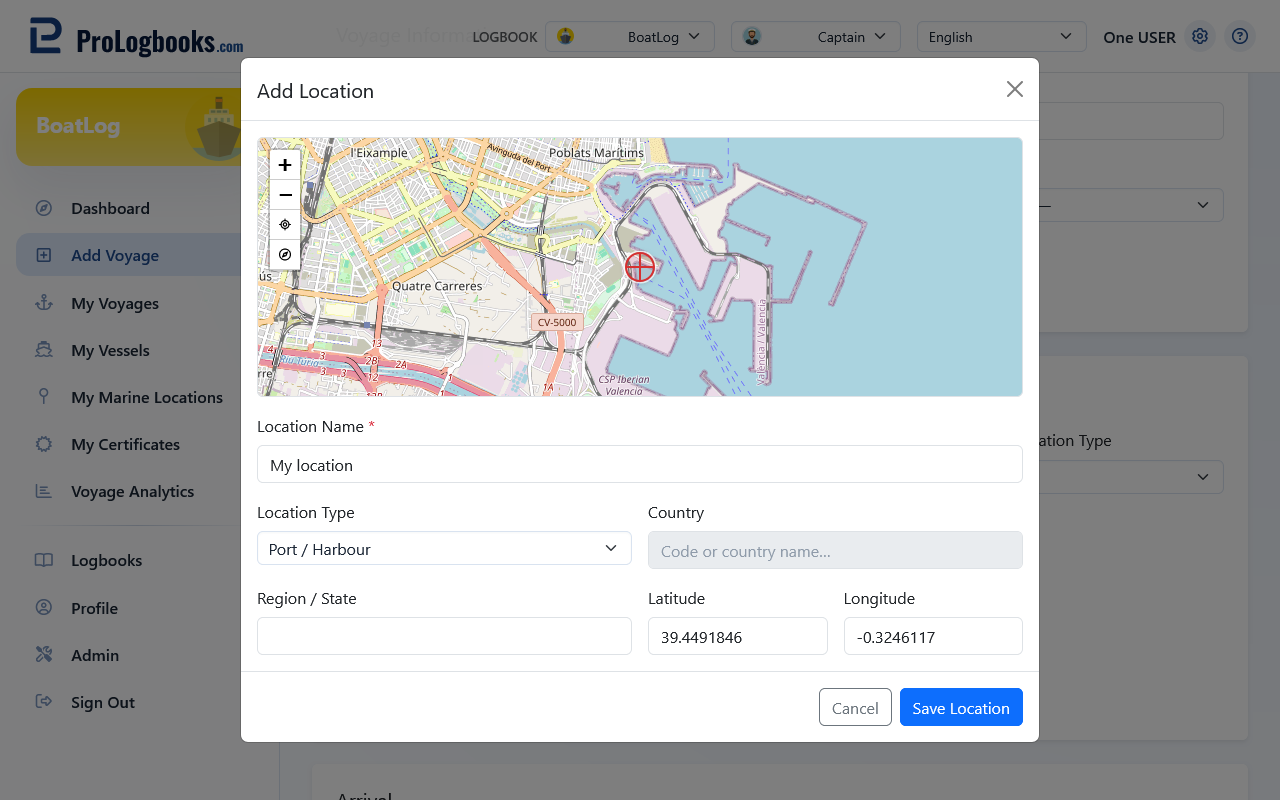
Enter departure and arrival names, types, coordinates, dates, and times. Select saved marine locations from autocomplete or save a newly entered endpoint to My Marine Locations.
Record voyage time, time underway, night time, watchkeeping time, distance in nautical miles, and engine hours when they apply. Add or import route points in the route editor.
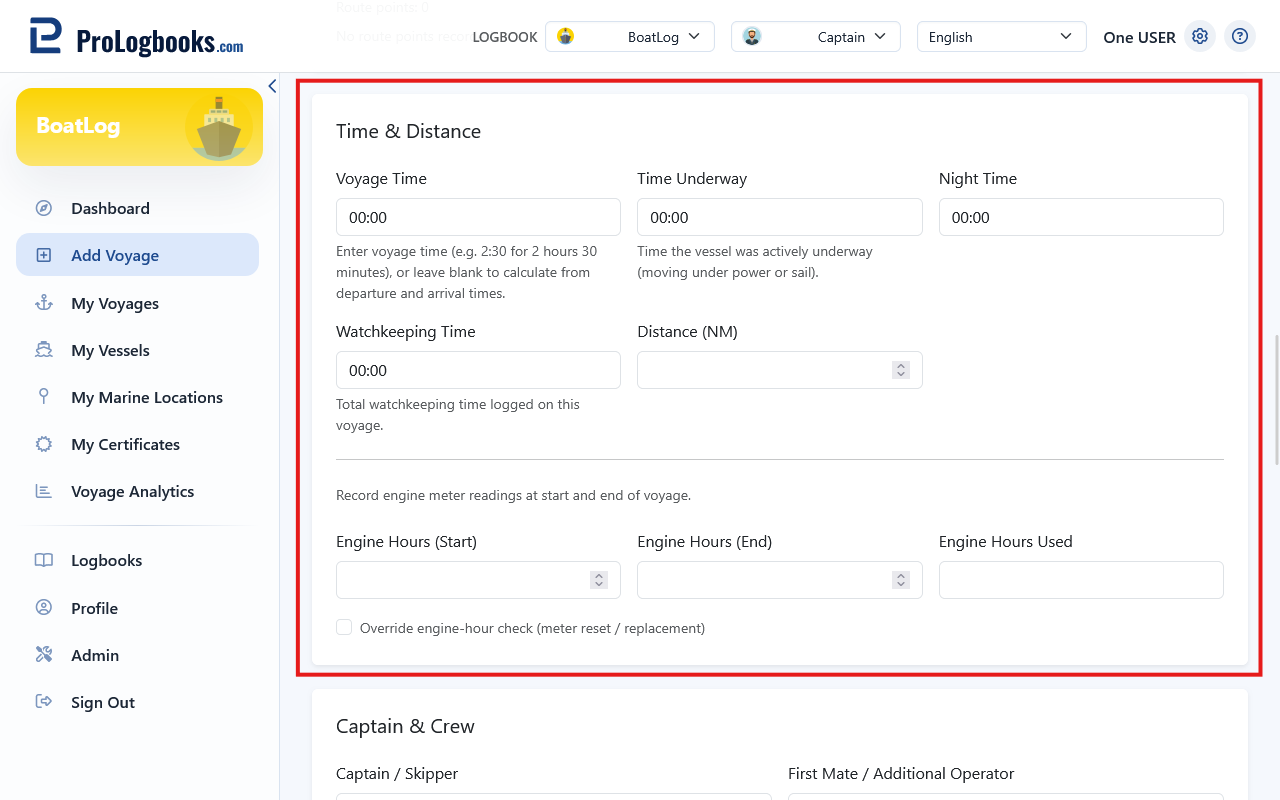
When both engine meter readings are entered, the ending reading must normally be equal to or greater than the starting reading. A lower ending reading blocks the voyage from being saved. If the meter was genuinely reset or replaced, select Override engine-hour check (meter reset / replacement) to save the readings. Do not use the override to bypass a data-entry error; verify both readings first. A voyage saved with a lower ending reading does not produce calculated engine hours used and its negative difference is not included in engine-hour totals.
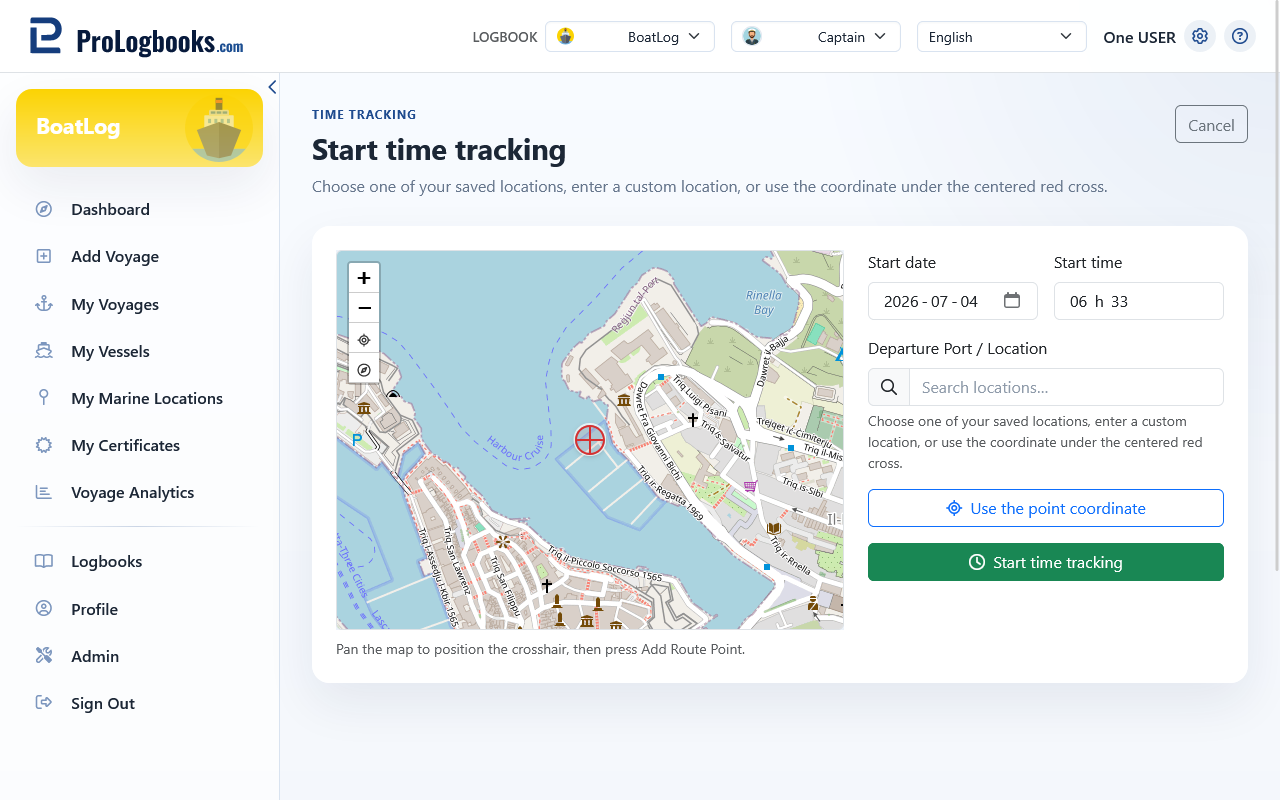
- Time Tracking appears only when the current plan includes the time_tracking feature.
- A completed session returned with a tracking ID pre-fills available timing fields; review them before saving.
- Coordinates provide the endpoints for the route map.
Add people, training, and conditions
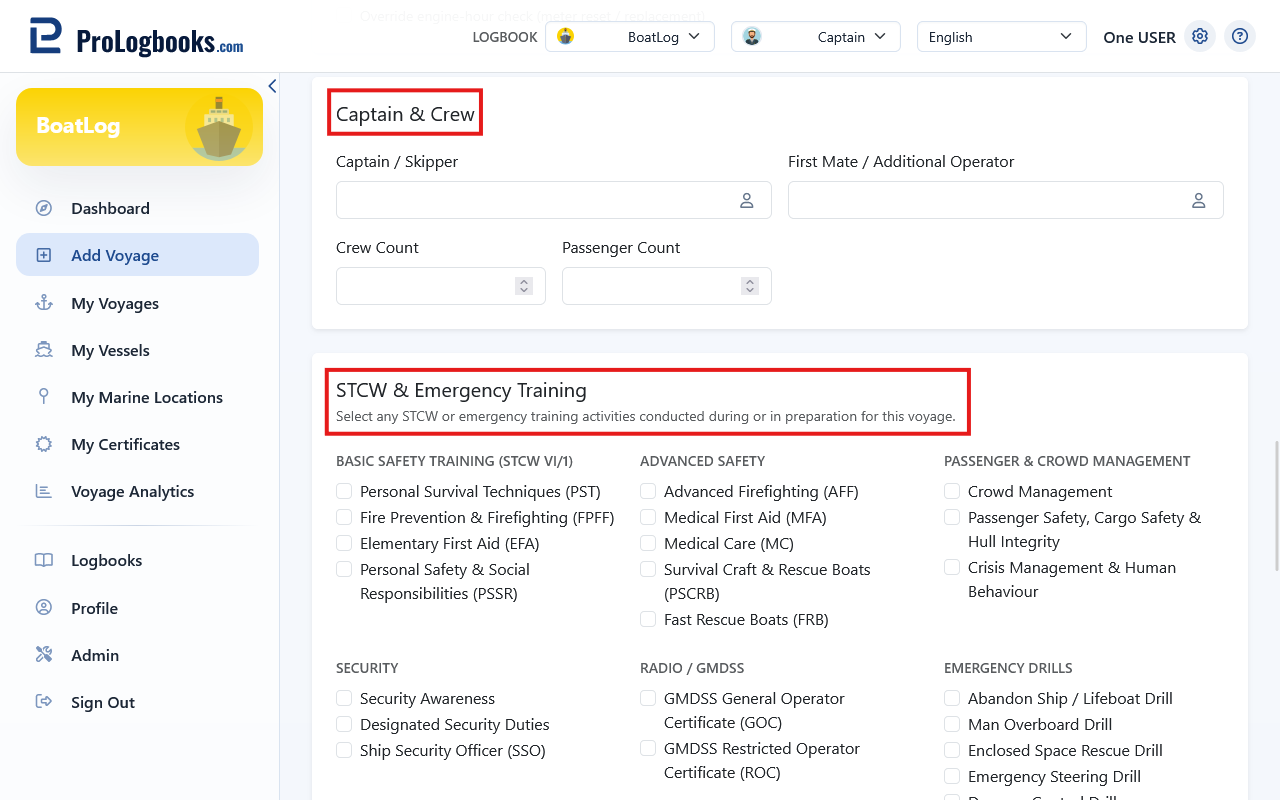
Enter the captain or skipper and first mate, or use the profile-name shortcuts. Add crew and passenger counts, then select only STCW or emergency training activities actually completed.
Finish and save the record
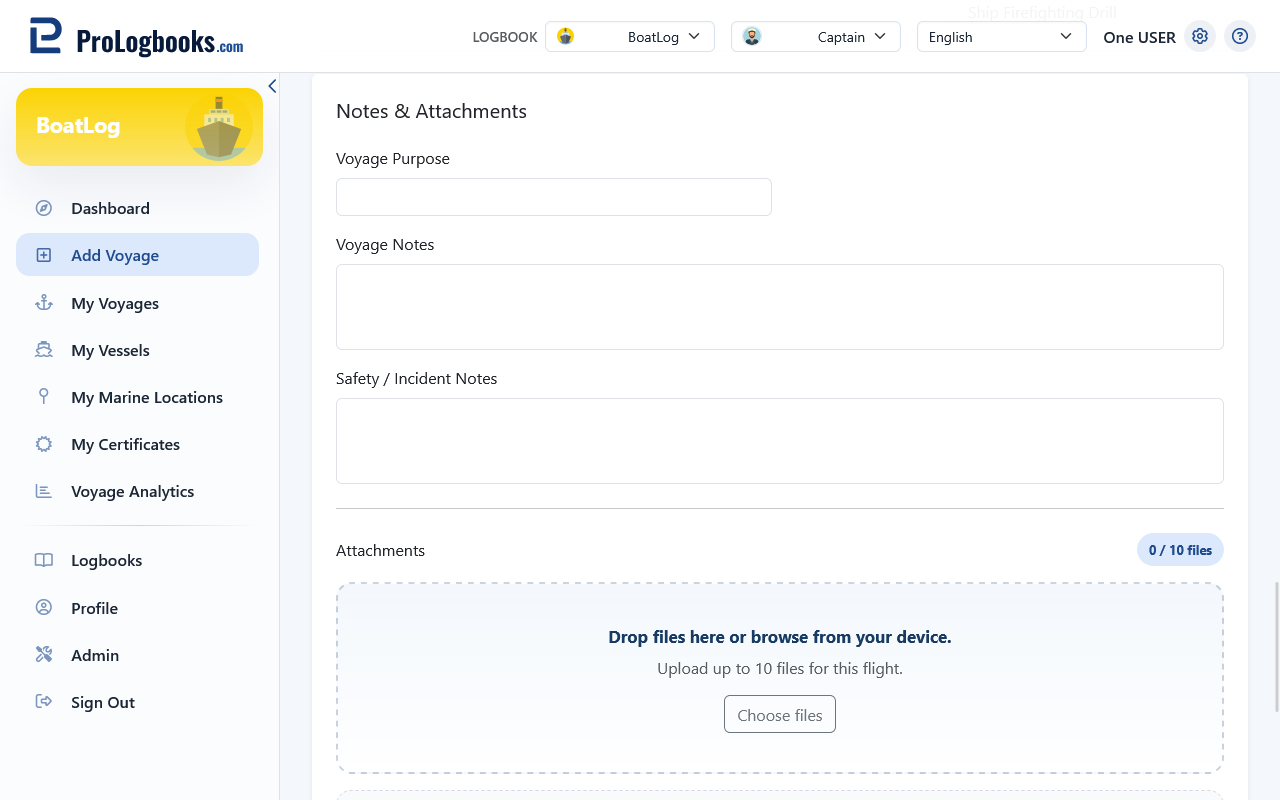
Add voyage purpose, general notes, safety or incident notes, and supporting attachments. Review the form and route before saving.
- Review the vessel, role, locations, dates, and times.
- Confirm time, distance, engine, crew, training, and weather values.
- Add relevant notes and attachments.
- Save the voyage and confirm that it appears in My Voyages.
If something goes wrong
- If a vessel is not found, check the spelling or use quick add to create it.
- If a location is not found, enter it manually with valid coordinates or save it to My Marine Locations.
- If tracked values are missing, confirm that the session was completed and that you returned through its Add voyage action.
- If the voyage will not save because Engine Hours (End) is below Engine Hours (Start), correct the readings. Select the engine-hour override only when the meter was reset or replaced.
- If the form will not save, correct the highlighted required or invalid fields.