How file import works
The import process keeps the source file separate from your saved flights until you review it. Work through these steps in order so the final import adds only clean, intentional records.
Upload your file
Choose the CSV, TSV, TXT, or XLSX file that contains the flight rows you want to bring into the current logbook.
Map the columns
Match each source column to the correct logbook field, and leave extra provider columns ignored when they are not needed.
Review the preview
Check staged rows, fix airport or registration warnings, and open a row for detailed editing when a value needs more attention.
Import the records
Import only the selected rows or the full preview after the data looks correct, then confirm the new flights in My Flights.
Start from the correct logbook and upload page
The import belongs to the currently selected logbook. Before you upload anything, confirm that the workspace is pointing to the logbook that should receive the flights.
You can open this workflow from the Import from file button on Add flight. The upload page accepts CSV, TSV, TXT, and XLSX files for flight-row imports. For Flight Crew and Drone Pilot logbooks, it can also accept KML or KMZ files as flight-track uploads.
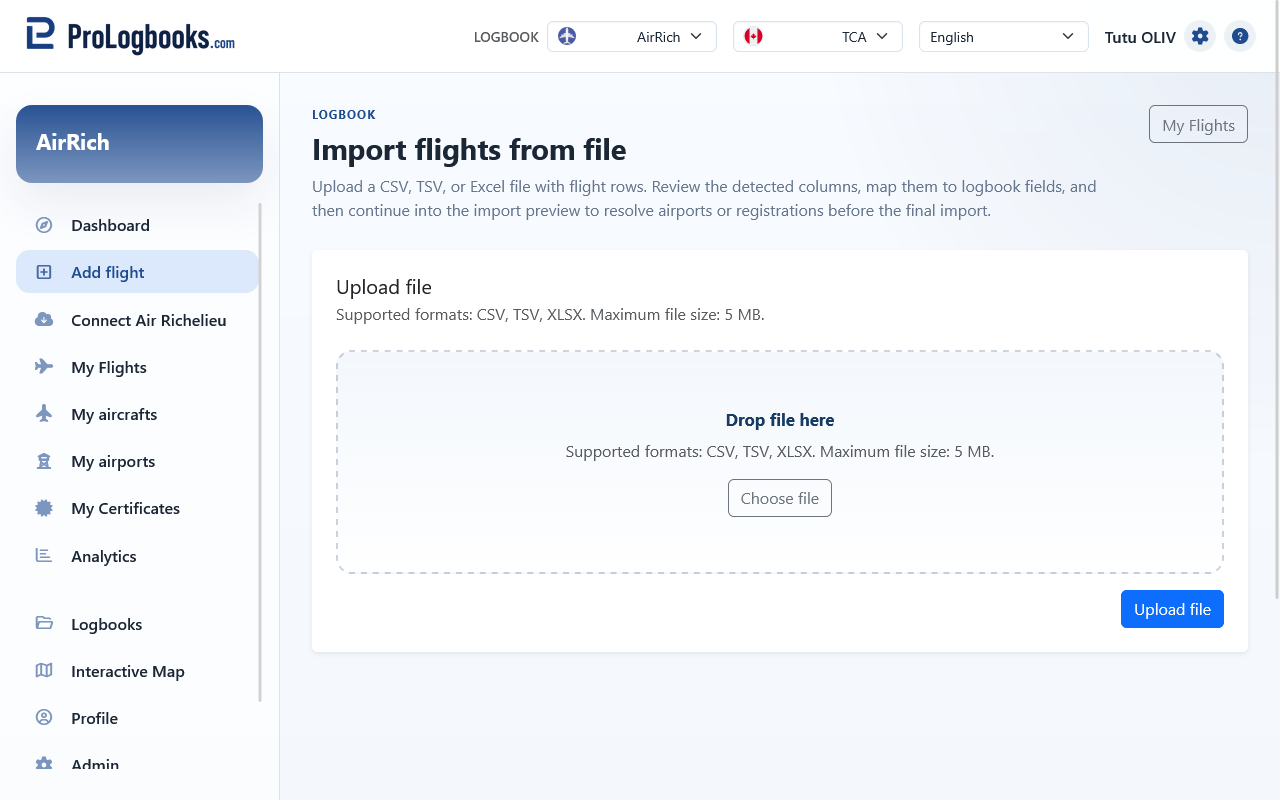
- Confirm that the correct logbook is selected in the workspace.
- Open Import from file from Add flight.
- Choose the source file that contains your flight rows.
- Upload the file and wait for the detected columns and row count to appear.
Import a KML/KMZ flight track
A flight track is a recorded path of an aircraft or drone flight. Its source can be ADS-B, MLAT, satellite tracking, receiver networks, radar-derived tracking, drone telemetry tools, or another tracking source. When a tracking service exports the flown path as a KML or KMZ file, ProLogbooks can store that path with a Flight Crew or Drone Pilot entry.
Flight track import is different from importing a spreadsheet of flight rows. A CSV, TSV, TXT, or XLSX file creates staged flight records for review. A KML or KMZ flight track file is analyzed for route points, distance, timestamps, altitude, and ground speed where those values exist.
KML or KMZ flight track files can come from external tracking sites and tools such as FlightAware, Flightradar24, ADS-B Exchange, Google Earth, or another service that can export a usable flight path.
From Add flight, open Import from file and upload the KML or KMZ export. The app analyzes the track, returns you to the Add flight form, and shows a flight track card. If the track contains timestamps and usable endpoints, empty route, date, and time fields can be prefilled from the first and last track points. In Drone Pilot logbooks, detected endpoints are treated as private mission coordinates instead of airport matches, so location names may still need manual entry. The track itself is attached when you save the flight.
From an existing saved flight, use Edit and then Import from file to attach or replace a flight track. In that case the track is attached to the saved flight immediately after upload, and the edit page shows the stored track controls.
Once imported, the track is available on the flight record as a route/profile view. You can review the mapped path, point count, distance, UTC first and last points, altitude profile, speed profile when present, and download or replace the original track file from the flight edit workflow.
- Export the flight path from your flight-tracking source as KML or KMZ.
- Confirm that the active logbook is a Flight Crew or Drone Pilot logbook and that your plan includes file uploads.
- Open Import from file from Add flight for a new record, or from Edit flight when attaching a track to an existing saved flight.
- Choose the KML or KMZ file and upload it.
- Review the detected track summary and save the flight, or correct any prefilled fields before saving.
- Flight track import does not replace your responsibility to verify the logbook entry. Review detected airports for Flight Crew entries, mission coordinates for Drone Pilot entries, dates, times, and duration before saving.
- A track without timestamps can still show the route, but it cannot reliably prefill date or time fields.
- If the file is rejected, export again as KML or KMZ from the tracking source and make sure the file contains usable track points.
Prepare the file format before upload
A CSV file is a plain-text spreadsheet file where each line is one row and each value is separated by a delimiter, usually a comma. CSV does not keep spreadsheet formatting, colors, formulas, or merged cells; it only carries the text values that should become import columns.
The importer accepts CSV, TSV, TXT, and XLSX files. If another logbook provider gives you an older XLS file, open it in a spreadsheet app and save it as XLSX or CSV before uploading. If the provider exports several formats, choose CSV or XLSX when available.
The first row should be a header row with clear column names. The rows below it should contain the flight records. Column names do not need to match this logbook exactly, because you will map them on the next page, but names such as Date, From, To, Aircraft, Registration, Total time, PIC, Co-pilot, Remarks, and Route are easier to review.
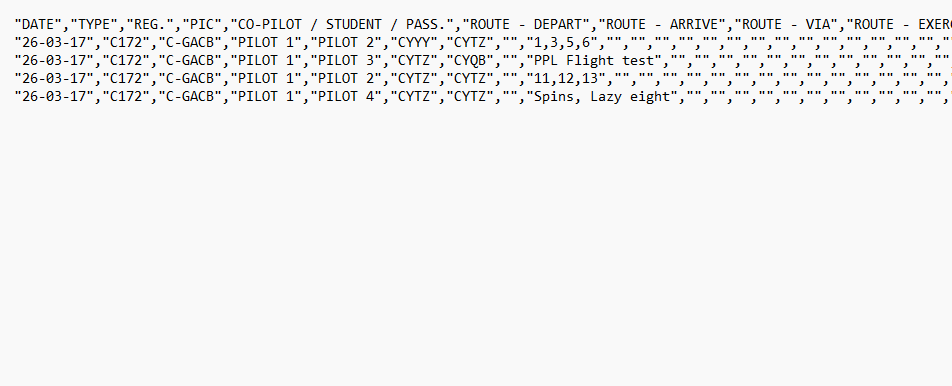
- Comma-separated CSV can look like "Date","From","To","Aircraft","Total time" followed by "2026-06-06","CYUL","CYYZ","C172","1.4". Quotes are useful when a value contains a comma, quotation mark, or extra spaces.
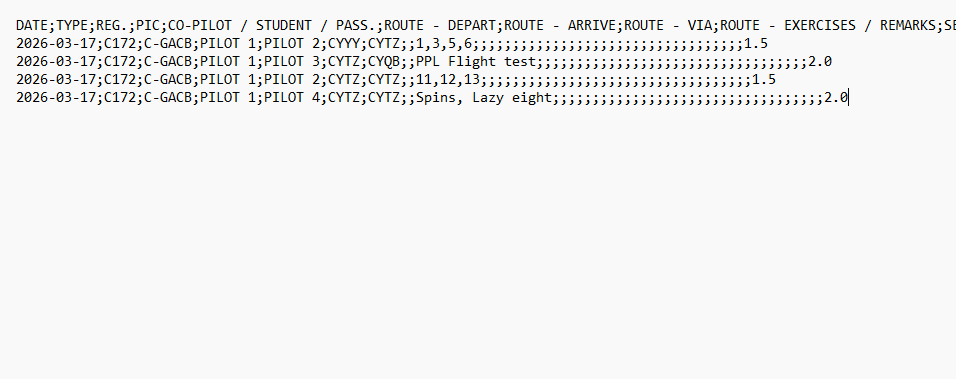
- Semicolon-separated CSV can look like Date;From;To;Aircraft;Total time followed by 2026-06-06;CYUL;CYYZ;C172;1.4. This is common when a computer uses comma as a decimal separator.
- TSV uses tab characters between values. XLSX is a normal Excel workbook; keep the import data on the first worksheet and avoid merged headers.
- Do not mix delimiters in the same file. Use one style consistently: commas, semicolons, tabs, or pipe characters.
Know what a provider export may contain
Files exported from another logbook system often include more columns than this logbook needs. That is normal. You can ignore provider-specific columns during mapping as long as the flight data you want to keep is present and readable.
Typical useful columns include the flight date, departure and arrival airports, aircraft type, aircraft registration, departure and arrival times, total time, pilot role or PIC time, night time, IFR time, approaches, landings, route, and remarks. Attachments are usually not included in CSV exports and may need to be added later from the preview edit page or after import.
- Export from the provider using CSV or XLSX if those choices are available.
- Open the file once and confirm the first row contains column names.
- Check that each flight is on its own row.
- Confirm airports, dates, and time values are readable before uploading.
- Keep a copy of the original provider export until the imported flights have been reviewed.
Understand the non-data rows warning
Non-data rows can appear in provider exports
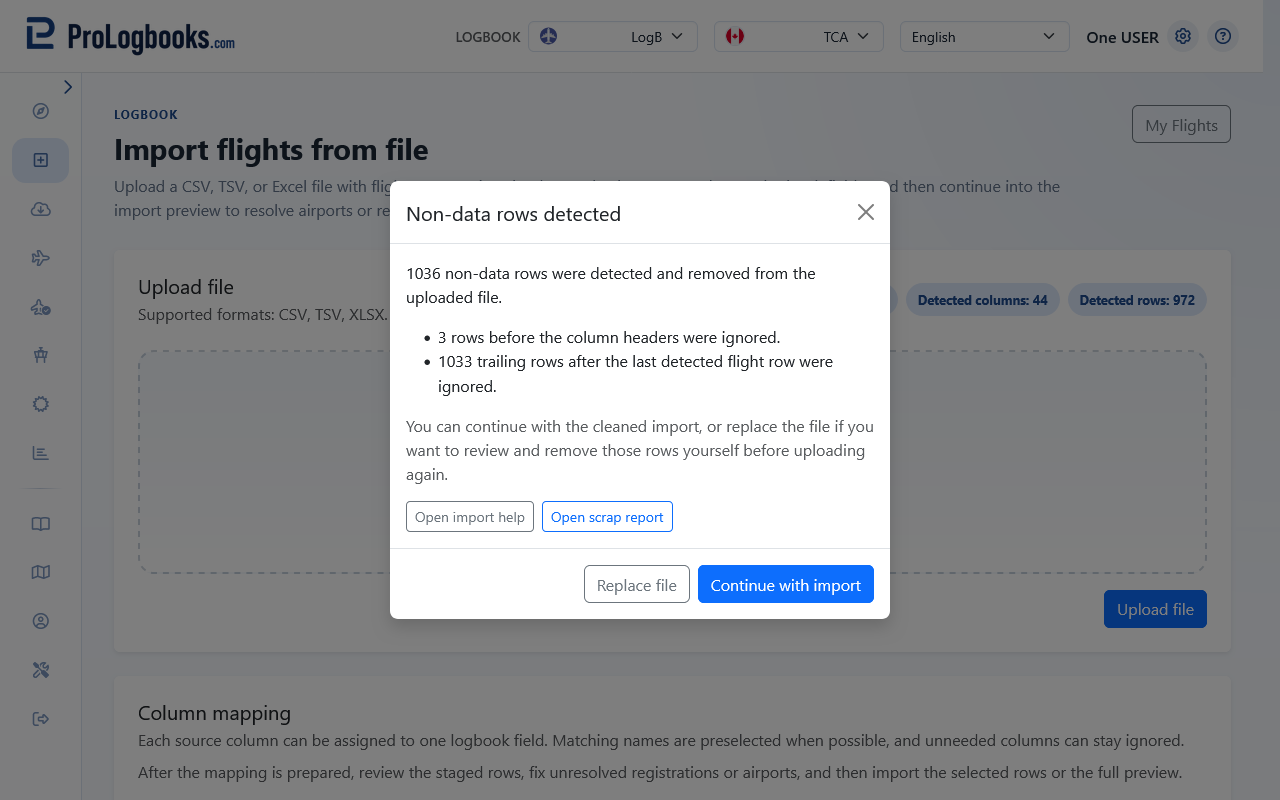
Some logbook systems export title rows, grouped headings, blank filler rows, totals, formulas, or summary rows before or after the real flight table. The importer treats those as non-data rows so they do not become staged flights.
When the upload finds rows before the detected column header, rows after the last detected flight row, or rows inside the table that are missing Date, Depart, Arrive, or Flight Time, it removes those rows from the staged import and shows a warning dialog.
Use Continue with import when the counts make sense and the detected columns look correct. Use Replace file when the file appears wrong, or when you want to clean the export manually and upload it again.
The Open scrap report button downloads a PDF report with the original source line number, the reason the row was skipped, and the raw row text. Use that report to confirm the skipped or suspicious rows are only export headers, notes, empty filler rows, totals, or incomplete marker rows from the other logbook system.
Review the detected columns and map each one
After upload, the page shows every detected source column and tries to preselect matching logbook fields. Review those choices carefully instead of assuming the automatic mapping is always correct.
Ignored columns are acceptable when the source file contains information you do not want to store. The key fields for preview are the flight date, departure airport, arrival airport, and total flight time.
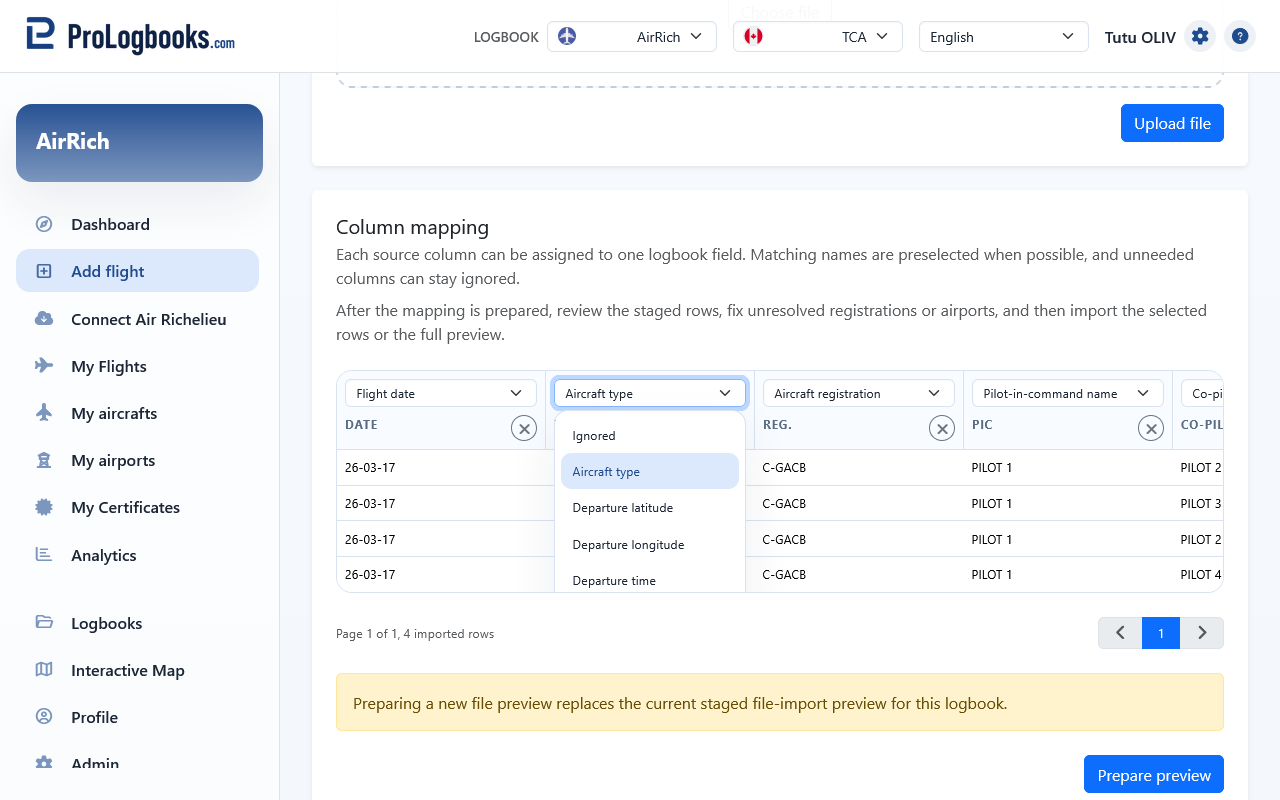
- Read the source column names from left to right.
- Confirm that each important column is mapped to the correct logbook field.
- Leave unused columns on Ignored instead of forcing a weak match.
- Check the required fields before continuing to preview.
- Use explicit labels such as Departure airport and Arrival airport as your guide when mapping.
- If the file came from this workspace, many export headers should already map automatically.
What happens when block time is not mapped
Block time can be inferred automatically
If the Block time column is not mapped or produces no value for a row, the importer tries two automatic fallback methods before treating the row as invalid.
When block time is missing or unmapped, the importer first tries to calculate it from the local departure and arrival times already mapped in the same row. It subtracts departure from arrival. When arrival is earlier than or equal to departure, the importer assumes the flight crossed midnight and adds 24 hours before calculating, so overnight flights are handled correctly.
If departure and arrival times are not present or not in a readable HH:MM format, the importer tries a second method: it adds together all individual time sub-columns mapped for that row. The sub-columns it considers are single-engine day and night (dual, PIC, co-pilot), multi-engine day and night (dual, PIC, co-pilot), simulator time, and ground trainer time.
If neither method produces a positive duration, the row is rejected during preview generation and the import reports that block time is missing. In that case, map a block time column, include valid departure and arrival times, or include at least one of the qualifying time sub-columns.
- If block time is already mapped and has a value for the row, both fallbacks are skipped.
- The time-based fallback handles overnight flights correctly by assuming a midnight crossover when arrival is earlier than or equal to departure.
- The sub-column fallback sums all qualifying columns that are present and non-zero for that row.
Prepare the preview and resolve anything still blocked
Prepare preview moves the mapped rows into a staged review page. This is where you confirm the rows before they become normal saved flights.
If a registration or airport still needs attention, the preview shows warning badges and yellow cells. Resolve those items directly in the preview so the imported rows are clean before final import.
When one preview row needs a fuller correction, open its edit page. That page lets you adjust the flight fields in the normal form layout before you return to the staged preview.
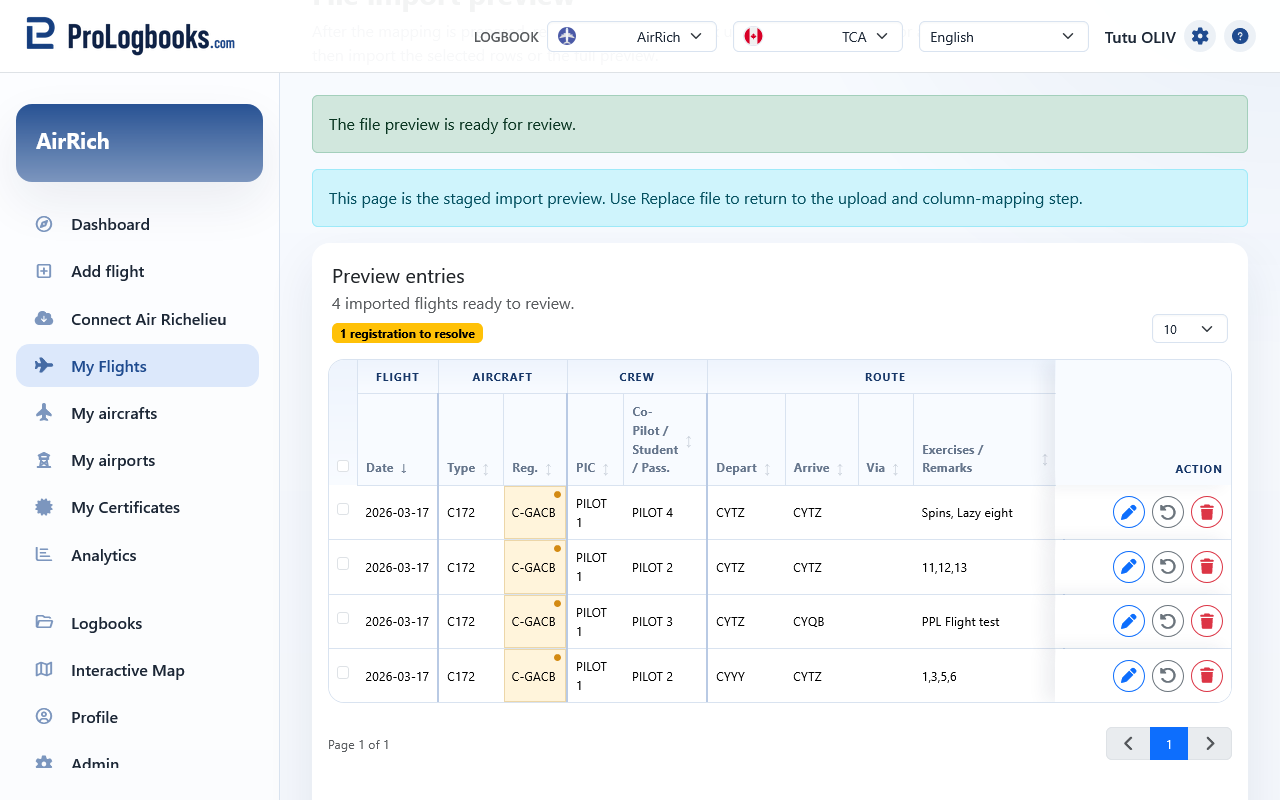
- Select Prepare preview after the mapping looks correct.
- Read the count and warning badges at the top of the preview page.
- Click any yellow registration or airport cell and resolve it before importing.
- Open the preview row edit page when the row needs broader corrections than a single yellow cell.
- Use Replace file if you need to go back to the upload and mapping step with another source file.
Use the preview edit page to attach files before import
The preview edit page uses the same flight form as a normal flight entry, so you can review the staged values in a calmer layout before final import.
If your current plan includes file uploads, the Flight files card also appears there. Add the supporting files you want to carry into the final saved flight, then save the preview row and return to the staged list.
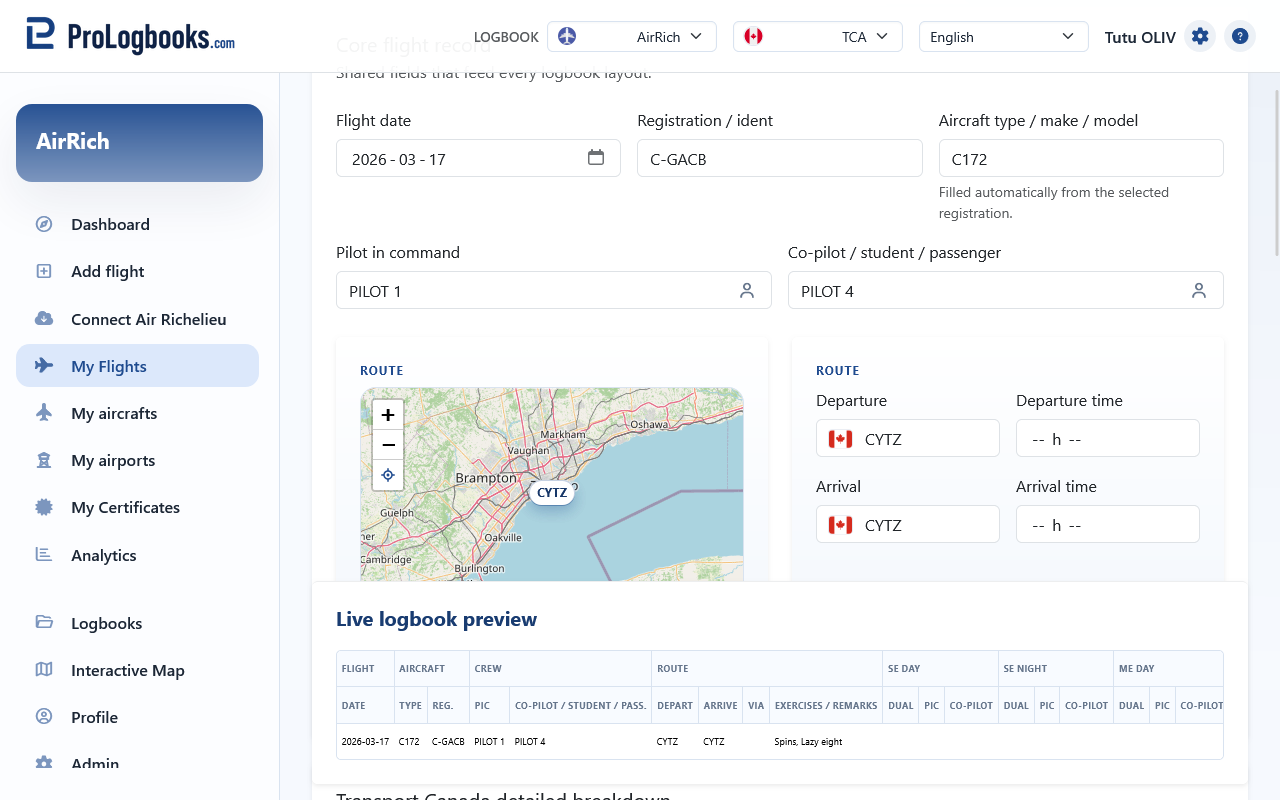
- Open the preview row you want to review in detail.
- Correct any fields that still need work.
- Use the Flight files card near the end of the form if you need to attach files before import.
- Save the preview row and return to the preview list.
- Import only after the preview row and its attached files look correct.
Reference the available import fields
The column-mapping list can propose the destination fields below. The field key is the internal value used by the importer, and the label is what you see in the mapping dropdown.
The table includes a column for each logbook type: Flight crew, Cabin crew, and Drone pilot. Fields that do not apply to a given type show as not applicable in that column.
Map the required fields first, then add the optional time, route, approach, landing, or specialty fields only when your source file contains reliable values for them.
| Mapping label | Flight crew | Cabin crew | Drone pilot |
|---|---|---|---|
| Flight date | Stores the flight date for the imported row. | Stores the work date or sector date for the Cabin Crew entry. | Stores the mission date. |
| Flight number | Stores the carrier flight number when it is available. | Stores the carrier flight number when it is available. | Optional. Use it to record a job reference, work order number, or operational identifier. |
| Aircraft type | Stores the aircraft type or model used for the flight. | Optional for Cabin Crew; use it only when the aircraft type is useful to keep. | Stores the drone model or UAS type name. |
| Aircraft registration | Stores the aircraft registration used for the flight. | Optional for Cabin Crew; use it only when the registration or identifier is useful to keep. | Stores the drone registration number, serial number, or identifier. |
| Pilot-in-command name | Stores the pilot-in-command name for the flight. | Stores the captain name when known. | Stores the remote pilot in command (RPIC) name. |
| Co-pilot / student / passenger | Stores the co-pilot, student, or passenger name for the flight. | Stores the purser, lead, or crew names when useful. | Optional. Stores the visual observer (VO) or second crew member name when present. |
| Departure airport | Stores the airport code or ident used for Departure airport. | Stores the airport code or ident used for Departure airport. | Stores the Departure airport name or identifier. Use a recognisable location name when no formal code applies. |
| Departure latitude | Stores the decimal latitude used for Departure latitude. | Departure latitude is optional for Cabin Crew imports unless your workflow uses it. | Stores the decimal latitude of the Departure latitude. |
| Departure longitude | Stores the decimal longitude used for Departure longitude. | Departure longitude is optional for Cabin Crew imports unless your workflow uses it. | Stores the decimal longitude of the Departure longitude. |
| Departure time | Stores the local clock time used for Departure time in HH:MM format. | Stores the local clock time used for Departure time in HH:MM format. | Stores the Departure time in HH:MM format. |
| Departure UTC time | Stores the UTC date and time used for Departure UTC time. | Departure UTC time is optional for Cabin Crew imports unless your workflow uses it. | Stores the UTC date and time of the Departure UTC time. |
| Departure timezone | Stores the IANA timezone name used for Departure timezone. | Departure timezone is optional for Cabin Crew imports unless your workflow uses it. | Stores the IANA timezone name for the Departure timezone. |
| Arrival airport | Stores the airport code or ident used for Arrival airport. | Stores the airport code or ident used for Arrival airport. | Stores the Arrival airport name or identifier. Use a recognisable location name when no formal code applies. |
| Arrival latitude | Stores the decimal latitude used for Arrival latitude. | Arrival latitude is optional for Cabin Crew imports unless your workflow uses it. | Stores the decimal latitude of the Arrival latitude. |
| Arrival longitude | Stores the decimal longitude used for Arrival longitude. | Arrival longitude is optional for Cabin Crew imports unless your workflow uses it. | Stores the decimal longitude of the Arrival longitude. |
| Arrival time | Stores the local clock time used for Arrival time in HH:MM format. | Stores the local clock time used for Arrival time in HH:MM format. | Stores the Arrival time in HH:MM format. |
| Arrival UTC time | Stores the UTC date and time used for Arrival UTC time. | Arrival UTC time is optional for Cabin Crew imports unless your workflow uses it. | Stores the UTC date and time of the Arrival UTC time. |
| Arrival timezone | Stores the IANA timezone name used for Arrival timezone. | Arrival timezone is optional for Cabin Crew imports unless your workflow uses it. | Stores the IANA timezone name for the Arrival timezone. |
| Route / via | Stores the intermediate route, via points, or routing notes for the flight. | Stores route, pairing, sector, or duty notes. | Optional. Stores airspace zone, flight area, patrol corridor, or operational routing notes. |
| Total flight time | Stores the duration credited to Total flight time. | Stores the duration credited to Total flight time when you intentionally import that value. | Stores the total mission time in minutes. This is the primary time value for drone logbook entries. |
| Flight time role | Stores the value used for Flight time role. | Use FA, PUR, LFA, CA, TRA, or INST. This value is recorded as a role label and does not allocate pilot time columns. | Not used for drone missions. |
| Day | Stores the duration credited to Day. | Stores the duration credited to Day when you intentionally import that value. | Not used for drone missions. |
| PIC | Stores the duration credited to PIC. | Stores the duration credited to PIC when you intentionally import that value. | Not used for drone missions. |
| Co-Pilot | Stores the duration credited to Co-Pilot. | Stores the duration credited to Co-Pilot when you intentionally import that value. | Not used for drone missions. |
| Night | Stores the duration credited to Night. | Stores the duration credited to Night when you intentionally import that value. | Not used for drone missions. |
| Ifr | Stores the duration credited to Ifr. | Stores the duration credited to Ifr when you intentionally import that value. | Not used for drone missions. |
| IFR Actual | Stores the duration credited to IFR Actual. | Stores the duration credited to IFR Actual when you intentionally import that value. | Not used for drone missions. |
| IFR Hood | Stores the duration credited to IFR Hood. | Stores the duration credited to IFR Hood when you intentionally import that value. | Not used for drone missions. |
| Sim. Instr. | Stores the duration credited to Sim. Instr.. | Stores the duration credited to Sim. Instr. when you intentionally import that value. | Not used for drone missions. |
| FSTD Time | Stores the duration credited to FSTD Time. | Stores the duration credited to FSTD Time when you intentionally import that value. | Not used for drone missions. |
| Ground Trainer | Stores the duration credited to Ground Trainer. | Stores the duration credited to Ground Trainer when you intentionally import that value. | Not used for drone missions. |
| SP SE | Stores the duration credited to SP SE. | Stores the duration credited to SP SE when you intentionally import that value. | Not used for drone missions. |
| SP ME | Stores the duration credited to SP ME. | Stores the duration credited to SP ME when you intentionally import that value. | Not used for drone missions. |
| MP | Stores the duration credited to MP. | Stores the duration credited to MP when you intentionally import that value. | Not used for drone missions. |
| Dual | Stores the duration credited to Dual. | Stores the duration credited to Dual when you intentionally import that value. | Not used for drone missions. |
| FI | Stores the duration credited to FI. | Stores the duration credited to FI when you intentionally import that value. | Not used for drone missions. |
| Rules | Stores the flight rules value, such as VFR or IFR, for the row. | Rules is optional for Cabin Crew imports unless your workflow uses it. | Not used for drone missions. |
| Fstd Date | Stores the simulator or FSTD session date when that session is imported separately from the flight date. | Fstd Date is optional for Cabin Crew imports unless your workflow uses it. | Not used for drone missions. |
| FSTD Type | Stores the simulator, FSTD, or training device type linked to the row. | FSTD Type is optional for Cabin Crew imports unless your workflow uses it. | Not used for drone missions. |
| SE Day Dual | Stores the duration credited to SE Day Dual. | Stores the duration credited to SE Day Dual when you intentionally import that value. | Not used for drone missions. |
| SE Day PIC | Stores the duration credited to SE Day PIC. | Stores the duration credited to SE Day PIC when you intentionally import that value. | Not used for drone missions. |
| SE Day Co-Pilot | Stores the duration credited to SE Day Co-Pilot. | Stores the duration credited to SE Day Co-Pilot when you intentionally import that value. | Not used for drone missions. |
| SE Night Dual | Stores the duration credited to SE Night Dual. | Stores the duration credited to SE Night Dual when you intentionally import that value. | Not used for drone missions. |
| SE Night PIC | Stores the duration credited to SE Night PIC. | Stores the duration credited to SE Night PIC when you intentionally import that value. | Not used for drone missions. |
| SE Night Co-Pilot | Stores the duration credited to SE Night Co-Pilot. | Stores the duration credited to SE Night Co-Pilot when you intentionally import that value. | Not used for drone missions. |
| ME Day Dual | Stores the duration credited to ME Day Dual. | Stores the duration credited to ME Day Dual when you intentionally import that value. | Not used for drone missions. |
| ME Day PIC | Stores the duration credited to ME Day PIC. | Stores the duration credited to ME Day PIC when you intentionally import that value. | Not used for drone missions. |
| ME Day Co-Pilot | Stores the duration credited to ME Day Co-Pilot. | Stores the duration credited to ME Day Co-Pilot when you intentionally import that value. | Not used for drone missions. |
| ME Night Dual | Stores the duration credited to ME Night Dual. | Stores the duration credited to ME Night Dual when you intentionally import that value. | Not used for drone missions. |
| ME Night PIC | Stores the duration credited to ME Night PIC. | Stores the duration credited to ME Night PIC when you intentionally import that value. | Not used for drone missions. |
| ME Night Co-Pilot | Stores the duration credited to ME Night Co-Pilot. | Stores the duration credited to ME Night Co-Pilot when you intentionally import that value. | Not used for drone missions. |
| XC Day Dual | Stores the duration credited to XC Day Dual. | Stores the duration credited to XC Day Dual when you intentionally import that value. | Not used for drone missions. |
| XC Day PIC | Stores the duration credited to XC Day PIC. | Stores the duration credited to XC Day PIC when you intentionally import that value. | Not used for drone missions. |
| XC Day Co-Pilot | Stores the duration credited to XC Day Co-Pilot. | Stores the duration credited to XC Day Co-Pilot when you intentionally import that value. | Not used for drone missions. |
| XC Night Dual | Stores the duration credited to XC Night Dual. | Stores the duration credited to XC Night Dual when you intentionally import that value. | Not used for drone missions. |
| XC Night PIC | Stores the duration credited to XC Night PIC. | Stores the duration credited to XC Night PIC when you intentionally import that value. | Not used for drone missions. |
| XC Night Co-Pilot | Stores the duration credited to XC Night Co-Pilot. | Stores the duration credited to XC Night Co-Pilot when you intentionally import that value. | Not used for drone missions. |
| Cross Country | Stores the duration credited to Cross Country. | Stores the duration credited to Cross Country when you intentionally import that value. | Not used for drone missions. |
| No. Instr. Appr. | Stores the numeric count used for No. Instr. Appr.. | No. Instr. Appr. is optional for Cabin Crew imports unless your workflow uses it. | Not used for drone missions. |
| Approach Type | Stores the approach type names or abbreviations recorded for the flight. | Approach Type is optional for Cabin Crew imports unless your workflow uses it. | Not used for drone missions. |
| TO Day | Stores the numeric count used for TO Day. | TO Day is optional for Cabin Crew imports unless your workflow uses it. | Not used for drone missions. |
| LDG Day | Stores the numeric count used for LDG Day. | LDG Day is optional for Cabin Crew imports unless your workflow uses it. | Not used for drone missions. |
| TO Night | Stores the numeric count used for TO Night. | TO Night is optional for Cabin Crew imports unless your workflow uses it. | Not used for drone missions. |
| LDG Night | Stores the numeric count used for LDG Night. | LDG Night is optional for Cabin Crew imports unless your workflow uses it. | Not used for drone missions. |
| Floats | Stores the duration credited to Floats. | Stores the duration credited to Floats when you intentionally import that value. | Not used for drone missions. |
| Tailwheel | Stores the duration credited to Tailwheel. | Stores the duration credited to Tailwheel when you intentionally import that value. | Not used for drone missions. |
| Helicopter | Stores the duration credited to Helicopter. | Stores the duration credited to Helicopter when you intentionally import that value. | Not used for drone missions. |
| Turbine | Stores the duration credited to Turbine. | Stores the duration credited to Turbine when you intentionally import that value. | Not used for drone missions. |
| Glass | Stores the duration credited to Glass. | Stores the duration credited to Glass when you intentionally import that value. | Not used for drone missions. |
| Remarks | Stores free-text remarks, notes, or comments for the flight. | Stores free-text remarks, notes, or comments for the Cabin Crew entry. | Stores free-text mission notes, environmental conditions, payload details, or operational remarks. |
Import only the rows you want to keep
When the preview looks correct, import either the selected rows or the full preview. Imported rows move into My Flights and stop being part of the staged preview.
This last step should be a confirmation step, not the first time you notice data problems. A careful preview usually saves more time than fixing saved flights later.
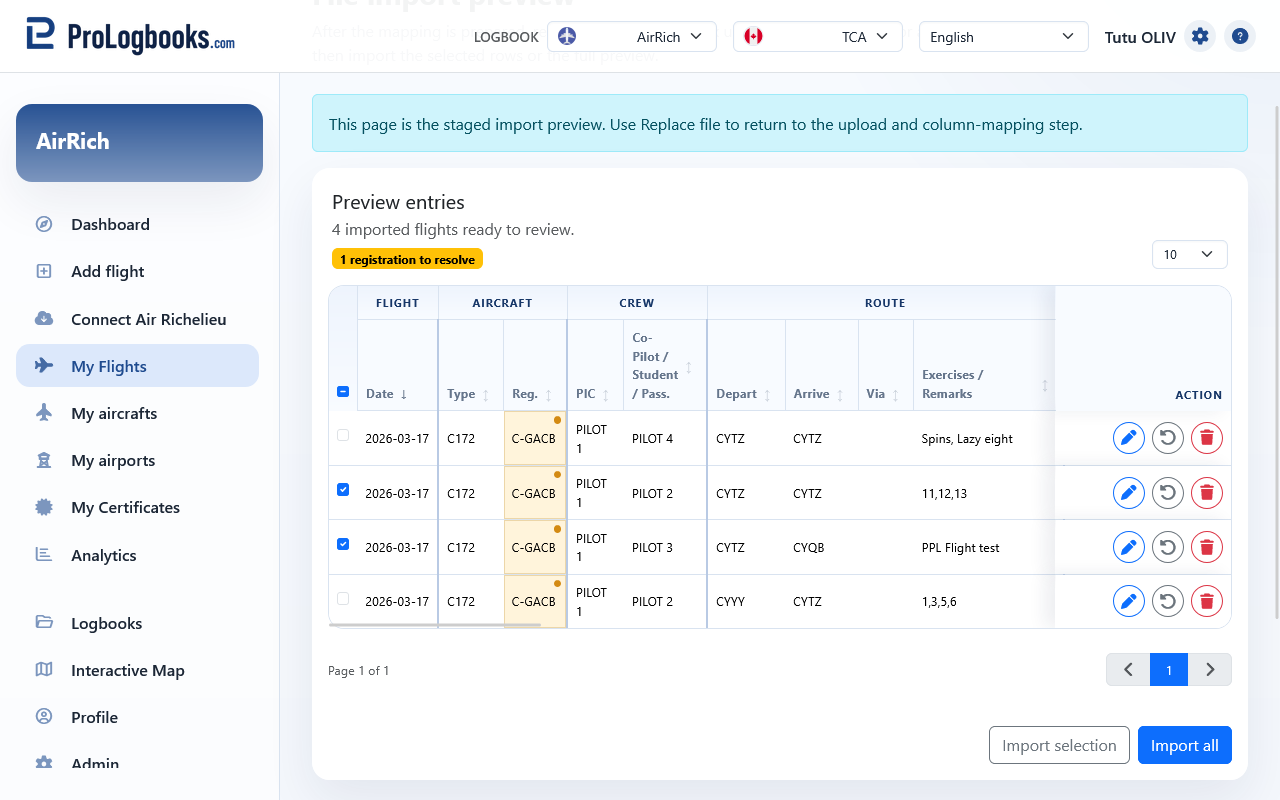
- Select the rows you want if you only plan to import part of the preview.
- Use Import selection for the checked rows, or Import to bring in the whole preview.
- Wait for the confirmation dialog and status message.
- Open My Flights afterwards to confirm that the imported flights are now part of the saved logbook.
If something goes wrong
- If every column stays on Ignored, confirm that the file contains a real header row and not only raw data rows.
- If Prepare preview stays blocked, review whether date, departure airport, arrival airport, and total flight time are all mapped.
- If yellow airport or registration warnings remain in preview, resolve them before assuming the import is ready.
- If you uploaded the wrong file, use Replace file and start the workflow again with the correct source.