Start with the same filter row as My Flights
At the top of Analytics, the search table uses the same inline filter fields as My Flights. This lets you narrow the working set before reading the charts below.
When no filter is entered, the analytics cards start from all saved flights in the current logbook. When you fill one or more filters and press Filter, the cards refresh from only the matching saved flights.
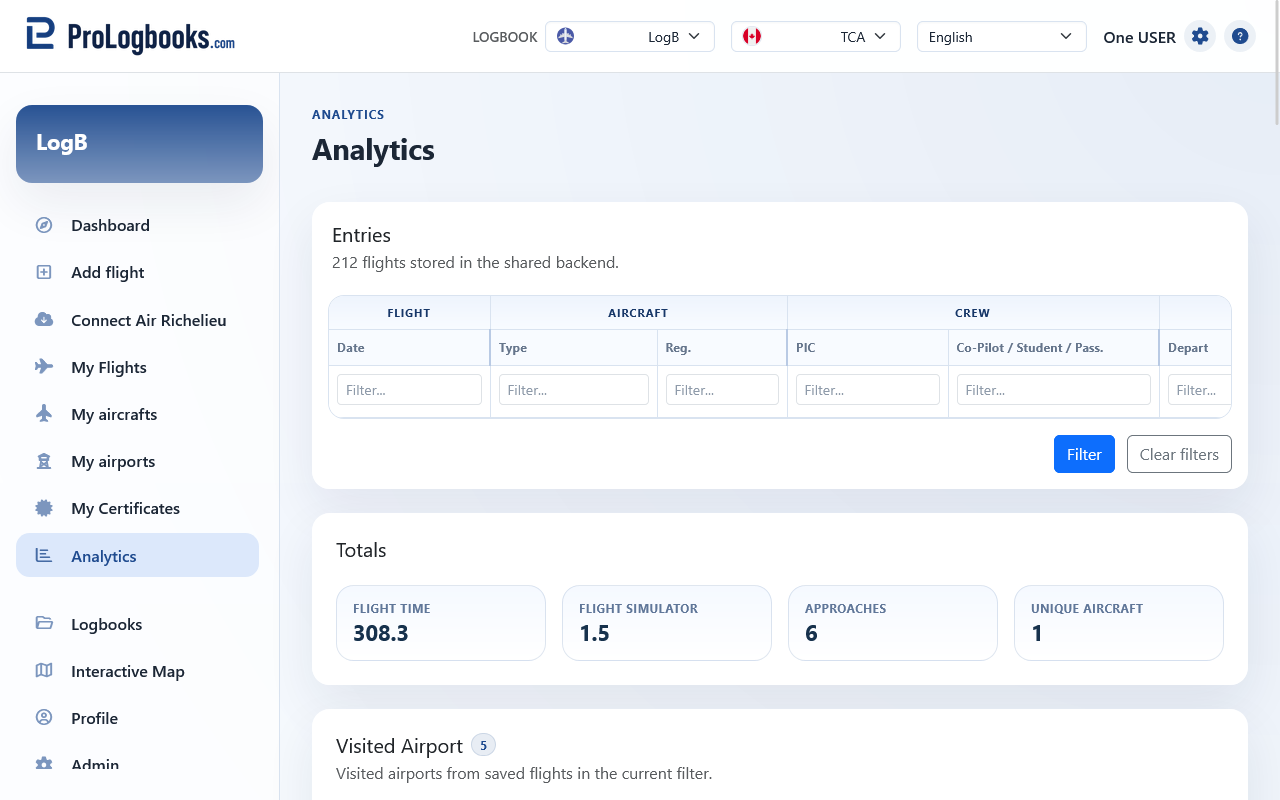
- Read the entry count near the top to understand how many saved flights are included.
- Enter any date, aircraft, registration, crew, or route filters you need.
- Press Filter to refresh the analytics cards from the current matching flights.
- Use Clear filters when you want to return to the full saved logbook view.
Read each analytics card for a different question
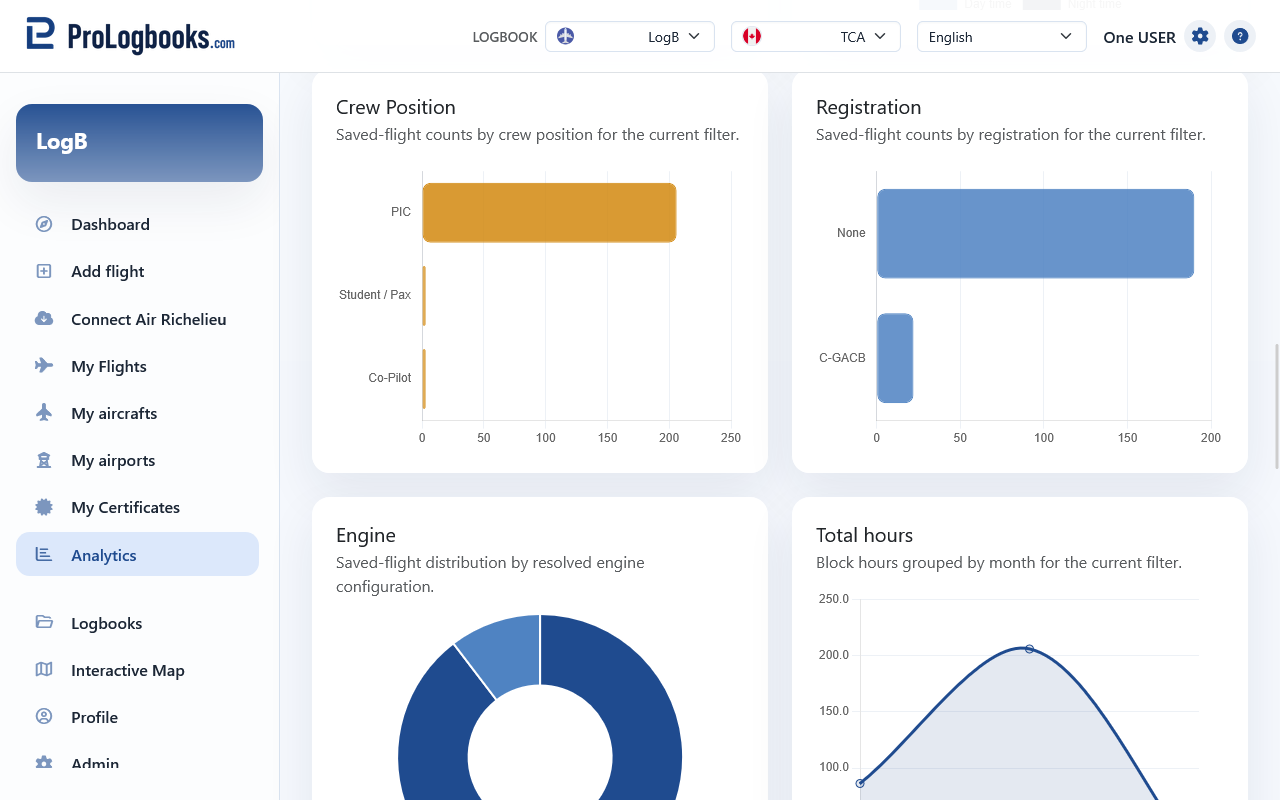
Each card answers a different question about the current filtered result set. The airport map shows where you have been, while the chart cards show how the matching flights are distributed by aircraft, crew role, registration, engine, and month.
These cards do not change the stored flights. They are read-only summaries that help you spot trends, verify a subset, or prepare a report before you export or continue working elsewhere.
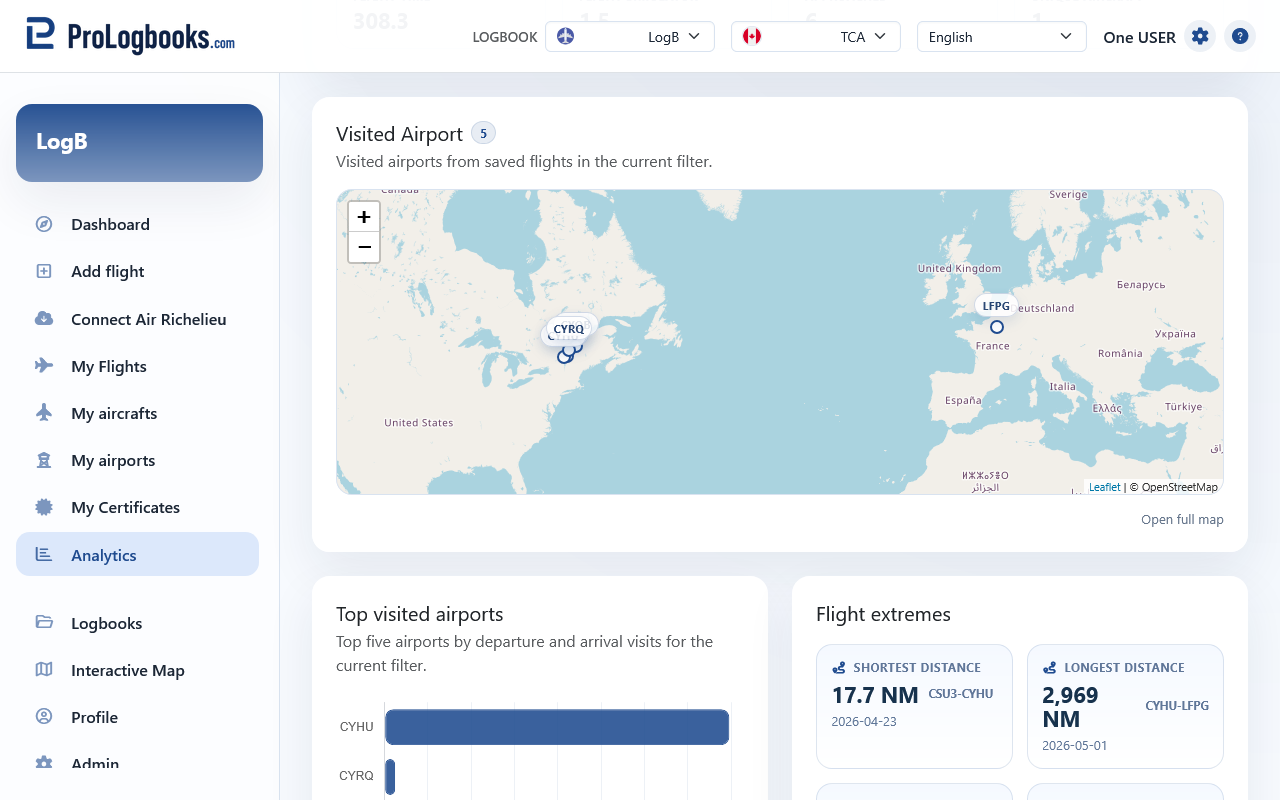
- Visited Airport shows matching airports on a map when coordinates are available.
- Aircraft type, Registration, and Crew Position compare how many saved flights match each label.
- Engine groups flights by the resolved engine configuration of the aircraft.
- Total hours shows the block-time trend by month for the current result set.
Use Analytics to validate a subset before deeper work
Analytics is useful when you want a quick visual check before exporting, reviewing one flight in detail, or comparing a narrow subset such as one aircraft, one airport, or one period.
After you understand the pattern, return to My Flights if you need to open one record, correct data, or use row-level actions. Analytics helps you interpret the saved data, but it is not the page for editing individual entries.
- Apply a narrow filter when you want to study one type of operation.
- Read the cards together instead of one by one so the map and charts confirm the same subset.
- Go back to My Flights when you need the individual saved records behind the summary.
If something goes wrong
- If a card looks empty, first check whether the current filters are too narrow.
- If the map stays empty, the matching flights may not have saved airport coordinates available for plotting.
- If the results look broader than expected, clear the filters and reapply them carefully from the search row.