Start from Add flight
Open Add flight in the logbook where the record should be saved. The lookup works inside the normal flight form, so the imported values still become a regular logbook entry after you review and save them.
Enter the carrier flight number and the flight date in the Air Carrier Lookup card. The flight date must be recent and cannot be in the future, because the lookup is intended for completed flights that can be verified before import.
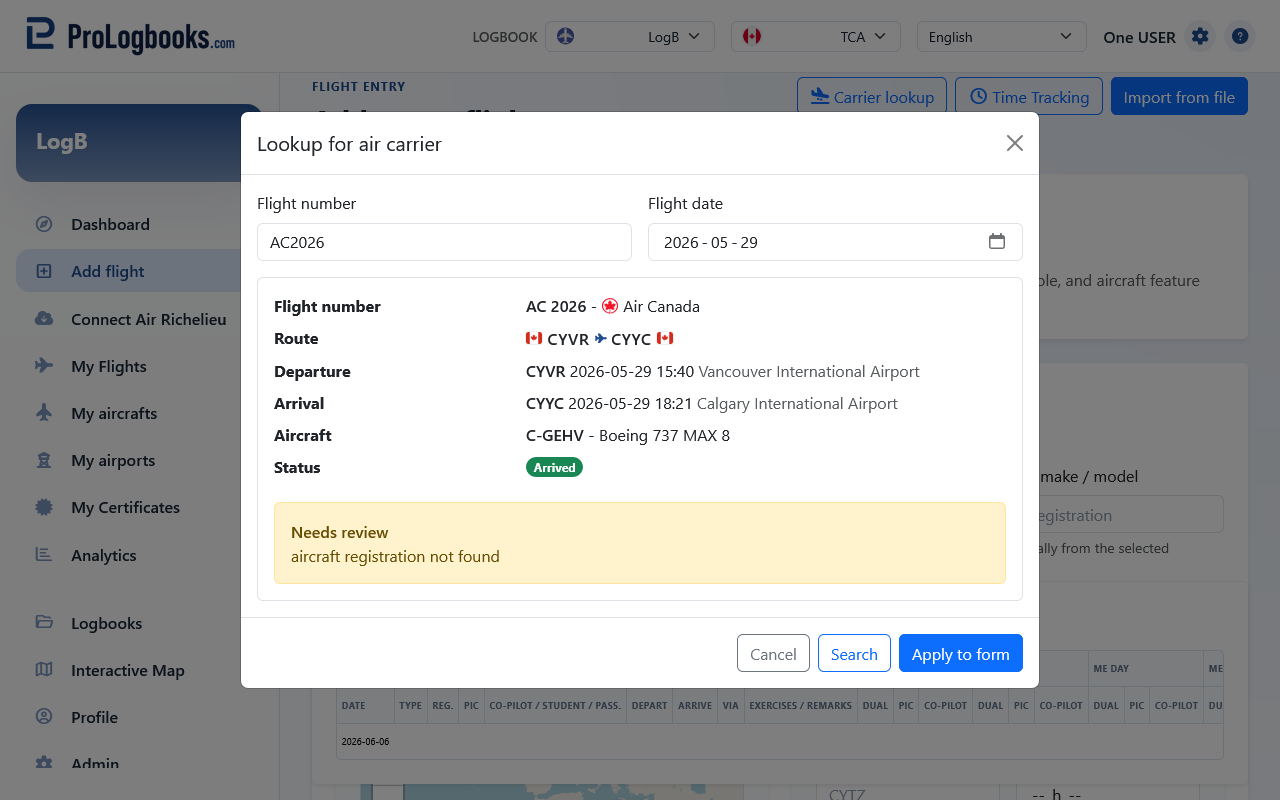
- Confirm that the correct logbook is selected.
- Open Add flight.
- Find the Air Carrier Lookup card.
- Enter the flight number, such as AC123 or ACA123.
- Enter the flight date.
- Run the search.
Choose the matching result
If one clear match is found, the form can apply it directly. If several flights match the same number and date, choose the result that matches the route and arrival information for your flight.
Read the preview before applying a result. The preview can show departure, arrival, aircraft, status, and any fields that still need review. This is especially important when a carrier reuses a number on different routes or when a flight operated with a different aircraft than expected.
- Compare the route shown in the result with your actual flight.
- Check the departure and arrival information.
- Choose the matching flight if more than one result appears.
- Apply the selected result to the form.
Review before saving
The lookup is a data-entry helper, not a final logbook approval. After the result is applied, review every required field before saving the flight. Some imported fields may be marked for review when the system cannot confidently match the value to your saved aircraft, airport, or regulatory layout.
Complete any empty required fields yourself. Then continue through the rest of the Add flight form, including crew role, flight rules, time allocation, remarks, and attachments if they apply to the record.
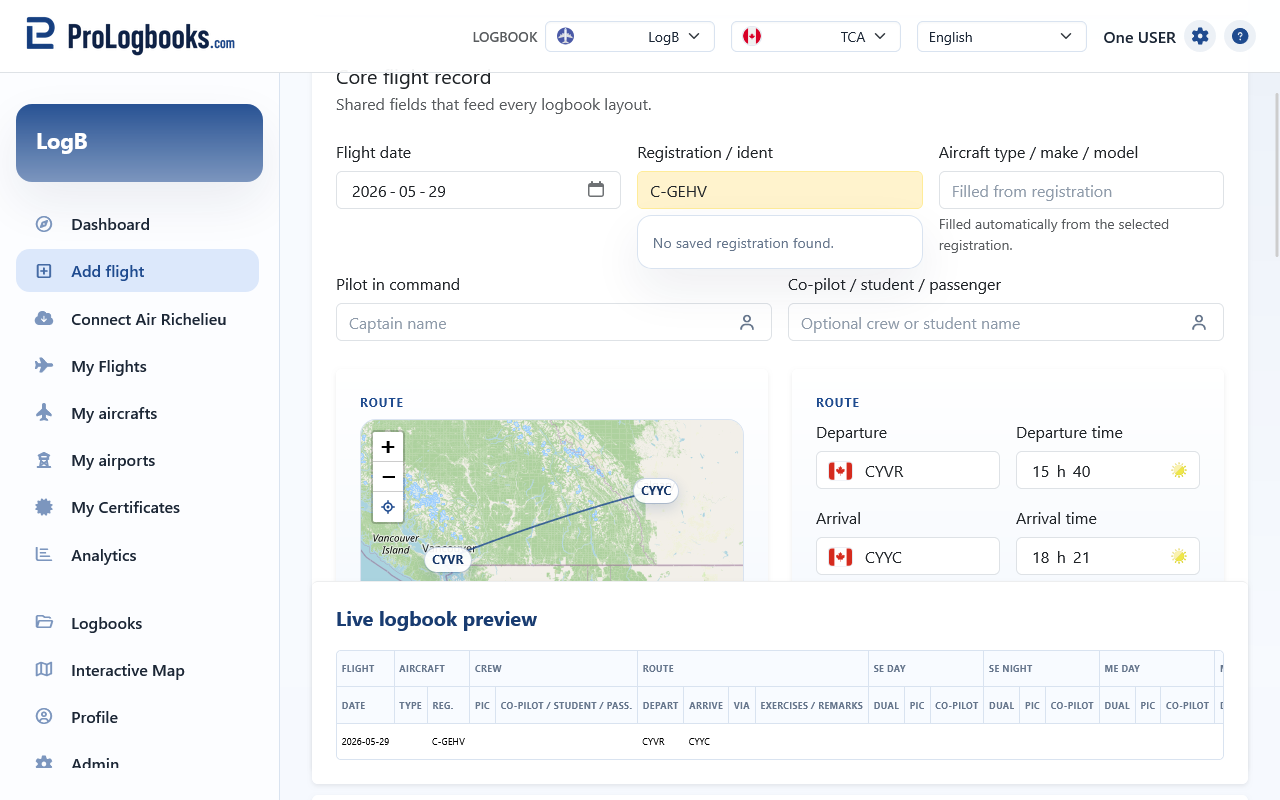
- Review the imported departure, arrival, aircraft, and timing fields.
- Resolve any fields marked for review.
- Fill the remaining logbook fields that the lookup does not know.
- Save the flight only after the complete entry matches your own record.
If something goes wrong
- If the lookup asks for required information, enter both a valid flight number and a valid recent flight date.
- If no match is found, confirm the carrier code, flight number, and date. Some flights may not be available from the lookup provider.
- If the flight has not arrived yet, wait until after arrival before trying to import it.
- If the feature is unavailable, your current plan or the local lookup configuration may not include Air Carrier Lookup.
- If imported values look wrong, do not save them as-is. Correct the form manually or create the flight without using lookup.