Open the export dropdown from My Flights
The export dropdown is part of the My Flights toolbar. It works from the current visible result, so the file you create follows the active logbook, filters, search terms, sorting, and view-specific columns.
Before exporting, check the row count and the active filters. This is especially important when you need a report for a date range, one aircraft, one registration, or one training period.
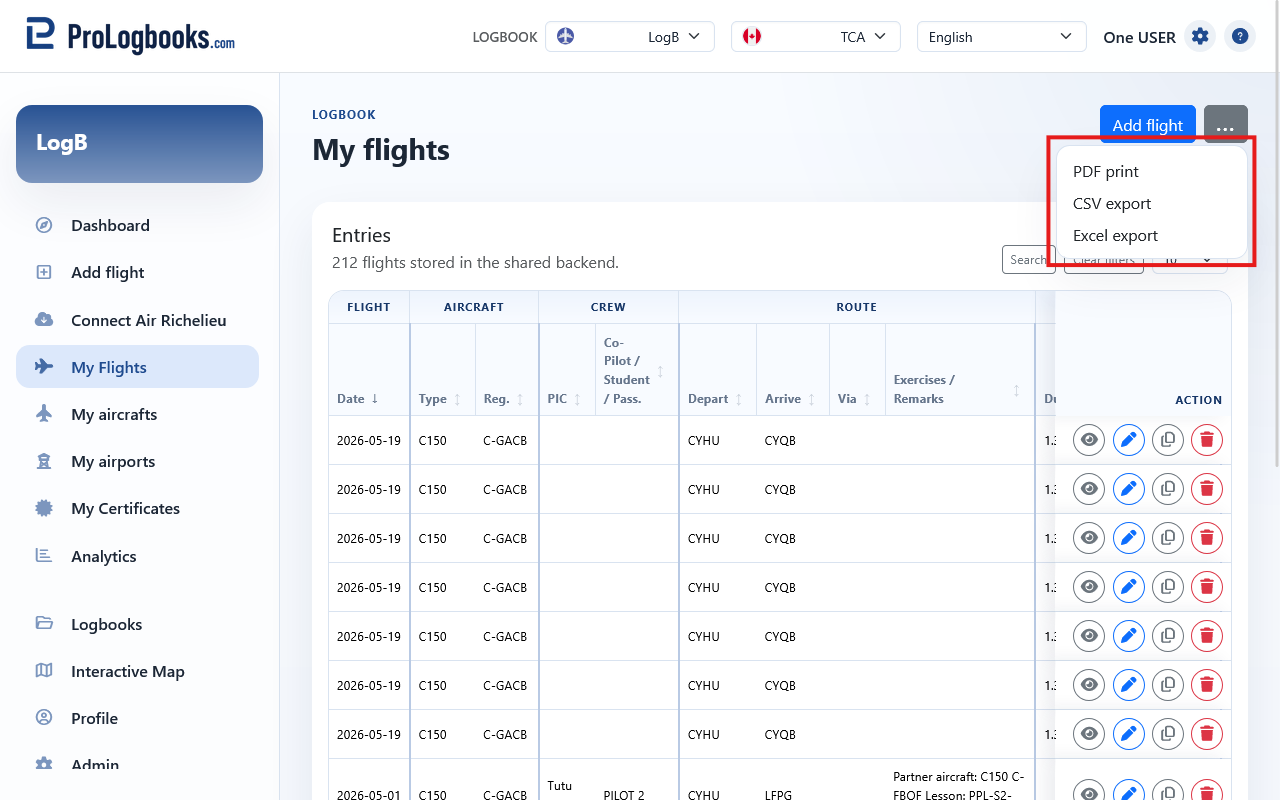
- Open My Flights from the main navigation.
- Select the correct logbook and regulatory view if your workspace offers more than one.
- Use Search to filter the rows you want to include.
- Open the export dropdown in the toolbar.
- Choose the export format that matches what you need to do next.
Choose PDF printing for a logbook-style document
PDF printing creates a formatted logbook output intended for review, filing, or sharing as a document. Use this option when layout matters more than editing the data later.
PDF exports may include print layouts, totals, page formatting, and signature areas depending on your selected layout and plan. Review the preview or generated PDF before relying on it, because the result reflects the flights and columns included at export time.
The first page of a logbook PDF can show profile and contact details such as your name, address, phone number, and other saved identity information when those fields are completed. If you entered information in the logbook additional details settings, that additional information is shown on the second page of the PDF printout.
- Use PDF when you need a printable record or a clean document for review.
- Check filters first, because the PDF should match the exact period or aircraft you intend to print.
- Use the profile signature settings before exporting if your layout includes an authenticated signature area.
Choose CSV for simple data transfer
CSV exports create a plain text spreadsheet file. This is the safest choice when another system, another logbook, or a simple data tool needs to read your flights.
CSV files are useful for backups and imports because the structure is simple, but they do not preserve rich spreadsheet formatting. Open them carefully in spreadsheet software so dates, times, and airport identifiers are not automatically changed into another format.
- Use CSV when another application asks for comma-separated data.
- Keep the exported file unchanged if you plan to import it elsewhere.
- If a spreadsheet program changes date or time formatting, reopen the original export and import it with explicit column types.
Choose Excel when you want spreadsheet work
Excel export creates a workbook file for people who want to filter, sort, summarize, or share the result in spreadsheet software. Use it when the next step is analysis or a formatted spreadsheet, not a printed logbook page.
The Excel file is still an export snapshot. Editing it does not update the flights stored in the logbook. If you find a mistake while reviewing the workbook, return to My Flights or the flight detail page and correct the saved record there.
- Use Excel when you want a workbook that opens cleanly in spreadsheet tools.
- Use spreadsheet formulas or pivot tables on the exported copy without changing saved flights.
- Return to the web app for corrections so the official logbook remains the source of truth.
If something goes wrong
- If the export dropdown is missing, your current plan may not include print and export access.
- If the exported file has too many or too few flights, return to My Flights and check the active filters, sorting, and selected logbook.
- If CSV opens with strange dates or airport codes, import the CSV into your spreadsheet app instead of double-clicking it.
- If a PDF layout does not show the signature you expected, update your profile signature first and confirm your plan includes authenticated signatures.
- If edits made in Excel do not appear in the web app, remember that exports are copies; update the saved flight records in the logbook.