Find airports and open airport details
Use the airport search to look up an airport by identifier or name. Selecting a result focuses the map on that airport and opens a small airport card.
Open Airport details from that card when you need the fuller information panel. The details panel can show the airport location, identifier, municipality, region, coordinates, elevation, magnetic declination, timezone, saved communication frequencies, and saved runway information.
Start with the top of Airport details to confirm that the selected airport is the one you intended. This is especially useful when several airports have similar names or when you searched by a partial identifier.
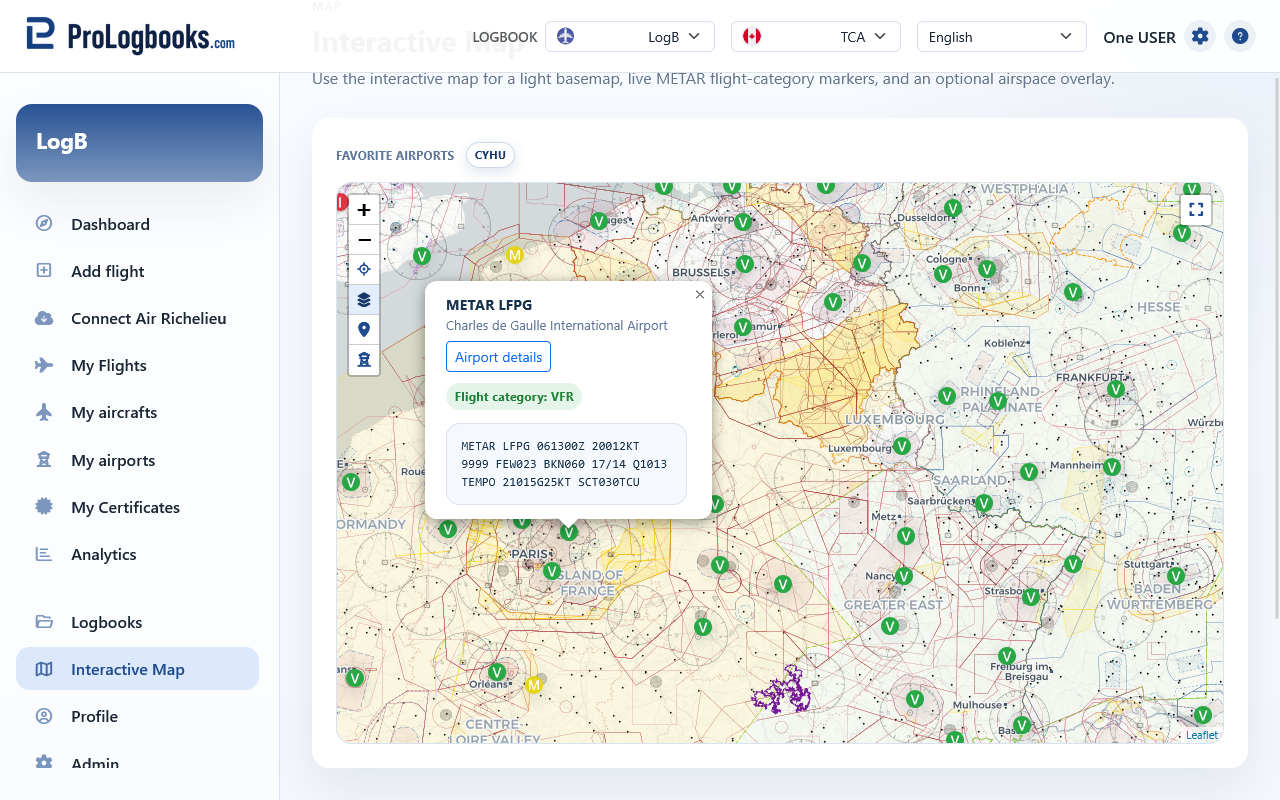
- Open Interactive Map from the main navigation.
- Use Find airport and search by airport code, identifier, or name.
- Choose the airport from the results list.
- Use Airport details to confirm the location, coordinates, elevation, timezone, and available data sections.
Review airport details, runways, and frequencies
After confirming the airport identity, continue through the Airport details panel to review the saved runway and communication information. These sections are based on airport records stored in the application, so a default imported airport may show more detail than a custom airport you created manually.
Runway details can include runway ends, dimensions, surface, lighting, closed status, headings, coordinates, and elevation when that data exists in the local airport record. Use the runway end information to understand how the app has stored each direction, but verify operational runway data with official sources before flying.
Frequency details can include the communication type, MHz value, and description. If no frequencies are shown, the airport record simply does not have saved frequency rows yet.
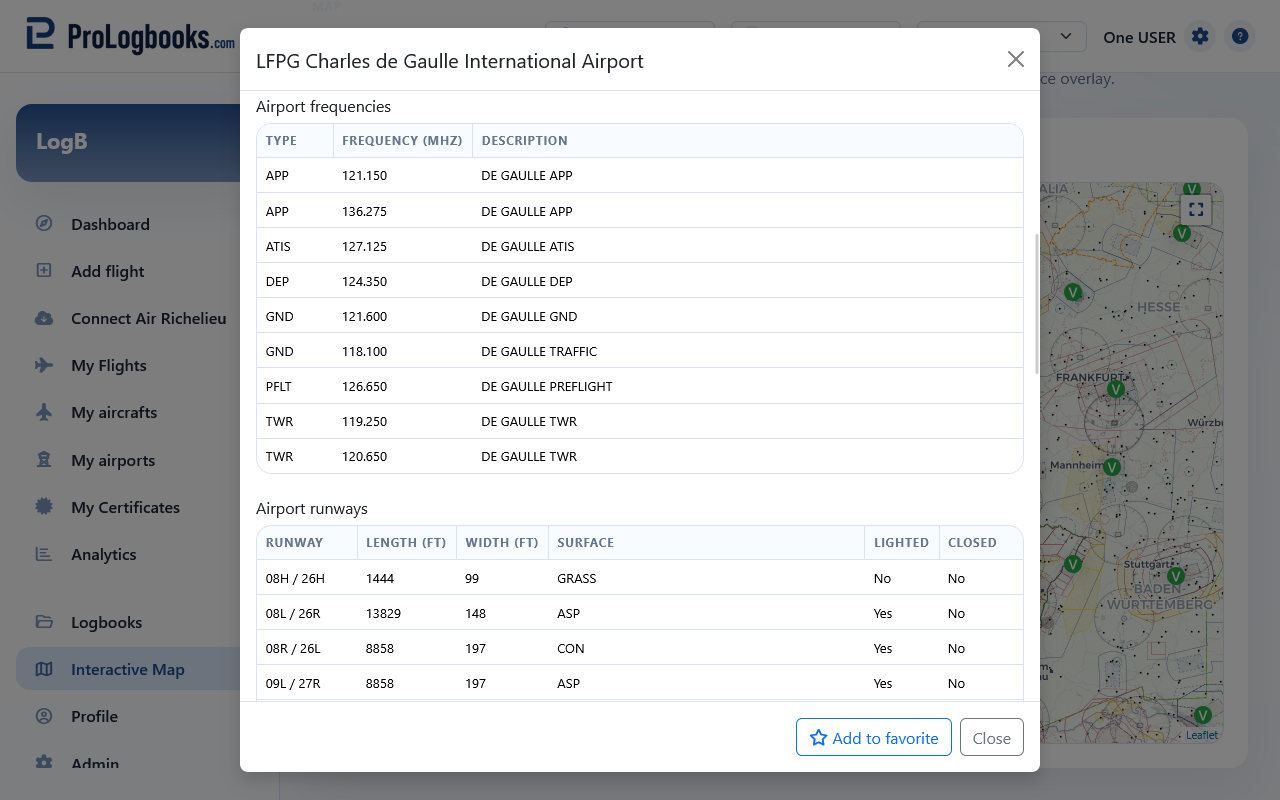
- Open Airport details for the airport you want to review.
- Check the airport summary fields first so you know you are reading the right airport.
- Review the Runways section for dimensions, surfaces, runway-end headings, and closed or lighting indicators.
- Review the Frequencies section for communication types, MHz values, and descriptions.
Use weather and airspace layers as planning context
The map can show METAR flight-category markers such as VFR, MVFR, IFR, and LIFR when weather marker data is available. Airport weather previews can help you quickly read the current report for a selected station.
For a selected airport, the details panel can provide both the current observation in METAR format and the forecast in TAF format. Use the decoded sections for a quick scan, then compare them with the raw text if you need the exact report wording.
When weather data is available for the airport, Airport details can show the latest METAR and TAF. The raw report is kept visible for pilots who want to read the original aviation weather text, and the decoded view summarizes fields such as observation time, flight category, wind, visibility, clouds, temperature, altimeter, forecast validity, and forecast changes.
If OpenAIP airspace support is configured, the optional airspace overlay adds controlled or special-use airspace context to the map. Use it as a situational aid, not as a replacement for official charting or briefing sources.
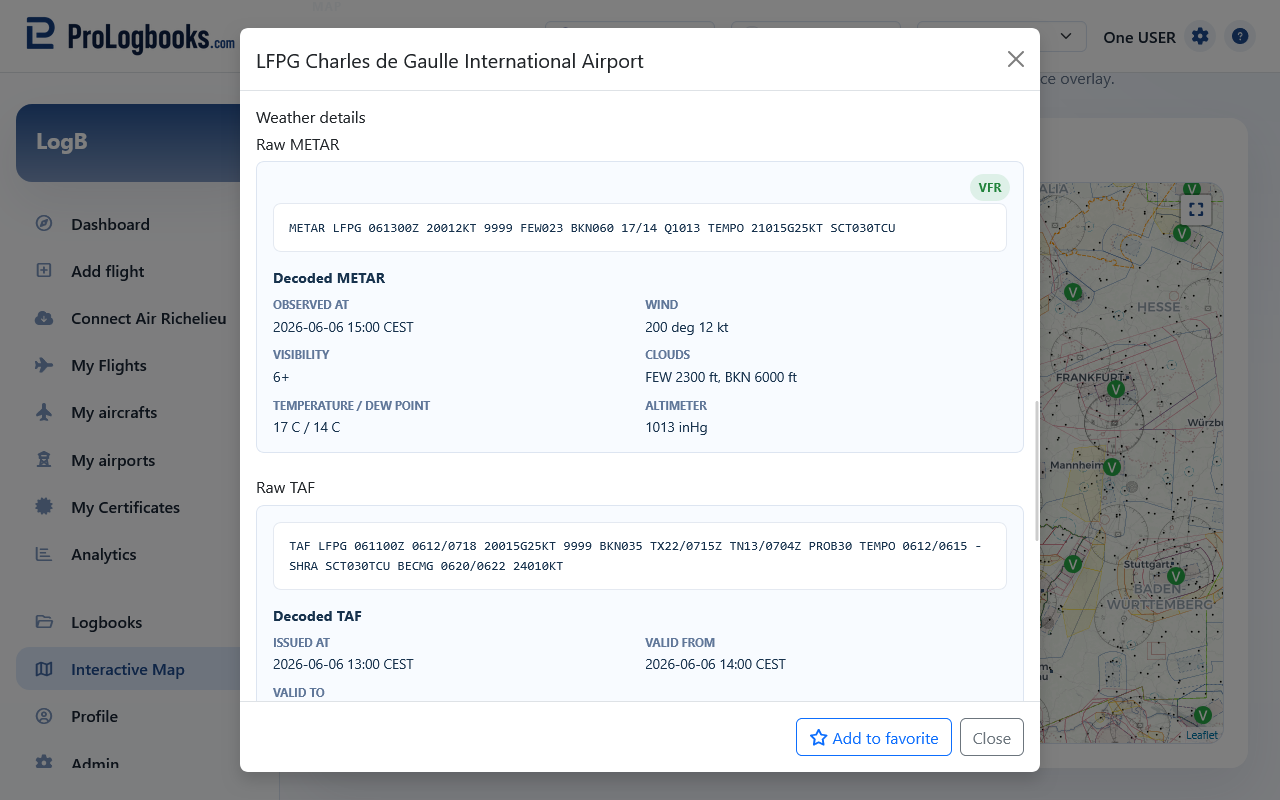
- Weather markers, previews, METAR, and TAF depend on external weather availability.
- Airspace overlays depend on the configured OpenAIP service and cached tiles.
- Airport details, weather, runway data, and frequencies are informational and should be verified before operational use.
Save favorite airports for quick access
When you open Airport details, use Add to favorite in the footer to keep that airport in your favorite airport row. Favorite airports appear above the map as compact airport-code badges, using the same clear code style as airport labels on the map.
Click a favorite airport badge to move the map back to that airport quickly. If an airport is already saved, the Airport details footer changes to Remove from favorite so you can remove it from the row without leaving the details dialog.
- Open Airport details from a search result, weather marker, visited-airport marker, or nearby-airport result.
- Use Add to favorite in the dialog footer.
- Use the airport-code badge above the map whenever you want to locate that airport again.
- Open the same Airport details again and use Remove from favorite when you no longer need the shortcut.
Understand how map data relates to your logbook
The map uses airport records stored in the application. Default airport records can include imported runway and frequency data, while custom airports may only show the fields you have saved for that airport.
If a flight route map or visited-airports map is missing a point, the related airport probably needs valid coordinates. Correct the airport record from My airports or choose a better matching airport in the flight record.
If something goes wrong
- If airport details do not open, the airport may not be found in the current airport data or the request may have expired; search again and reopen the details.
- If runways or frequencies are empty, no runway or frequency rows are stored for that airport yet.
- If weather markers do not appear, the external weather source may be unavailable or the current map area may not have matching stations.
- If airspaces do not appear, OpenAIP may not be configured for the local environment.