Keep your personal information current
The top part of the profile page contains your email address, name, date of birth, phone numbers, address, and signature area. Update these fields when your personal details change or when you want printed exports to carry newer information.
The signature canvas saves the signature directly to your profile. This is useful for documents or exports that rely on your saved signature instead of a manually uploaded image.
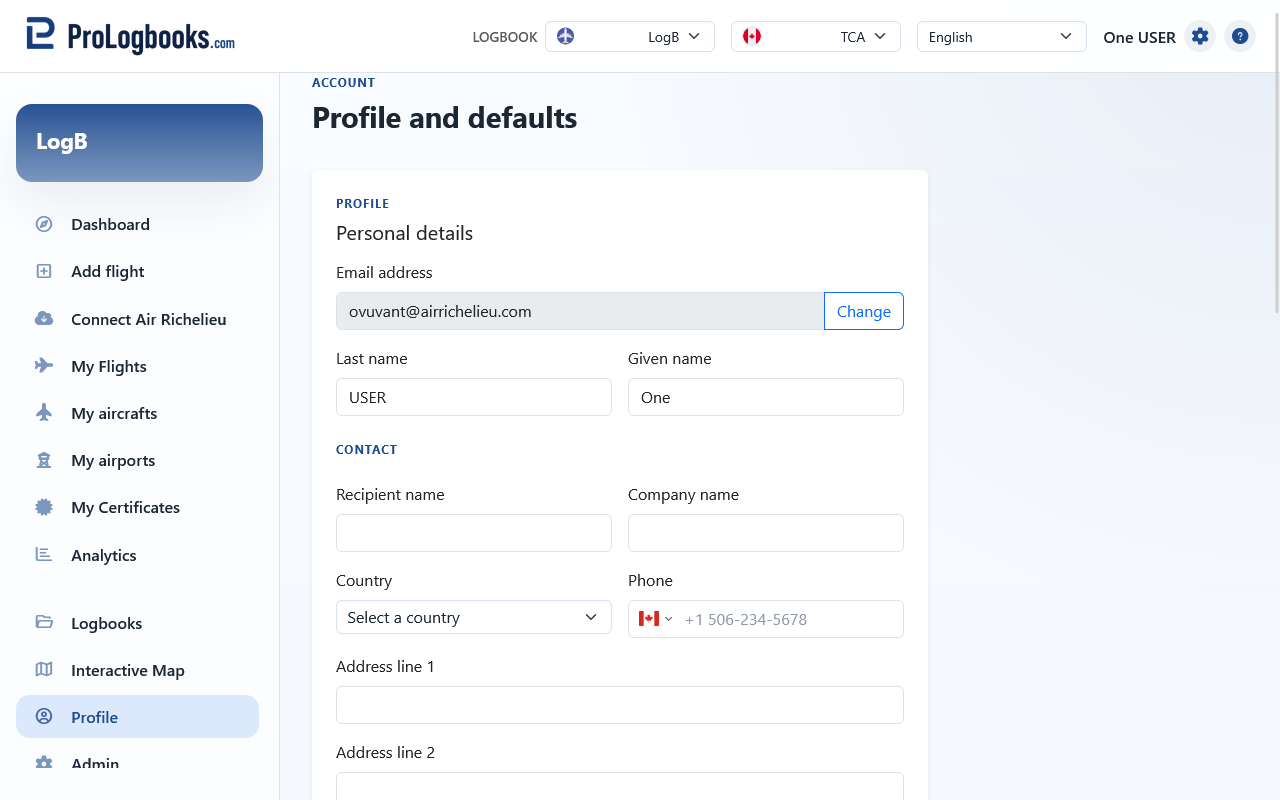
- Review your name, email address, and contact fields.
- Update any information that has changed.
- Redraw the signature if you want a newer saved signature for future documents.
- Save the profile before leaving the page.
Set the defaults you want the workspace to remember
The defaults section controls how the workspace behaves for your account. Use it to set the default UI language, visual mode, rows per page, and distance unit so the list views and detail pages open in the way you prefer most of the time.
These defaults do not rewrite existing flights. They only change how the interface behaves and how certain values are displayed when you open pages in the future.
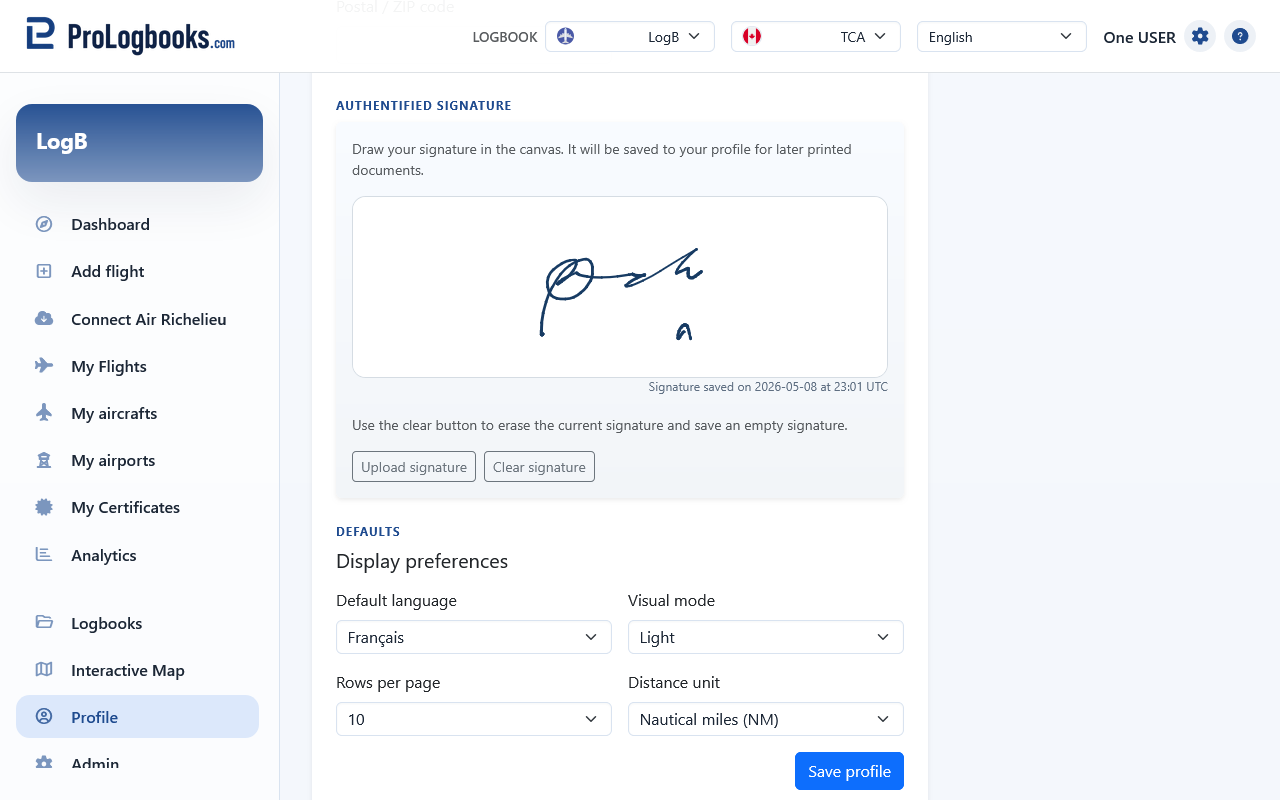
- Choose the default language you want the interface to use for your account.
- Set the visual mode and the rows-per-page preference you prefer.
- Choose the distance unit that best matches your normal workflow.
- Save the profile and refresh once if you want to confirm the new defaults immediately.
Use the authenticated signature
Authenticated signature is the profile signature feature used by printed logbook exports. When your plan includes it, the system can place your saved signature into supported PDF layouts and include a signature transfer reference so the export shows which stored signature was used.
Use it when you want official-looking logbook printouts to carry the same saved signature without drawing it again for every export. If the feature is not available on your current plan, the profile page shows an upgrade message instead of the signature canvas.
- Open the profile page and find the Authenticated signature section.
- Draw your signature on the canvas, or upload a signature image if that is easier on your device.
- Use Clear if you need to start over, then save the profile.
- Create a printed logbook or PDF export from a layout that includes the signature area.
Change the primary login email carefully
The email address shown at the top of the profile page is your current primary login email. Use the Change button beside it when you want to replace that address with a new one.
The dialog asks for the new email address and your current account password. After you submit it, the system sends a confirmation message to your old email address. The login email does not change immediately. It changes only after you open the confirmation link from the old address.
Once the confirmation is completed, the new email address becomes the one you must use for future sign-in. The system also sends a final confirmation message to the new address so you can verify that the switch is complete.
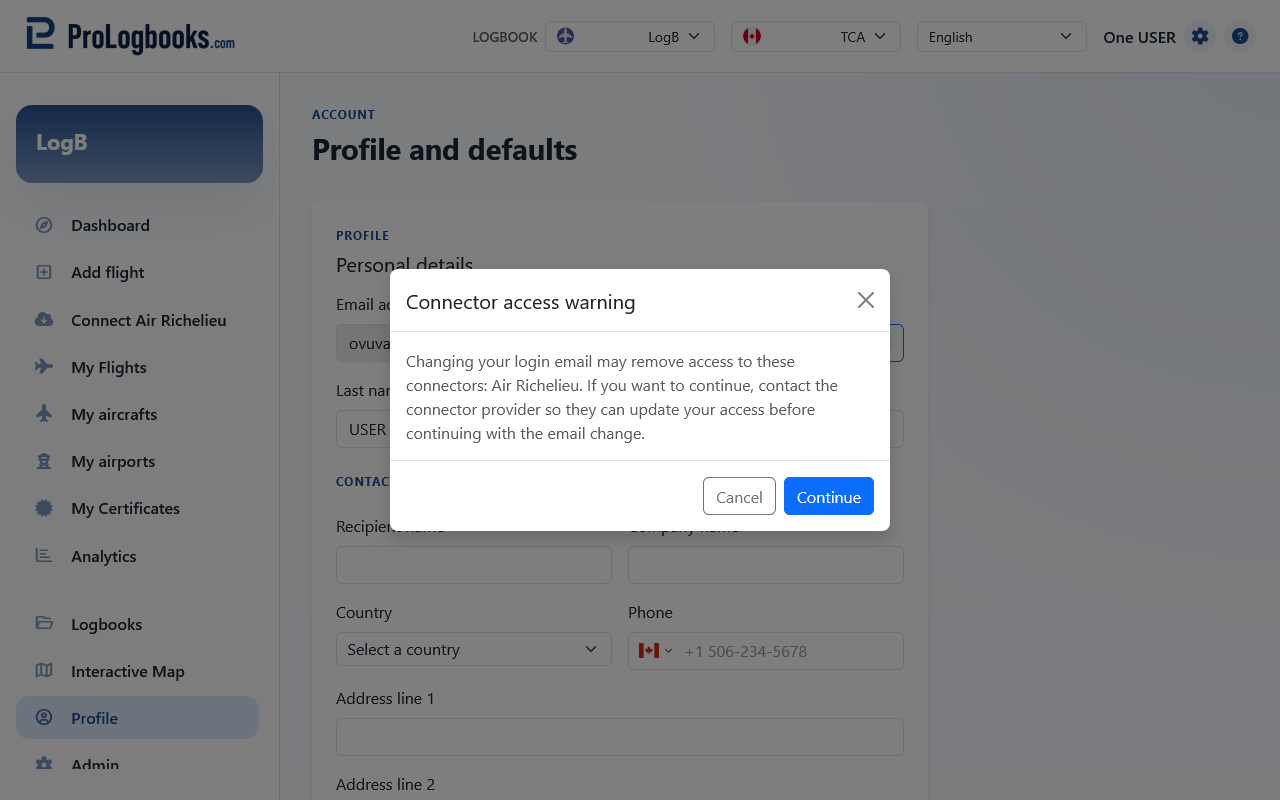
- Open the profile page and find the current email address near the top.
- Select Change and enter the new email address plus your current password.
- Submit the dialog and then open the confirmation email sent to your old address.
- Finish the confirmation from that message and then use the new email address for future sign-in.
If something goes wrong
- If a phone field stays invalid, use a complete number and country format that the page accepts.
- If the signature does not save as expected, clear it and draw it again before saving the profile.
- If you do not see the signature canvas, check whether your current plan includes authenticated signatures.
- If the email does not change after you submit the dialog, check the old email inbox first because the switch only happens after the confirmation link is opened.
- If the page says the new email already exists, use a different address because the primary login email must stay unique.
- If your visual mode or rows-per-page setting seems unchanged, save the profile and then refresh the page once.