Use the toolbar before you read the table
The toolbar at the top of the page shows the current number of entries and gives you the most useful controls first. Search opens the filter area, Clear filters resets the active filter state, and the rows-per-page selector changes how many records are visible at once.
The filter row appears directly under the column headings. Type in one or more filter boxes to narrow the table; the list refreshes automatically. Closing Search clears the filter boxes, and Clear filters also returns the table to the unfiltered result.
If your plan includes print and export, the export menu also appears in the top action group. Use it to open the PDF print dialog or start a CSV or Excel export from the current filtered and sorted result set.
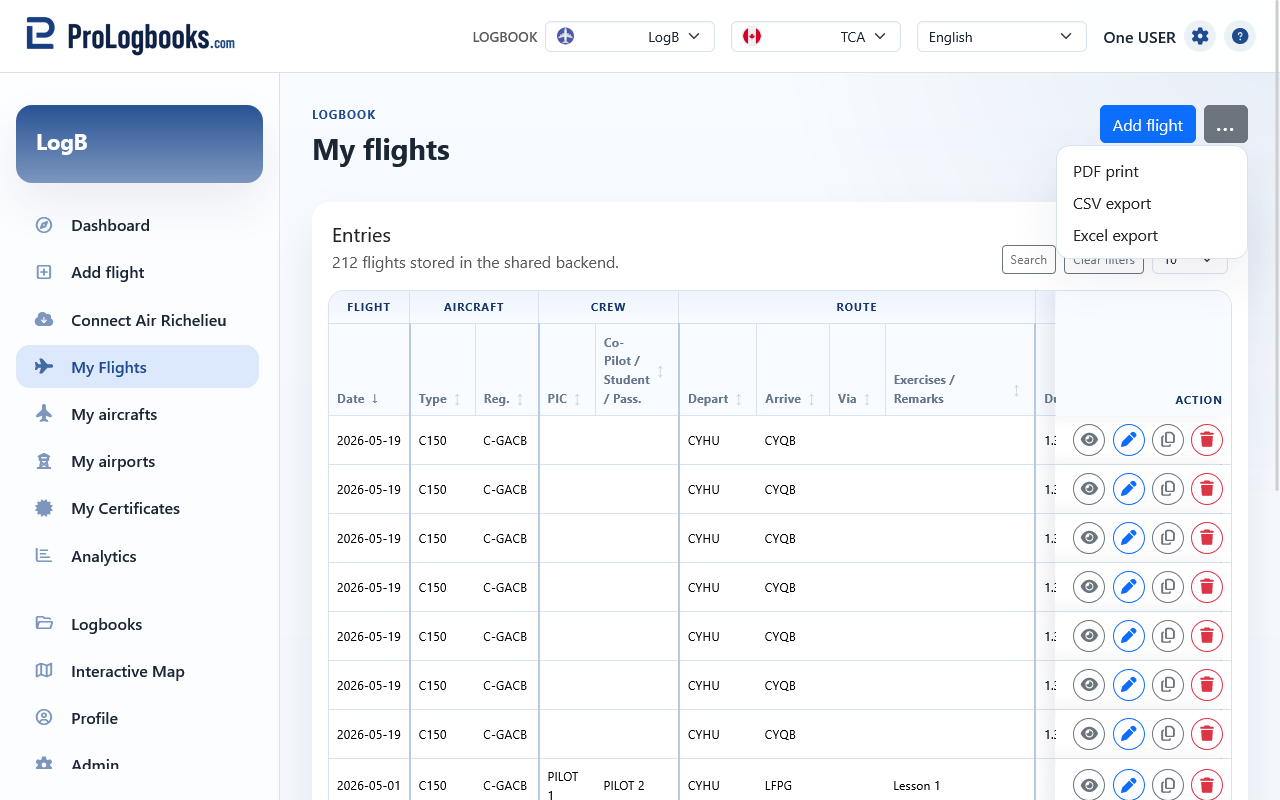
- Open Search when you need to narrow the list by date, aircraft, route, or other available criteria.
- Apply the filters you need and wait for the list to refresh.
- Use Clear filters if the result becomes confusing or unexpectedly empty.
- Change rows per page only when you want to read more or fewer lines at once.
- Use the export menu only after you confirm that the current filtered result is the one you want to print or export.
Read and use each row correctly
The table columns reflect the active regulatory view. The same stored flight can therefore appear with different columns when you change the view from the workspace selector.
Open a row when you want the full detail page. Use My Flights when you need speed, and the detail page when you need to verify route, map, rendering, or export options for one specific record. If a registration or airport does not exist yet, you usually create it from My aircrafts or My airports before returning here.
Each row also has an Actions button shown as an ellipsis. Use it when you want to work on that specific saved flight without changing the rest of the list.
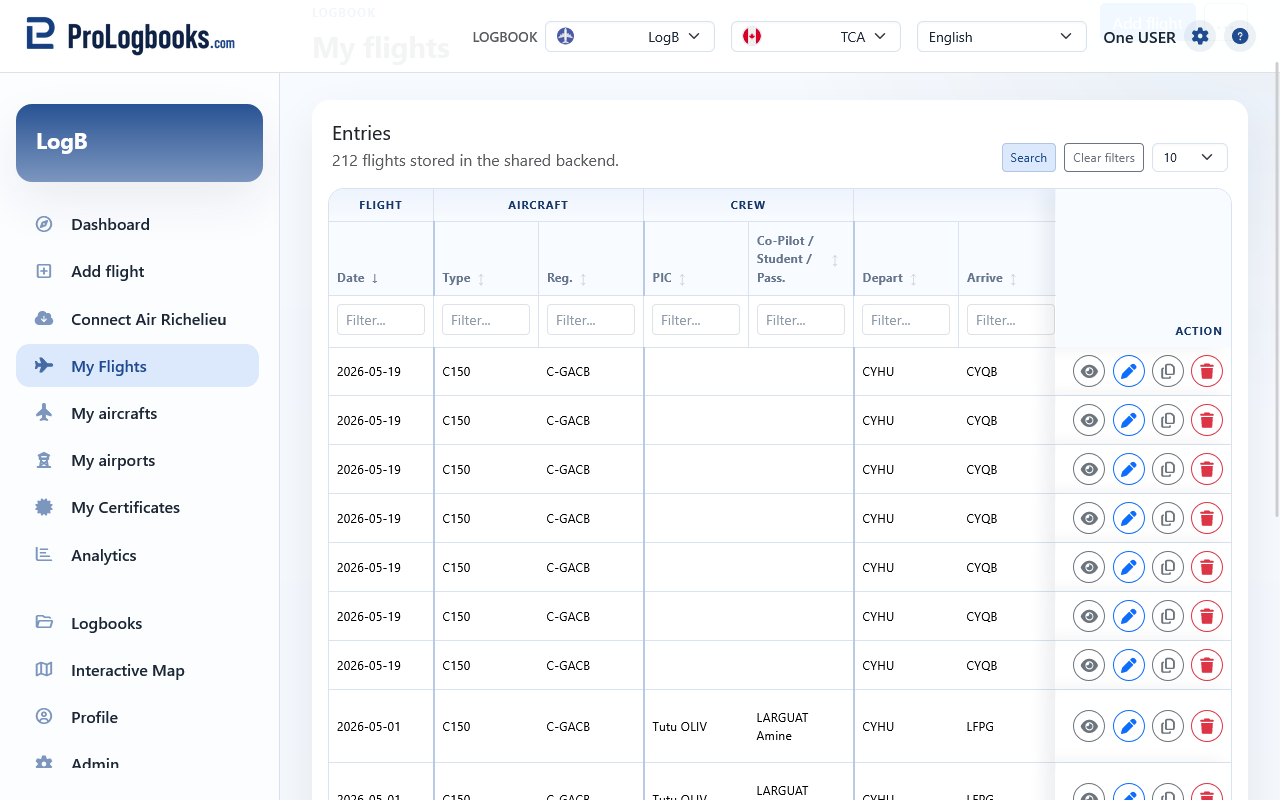
- Read the date, registration, route, and time columns on the current row.
- Use the row actions to open the full detail page when you need more context.
- Return to My Flights when you need to continue working through the full logbook quickly.
- If the current view seems unfamiliar, check the workspace view selector before assuming the flight itself is wrong.
- Changing rows per page does not delete or filter records. It only changes how many rows are shown on one page.
- Changing the regulatory view changes the display of the list, not the underlying stored flight.
Use Actions, sorting, and column order deliberately
The Actions button opens the row-level controls for that one flight. View opens the read-only flight detail page. Edit opens the saved flight form so you can correct the record. Duplicate creates a new saved flight from the same values, which is useful for repeated routes or similar entries. Delete removes the saved flight after a confirmation dialog, so use it only when the record should no longer be part of the logbook.
Column headings are sortable. Select a heading once to sort ascending, and select the same heading again to sort descending. Sorting changes the order of the displayed result and is remembered in this browser for the current view; it does not rewrite flight dates, times, or stored values.
Column order is separate from sorting. Where the column-order control is available, select a column and move it up or down to change the visual layout of the table. That order is saved in this browser for the current regulatory view and does not change the actual flight record.
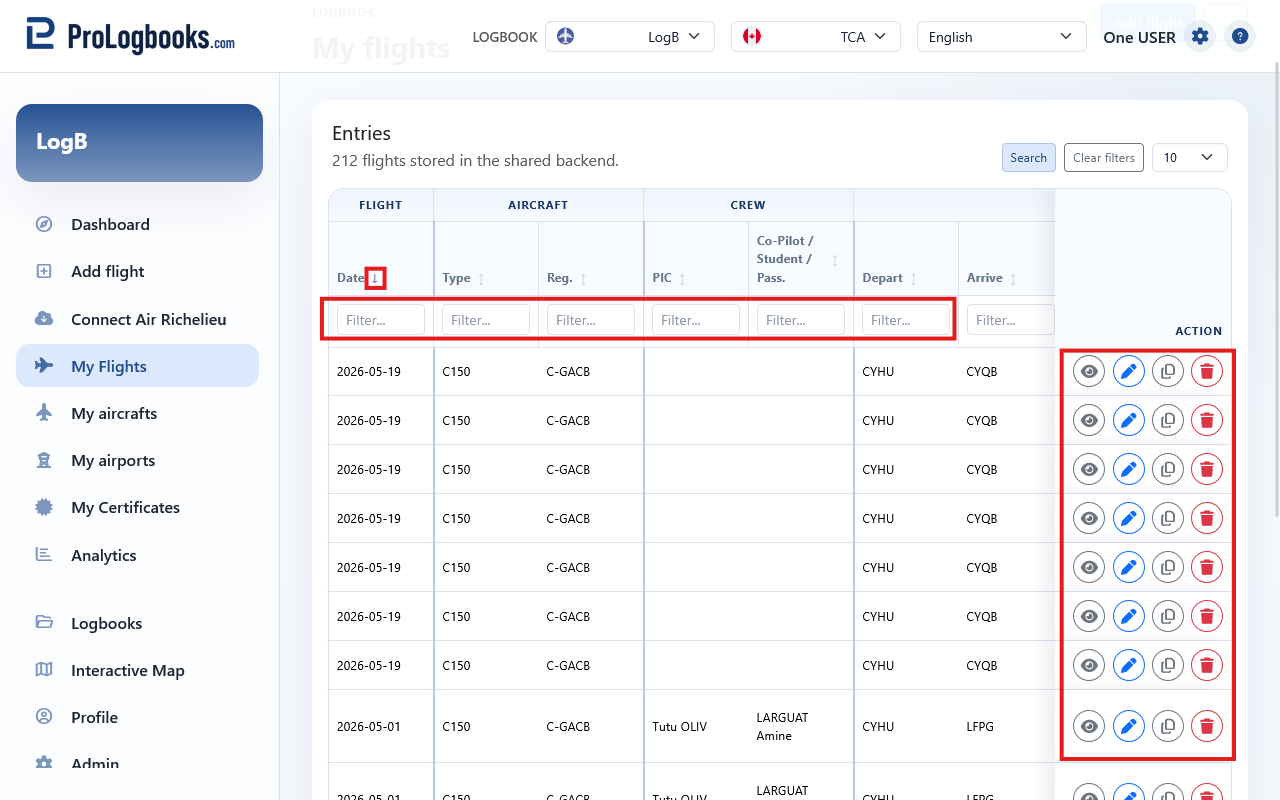
- Use Search first if you need to reduce the list before choosing a flight.
- Select a column heading when you want the result ordered by that value.
- Open the row Actions button for the exact flight you want to inspect or change.
- Use View for review, Edit for corrections, Duplicate for a similar new entry, and Delete only after confirming the record should be removed.
- Reset filters or change sorting if the visible result no longer matches what you expected.
Know when another page is the better tool
My Flights is the best place to locate and review saved entries, but it is not the best place to solve every data issue. When the problem is a missing registration, a missing airport, or a connector import conflict, move to the page that is designed for that task and then come back.
This usually saves time because the supporting pages include the fields and controls needed to correct the source data cleanly.
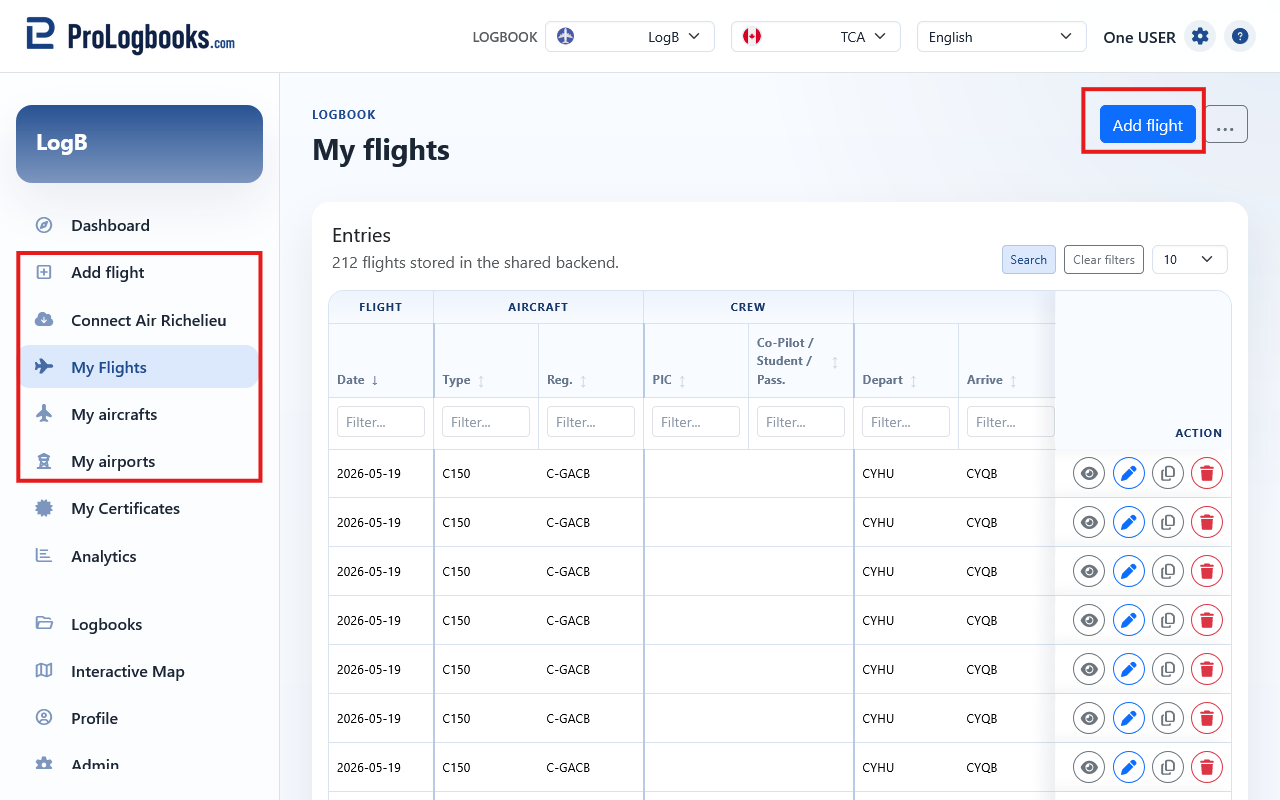
- Use Add flight when you need to create a brand-new record.
- Use My aircrafts when a registration is missing or needs correction.
- Use My airports when an airport is missing or its coordinates are wrong.
- Use Connect flights when the record still belongs to an import preview and is not yet part of the saved logbook.
If something goes wrong
- If the list suddenly looks empty, clear the filters before assuming the flights are gone.
- If a column sort seems wrong, remember that you may be sorting a formatted value such as date, time, route, or duration; clear filters and sort again from the column you need.
- If you cannot find the Actions buttons on a small screen, use the ellipsis button at the end of the row to expand the row actions.
- If the export menu is missing, your current plan may not include print and export access.
- If the wrong flights are showing, confirm that the correct logbook is selected in the workspace switcher.